1
3-095-408-11(1)
LocationFree Player
Setting and Usage Guide
for PSP® (PlayStation®Portable) System
For details about the LocationFree Base Station, please refer to the Operating Instructions
document supplied with the LocationFree Base Station.
PSP® system software version 2.80 or later is required for use with this product.
Always maintain your system to use the latest version of the system software.
© 2006 Sony Corporation
© 2006 Sony Computer Entertainment Inc.
Contents
What is LocationFree?........................................................................................... 3
What You can Do with the LocationFree Player................................................... 4
Getting Started .............................................................. 6
Setting Up to Connect to the Base Station ............................................................ 6
Preparations and Settings to Watch TV or Video Away from Home ................. 10
Watching TV or Video on
the LocationFree Player .......................................... 12
Displaying TV or Video on the PSP® System..................................................... 12
Using the Control Panel....................................................................................... 14
Operating with the PSP® System Buttons ........................................................... 18
Setting Up the LocationFree Player........................... 19
Adjusting Settings for Watching TV or Video .................................................... 19
Advanced Settings for the LocationFree Player .................................................. 24
Base Station Settings ........................................................................................... 25
Other............................................................................. 26
Trademarks .......................................................................................................... 26
z Tip
The screen shots used in this manual are only example images.
2
What is LocationFree?
What is LocationFree?
LocationFree allows you to watch TV programs or recorded video from any room in your home, or even
away from home. You can transmit video from your Base Station which is connected to a DVD recorder
(or other devices) to a device such as a personal computer, PSP® or LocationFree TV Box via a wireless
network or the Internet.
You can operate devices attached to your Base Station remotely from your PSP® by using an on-screen
remote control function.
Notebook
PC
TV
PSP
Home
3
On the go
What You can Do with the LocationFree Player
What You can Do with the LocationFree
Player
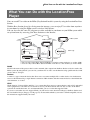
You can watch TV or video on the PSP® (PlayStation®Portable) system by using the LocationFree Base
Station.
With the Base Station placed in a living room for instance, you can enjoy TV or video from anywhere
in your home by using the PSP® system’s wireless LAN feature.
You can also view the same TV programs or video available in your home on your PSP® system while
away from home by accessing your Base Station over the Internet.
PSP® system
PSP® system
PSP® system
TV antenna **
On the go
*
DVD
Router
Base Station
Home
* You can only connect Base Station LF-B20 to a wireless router wirelessly (as of Oct. 2006).
** You can only connect Base Station LF-PK1 or LF-X11 to a TV antenna (as of Oct. 2006).
NetAV
NetAV is the name of the process that is used to transmit video output from the Base Station to devices such as the
PSP® system. By using NetAV, you can view your home TV or video over the Internet using a public wireless LAN
service such as a hotspot.
Routers
A router is a type of network device that allows users to connect multiple PCs or other devices for simultaneous
access to the Internet using a single Internet connection. DSL modems and other network devices often include the
same functions as a router.
UPnP
UPnP, short for "Universal Plug and Play", is a system that allows users to connect devices such as PCs and audio/
video equipment to each other via a network. To access your Base Station and view TV or video on the PSP®
system from outside the home, it is recommended that you use a router that supports UPnP.
If you use a router that does not support UPnP, you will need to enter advanced settings for the Base Station and
the LocationFree Player (1 page 24, 1 page 25). To determine whether your router is UPnP compatible, refer to
the instructions supplied with your router.
4
What You can Do with the LocationFree Player
z Tips
• You may not be able to watch some videos, DVDs,
or other media that are copyright protected with the
software.
• When the power is turned on, the Base Station
continuously emits a wireless signal.
• To use the NetAV function, we recommend a
broadband connection with upload and download
speeds of at least 300 kbps.
• NetAV cannot be used via a proxy server.
Notes
• PSP® system software version 2.80 or later is
required for use with this product.
• When using NetAV, the Base Station, router, and
modem at home need to be left on when you are
away from home so that you can connect to them via
the Internet.
• Use of the NetAV function for purposes other than
personal enjoyment is prohibited.
5
Getting Started
Setting Up to Connect to the Base Station
This section describes the setup for using NetAV to watch TV at home.
Preparing the Base Station
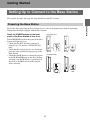
Press the POWER button on the front
panel of the Base Station to turn it on.
LF-PK1/LF-X11
The POWER LED on the front panel of the Base
Station will light up green.
• Check that the Base Station is connected
properly to a TV antenna. (LF-PK1/LF-X11
only)
• Check that the external devices are connected
properly to the audio/video input plugs of the
Base Station.
• Check that the IR Blaster is connected properly
to the IR BLASTER port on the Base Station,
and make sure the IR Blaster is positioned so
that it faces the IR Receiver of the external
device correctly.
POWER
LED
LF-B20/LF-B10
WIRELESS
WIRELESS
NETWORK
NETWORK
SETUP MODE/
NET AV
SETUP MODE/
NET AV
SETUP MODE
SETUP MODE
RESET
RESET
POWER
LED
6
Getting Started
For details about preparing the Base Station for use, refer to the Quick Start Guide or Operating
Instructions document supplied with the Base Station.
Checking the Connection between the Base Station and PSP®
System
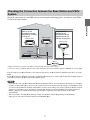
Check the connection of your PSP® system referencing the following figure, and register your PSP®
system to the Base Station.
PSP® system *
PSP® system
Complete Basic
Settings for the
LocationFree Player
(Registering via the
Internet) (1 page 22)
PSP® system
**
IR Blaster
Router
External devices
Router
Base Station
* When you intend to register your PSP® system through the router, refer to page 8.
** You can connect your Base Station to the router wirelessly only when your Base Station is LF-B20 (as of Oct. 2006).
You can connect your Base Station to a TV antenna only when your Base Station is LF-PK1 or LF-X11 (as of Oct.
2006).
If your Base Station is LF-B10, you need to connect the Base Station to a router with a LAN cable and then connect
your PSP® system to the Base Station through the router.
Notes
• If you intend to use your Base Station LF-B20 at the Client mode, be sure to make network settings of your PSP®
system to connect the PSP® system to your router. If you have not made network settings of your PSP® system
yet, refer to the instructions manual of the PSP® system to create settings. If you have already made the network
settings of your PSP® system, perform "Creating Basic Settings for the LocationFree Player (Registering at
Home)" (1 page 8), and then your PSP® system will be registered to the Base Station via the router
automatically.
• You can perform "Creating Basic Settings for the LocationFree Player (Registering via the Internet)"
(1 page 22) only when your Base Station is LF-B20/LF-B10.
7
Getting Started
Complete Basic
Settings for the
LocationFree Player
(Registering at Home)
(1 page 8)
Creating Basic Settings for
the LocationFree Player
(Registering at Home)
3
Select [Start], and then press the
button.
4
Press the SETUP MODE button on the
rear (LF-PK1/LF-X11) or front (LFB20/LF-B10) of the Base Station.
With the Base Station turned on, press and
hold the button until the SETUP MODE
LED starts to blink.
1
2
Getting Started
You can register your PSP® system with the Base
Station and set to connect to a wireless LAN.
When you connect your PSP® system to the Base
Station directly or via your router, set up
according to the following procedures.
Turn on the WLAN switch of the PSP®
system.
Select
under
from the home
menu, and then press the
button.
LF-PK1/LF-X11
LF-B20/LF-B10
SETUP MODE
WIRELESS
SETUP MODE
NETWORK
SETUP MODE/
NET AV
SETUP MODE
The setting screen for use of LocationFree
Player is displayed. Press the right button to
go to the next screen.
RESET
The SETUP MODE LED blinks.
LF-PK1/LF-X11
LF-B20/LF-B10
SETUP MODE/
NET AV
SETUP
MODE LED
z Tip
WIRELESS
NETWORK
SETUP MODE/
NET AV
SETUP MODE
SETUP
MODE/
NETAV LED
RESET
To re-register your PSP® system with the Base
Station or to register your system with another
Base Station, you must perform [Basic Settings]
again (1 page 21).
Wait while the PSP® system registers with
the Base Station and the network settings
required for establishing a connection are
completed. This is an automatic process.
8
Notes
6
A connection to the Base Station is
established.
7
5
Connect to the Base Station.
Select [LocationFree AP], and then press the
button.
Check the settings list.
Press the
button to finish the settings. A
network settings list is displayed.
The TV or video picture is displayed.
When a connection to the Base Station is
established, the TV picture (LF-PK1/LFX11) or the video picture (LF-B20/LF-B10)
is displayed.
For detailed usage instructions, refer to
"Watching TV or Video on the LocationFree
Player" (1 page 12).
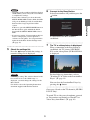
Note
If a message stating "The wireless channel of the
base station is set to the 5 GHz range" is
displayed, you must change the settings for the
Base Station.
For details, refer to the Operating Instructions
document supplied with the Base Station.
You can close the LocationFree Player by
pressing the
button.
Go to page 19 and set the TV channels (LF-PK1/
LF-X11 only).
To watch TV or video away from home, proceed
to "Preparations and Settings to Watch TV or
Video Away from Home" (1 page 10).
9
Getting Started
• Depending on the condition of the Base Station
and the PSP® system, it may take a few minutes
to complete the settings.
• If more than 5 minutes pass from when the
SETUP MODE LED started to blink, the LED
will go from blinking to fully lit and the Base
Station will no longer register the PSP®
system.
In this case, press the SETUP MODE button on
the Base Station again and hold the button
down until the SETUP MODE LED starts to
blink.
• If a message stating "You must update the base
station" is displayed, you must perform a
software version update. You can perform the
update from the Base Station Settings menu
(1 page 25).
Preparations and
Settings to Watch TV
or Video Away from
Home
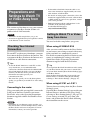
This section explains how to set up your network
to connect to your Base Station at home via
public wireless LAN networks.
Setting to Watch TV or Video
Away from Home
Notes
• You need to do this setup before you go out.
• A contract or application may be required to connect
to the Internet at some locations.
You need to do this setup before you go out.
When using LF-B20/LF-B10
Checking Your Internet
Connection
After you successfully connect the Base Station
to your router, your settings to watch video away
from your home are automatically created.
For details on connecting the Base Station to your
router, or confirming the settings, refer to the
Quick Start Guide or Operating Instructions
document supplied with the Base Station.
To watch TV or video away from home, you must
first connect the Base Station to the Internet. You
can connect the Base Station to the Internet over
a DSL line or cable Internet connection.
z Tips
• To use the NetAV function to watch TV or video
away from home, we recommend that the
connection to the Base Station be broadband with
upload and download speeds of at least 300 kbps.
Contact your Internet service provider for more
information about the speed of your
communications line.
• The faster line speeds you use, the better picture
quality you get when you watch TV or video using
NetAV.
z Tip
Connecting to the router
You need to create settings from the [Base Station
Settings] screen.
Open the [Base Station Settings] screen with your
Internet browser, and then select [Easy Setup],
referring to "Base Station Settings" (1 page 25).
Create settings to watch TV away from your
home, and perform the NetAV check following
the instructions on the screen.
You can perform the NetAV check that tests the setting
of your Base Station and your router to watch video
away from home from the [Base Station Settings] page
on the Base Station.
Open the [Base Station Settings] screen with your
Internet browser, and then select [NetAV Check],
referring to "Base Station Settings" (1 page 25).
When using LF-PK1 or LF-X11
Using a network cable (not supplied), connect the
LAN port of the Base Station to your router.
For details, refer to the Operating Instructions
document supplied with the LocationFree Base
Station.
Notes
• Depending on your Internet service provider, you
may not be able to connect multiple devices, such as
the Base Station and several computers. For more
information, contact your service provider.
10
Getting Started
• To determine what kind of network cable to use,
refer to the instructions supplied with your router,
cable modem, or DSL modem.
• For details on setting up the connection, refer to the
instructions supplied with your router, cable modem,
or DSL modem. If you have any questions, contact
your service provider.
• Further information about configurations is also
available on the following website.
LocationFreeTV FAQ pages:
sony.com/locationfree/faq/
If NetAV Check is Incomplete
Read the instructions on the NetAV Check screen
and configure the necessary settings.
Getting Started
To complete the NetAV check without modifying
the advanced settings such as the port forwarding
setting for the router, the router must be UPnP
(Universal Plug & Play) compatible and the
UPnP function of the router must be enabled.
Refer to the instructions supplied with your
router and confirm the settings.
If your router is not UPnP compatible, you prefer
not to use the UPnP function of the router, or if
you tried to use the UPnP function but the setup
was unsuccessful, port forwarding needs to be set
on the router.
The settings for port forwarding may vary
depending on the router in use. For details, refer
to the instructions supplied with your router.
z Tips
• Port forwarding is a function that allows network
communications with your router to be forwarded
directly to your network device (such as a PC or a
PSP® system). It may also be called "Port Mapping",
"Address Change" or other names. To connect to the
LocationFree Base Station from outside your home
using port forwarding, you must adjust the settings
for the router to allow the data connection received
by the router over the Internet to get through to the
Base Station port (initial setting: 5024 (LF-B20/LFB10), 5021 (LF-PK1/LF-X11)).
• It is necessary to set the Base Station’s IP address to
activate the port forwarding setting on the router. For
details, refer to the instructions supplied with your
router and the Operating Instructions document
supplied with the Base Station.
• Some UPnP-compatible routers are only compatible
with specific messenger services and games. For
such a router, set port forwarding.
11
Watching TV or Video on the LocationFree Player
Displaying TV or Video on the PSP® System
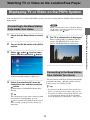
You can display TV or video on the PSP® system’s screen by starting the LocationFree Player from the
home menu.
Note
Connecting to the Base Station
from Inside Your Home
Check that the Base Station is turned
on.
2
Turn on the WLAN switch of the PSP®
system.
3
Select
under
from the home
menu, and then press the
button.
5
Connecting to the Base Station
from Outside Your Home
A list of network settings is displayed.
4
The TV or video picture is displayed.
When a connection is established, the TV
picture (LF-PK1/LF-X11) or the video
picture (LF-B20/LF-B10) is displayed.
You can connect to the Base Station from outside
your home by using a hotspot (public wireless
LAN service) or a similar service.
Select [LocationFree AP] from the
connections list, and then press the
button.
A connection is established with the Base
Station.
z Tips
• To connect to the Base Station from outside your
home, you must first create settings (1 page 10).
• To register your PSP® system via the Internet, refer
to "Creating Basic Settings for the LocationFree
Player (Registering via the Internet)" (1 page 22).
z Tip
You can change the name of the connection. With
[LocationFree AP] highlighted, press the
button, and then select [Edit] from the options
menu. Usually, you do not need to change any
other items.
12
Watching TV or Video on the LocationFree Player
1
When you intend to connect to the Base Station
via the router, select the connection you created,
and then press the
button.
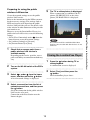
Preparing for using the public
wireless LAN service
5
1
2
Note
No connection will be established if the Base
Station, router, modem and other devices are not
turned on.
Check that an access point from a
public wireless LAN service is
available nearby.
Depending on the service provider, access
point availability or connection method may
vary.
Closing the LocationFree Player
1
Press the
button during TV or
video playback.
A confirmation screen is displayed.
2
Select [Yes], and then press the
button.
The LocationFree player closes.
Turn on the WLAN switch of the PSP®
system.
3
Select
under
from the home
menu, and then press the
button.
A list of network settings is displayed.
4
Select a connection from the list of
network connections, and then press
the
button.
Select the connection for the public wireless
LAN service to be used.
Connection to the Base Station over the
Internet begins.
13
Watching TV or Video on the LocationFree Player
Create the network settings to use the public
wireless LAN service.
Refer to the instructions for the PSP® system to
do the necessary settings. The settings such as
SSID and security will depend on the public
wireless LAN provider you use. For details, refer
to the website or other documents of the provider
you intend to use.
However, to use the LocationFree Player via a
public wireless LAN service, create the following
settings.
• Select [New Connection] under
from the
home menu to create the network settings.
• Set [Address Settings] to [Custom].
• Set [Internet Browser] to [Start].
The TV or video picture is displayed.
When a connection is established, the TV
picture (LF-PK1/LF-X11) or the video
picture (LF-B20/LF-B10) is displayed.
Using the Control Panel
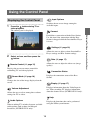
Displaying the Control Panel
1
Input Options
Switches the on-screen image among the
available inputs.
Press the
button during TV or
video playback.
The control panel is displayed.
Connect
Settings (1 page 19)
Allows the user to adjust various LocationFree
Player settings and Base Station settings.
2
Select an icon, and then press the
button.
Rate (1 page 17)
Allows the user to adjust the video rate (image
quality).
Remote Control (1 page 15)
Displays the on-screen remote control for
controlling TV and video playback.
Connection Status
Displays the connection status of the Base
Station.
Screen Mode (1 page 16)
Changes the size of the image displayed on the
screen.
Display (1 page 17)
Displays information about the Video Input in
use. When watching TV, displays information
about the channel in use (LF-PK1/LF-X11 only).
Volume Adjustment
Allows the user to select among three volume
settings for TV or video.
Help
Audio Options
Displays the functions that can be performed
using the PSP® system buttons.
When watching TV, switches between available
audio options such as those for bilingual
broadcasts (LF-PK1/LF-X11 only).
14
Watching TV or Video on the LocationFree Player
Establishes a connection with the Base Station.
Use this icon if the connection with the Base
Station is dropped while the LocationFree Player
is in use.
Using a standard TV remote control
(LF-PK1/LF-X11 only)
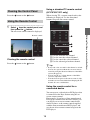
Clearing the Control Panel
Press the
button or the
button.
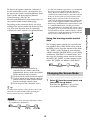
When viewing TV, a remote control such as the
following is displayed. Use the directional
buttons to operate the remote control.
Using the Remote Control
1
Select
from the control panel, and
then press the
button.
The on-screen remote control is displayed.
1 Used to select the TV channel.
2 Used to enter the selected channel.
3 Used to cancel the selected channel.
4 Used to advance/go back one channel.
Clearing the remote control
Press the
button or the
button.
z Tips
• It may take a few seconds for the channel to switch.
• You can also operate without the on-screen remote
control by using the directional buttons of the PSP®
system (1 page 18).
• You can use the +/– volume buttons of the PSP®
system to adjust the volume.
• To make faster response to the remote control, video
and audio are fast-forwarded when changing the TV
channel. It is not a malfunction.
Using the remote control for a
connected device
You can operate a video deck or DVD player that
is connected to the Base Station using the onscreen remote control.
For example, if you have a Sony-manufactured
DVD player connected to the Base Station, you
can display an on-screen remote control with
similar features as the remote control supplied
with the Sony-manufactured DVD player, and
use the on-screen remote control to operate the
DVD player.
15
Watching TV or Video on the LocationFree Player
Remote control
• Use the same method of operation as you would with
the remote control supplied with the connected
device. However, buttons for features that are not
available in the connected device cannot be used even
if they are shown on the on-screen remote control.
• Button names as shown on the on-screen remote
control may be different from the names shown on the
remote control supplied with the connected device.
• When using a multifunctional connected device such
as a combined Hard Disk/- or DVD player/video
deck, if the function controlled by the remote control
(see figure 1) is not set correctly the remote control
will not function after the connected device is turned
on. In this case, switch the function controlled by the
remote control to the function in use.
To display the remote control for a connected
device on the PSP® system, you must first save
the data for the remote control on Memory Stick
Duo™ media and then complete [Remote
Control Settings] (1 page 20).
For more information on remote control data, see
sony.com/locationfree/ownerslounge/psp
Depending on the connected device, the usage
method of the remote control for the device may
vary. The main functions that are commonly
available on remote controls are explained below.
The learning remote control data created by the
LocationFree Player LFA-PC20 can be used on
the PSP® system. Open the shortcut of the folder
"RC_DATA" on the desktop of your computer
which is installed with LFA-PC20, create a folder
on Memory Stick Duo™ as shown below, and
then copy the learning remote control data from
the folder "RC_DATA" of your computer to the
folder "RC_DATA" on Memory Stick Duo™.
MSSONY
1 Used to switch the function to be
controlled by the remote control for
multifunction devices such as hard disk/
DVD combined video recorders.
2 Used to turn the connected device on/off.
3 Used to switch among control panels for
connected devices with remote controls
that have multiple control panels.
4 Used to operate the connected device.
LF
RC_DATA
Changing the Screen Mode
1
z Tip
To make faster response to the remote control, video
and audio are fast-forwarded when operating the
remote control. It is not a malfunction.
Notes
• Save remote control data in the following location
on your Memory Stick Duo™:
16
Select
from the control panel, and
then press the
button.
Each time the
button is pressed, the
Screen Mode will change as follows:
Watching TV or Video on the LocationFree Player
Using the learning remote control
data
Type
z Tip
Description
Zoom
The image is shown at full screen
size without changing proportions,
while cutting off the top and bottom
areas.
Full Screen
The image is shown in the full screen
size by changing proportions and
zooming in horizontally and
vertically.
Original
The image is shown in the original
size.
Normal
The image is adjusted to fit the PSP®
system’s screen size.
Depending on the selected rate, the network
connection may drop during the cutover to the
new rate.
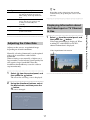
Displaying Information about
the Video Input or TV Channel
in Use
Adjusting the Video Rate
Adjusts so that you see an optimized image
depending on network conditions.
Video input/channel information
Normally, selecting [Automatic] sets the optimal
video rate in accordance with available
bandwidth.
When selecting a rate manually, a higher rate (a
larger number) results in better picture quality but
also requires larger bandwidth. Note that
insufficient bandwidth may cause the video to
stop intermittently.
1
Select
from the control panel, and
then press the
button.
The screen for selecting a rate is displayed.
2
Using the directional buttons, select
the desired rate, and then press the
button.
The rate is changed.
Select
from the control panel, and
then press the
button.
Video input information is displayed. When
watching TV with LF-PK1 or LF-X11,
channel information is displayed.
17
Watching TV or Video on the LocationFree Player
1
Operating with the PSP® System Buttons
You can operate without using the control panel by using the PSP® system buttons.
System button
Function
button
Displays the control panel (1 page 14)
button
Displays the on-screen remote control (1 page 15)
Switches among available video input options
L button / R button
Changes the panel that is displayed for remote controls that have more than one
panel (1 page 15)
up button / down button
Changes the channel that is displayed (only when watching TV with LF-PK1/LFX11)
HOME button
Displays the home menu while displaying the image in the background
18
Watching TV or Video on the LocationFree Player
Select button
Setting Up the LocationFree Player
2 Select the channel for antenna output
from the external tuner.
3 Select the manufacturer of the connected
device.
4 Select the type of the connected device.
5 If the configuration above is correct, each
time you select [Power], you can turn
your device on or off.
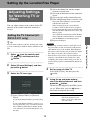
Adjusting Settings
for Watching TV or
Video
After selecting [Power], it may take five
seconds or more for the device to respond.
If you cannot turn the power on and off, make
sure that the make and model are correct, and
then try again.
Also, check the connection between the Base
Station and the connected device, and make
sure the IR Blaster is installed properly.
You can adjust settings such as those for the TV
channel or the remote control for connected
devices.
Setting the TV Channel (LFPK1/LF-X11 only)
6 Proceed to Step 6.
z Tip
1
Select
from the control panel
(1 page 14), and then press the
button.
2
Select [Channel Settings], and then
press the
button.
3
• When using a remote control to watch TV, even if
the power turns on and off correctly with [Power],
other buttons may not be enabled. If this happens,
the remote control settings may be incorrect. Adjust
the settings to use the correct remote control.
• Some devices may not have a [Power] button (for
example, some DVRs do not). In this case, after
completing the remote control settings, use the onscreen remote control to confirm that the buttons are
enabled.
4
Set for usage of cable TV.
Select [Off] or [On], and then press the
button.
5
Using the up and down buttons,
select the desired channel, and then
press the
button.
Channels to be skipped by the PSP® system
are set. When done, press the
button a
final time to complete the setting.
Select the TV tuner type.
Item
1 Select [Internal Tuner] or [External
Tuner].
Channel
If you select [Internal Tuner], proceed to Step
4.
If you select [External Tuner], you may see a
message that asks you to save remote control
data to Memory Stick Duo™ media. In this
case, follow the on-screen instructions to save
the data.
19
Description
Displays the number of the
channel as displayed on the
PSP® system screen. This item
cannot be edited.
Setting Up the LocationFree Player
Notes
You can make settings for the TV channel only when
you are connecting to the Base Station LF-PK1 or LFX11.
Skip
If you select [Yes], the channel
will not be displayed on the
PSP® system when changing
channels with the PSP®
system’s directional buttons or
the +/– buttons on the remote
control.
4
Select [Video 1] or [Video 2] for the
connected device you want to use the
remote control for, and then press the
button.
When you have completed making settings
for all channels, press the right button.
6
Save your settings.
Press the
button to save the channel
information you entered on the PSP®
system.
z Tips
You can adjust settings for the on-screen remote
control that will be used to operate devices such
as video decks or DVD players that are connected
to the Base Station.
5
To adjust these settings, you must first save
remote control data on Memory Stick Duo™
media (1 page 15).
Select the manufacturer of the
connected device, and then press the
right button.
For information on connecting the IR blaster or
other devices, refer to the Operating Instructions
document of the Base Station.
1
Check that you have inserted Memory
Stick Duo™ media that contains
remote control data in the PSP®
system.
z Tip
2
Select
from the LocationFree
Player control panel (1 page 14), and
then press the
button.
To select the remote control data learned by LFAPC20, copy the remote control data following the
instructions on "Using the learning remote
control data" (1 page 16), and then select
[custom remote] as the manufacturer.
3
Select [Remote Control Settings], and
then press the
button.
The setting screen for the remote control is
displayed.
20
Setting Up the LocationFree Player
• Under [Version Information], you can check
the version number of the remote control data
that is saved on the Memory Stick Duo™.
• You can set only one remote control each for
[Video 1] and [Video 2] in the PSP® system.
You cannot however set multiple remote
controls for either setting.
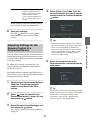
Adjusting Settings for the
Remote Control of a
Connected Device
6
Notes
Select the product type of the
connected device, and then press the
right button.
• If you press the button several times but are not
able to turn the power on and off, press the left
button to return to the previous screen and
check that the manufacturer and product type
selections are correct.
• To perform the remote control test, the PSP®
system and Base Station must have an active
connection between them.
z Tips
z Tip
The number shown following the product type,
for example the "(1)" in "DVD Recorder (1)",
indicates the remote control’s mode. Select one of
the remote control modes and if the remote
control does not operate properly, try using the
other remote control modes. For details on the
remote control’s mode, refer to the instructions
supplied with the device in use.
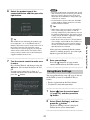
7
After you have confirmed that the remote
control is working properly, press the right
button to go to the next screen.
8
Test the remote control to make sure
it works.
By selecting [Power] and then pressing the
button, you can turn the device on and
off.
In some cases it may take as long as 5
seconds for the device to turn on after you
press the
button.
Save your settings.
Press the
button to save the remote
control information to the PSP® system.
Using Basic Settings
You can perform basic setup (1 page 8) for use
of the PSP® system’s LocationFree Player
feature.
• Device registration on the Base Station
• Creation of a network connection
21
1
Select
from the control panel
(1 page 14), and then press the
button.
2
Select [Basic Settings], and then
press the
button.
The Basic Settings screen is displayed.
Follow the on-screen instructions.
Setting Up the LocationFree Player
• When using a remote control to watch TV or
video, even if the power turns on and off
correctly with [Power], other buttons may not
be enabled. If this happens, the remote control
settings may be incorrect. Adjust the settings to
use the correct remote control.
• Some devices may not have a [Power] button
(for example, some DVRs do not). In this case,
after completing the remote control settings,
use the on-screen remote control to confirm
that the buttons are enabled.
When you perform registration via the Internet,
create the settings with the following procedures.
4
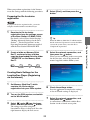
Select [Start], and then press the
button.
Preparing the file for device
registration
Note
To prepare the device registration file, you need a
computer installed with LocationFree Player.
1
z Tip
When the Memory Stick Duo™ which contains
the file for device registration is set into the PSP®
system, the system always uses the file to
complete the registration.
Create a folder on Memory Stick
Duo™ as shown below, and then
copy the downloaded file to the folder
"REGISTER" on the Memory Stick
Duo™.
MSSONY
LF
5
Select the network connection, and
then press the
button.
When you are connecting to the access point
for the first time, refer to the instruction
manual supplied with the PSP® system.
6
Check the settings status.
Press the
button to complete the settings.
A list of network settings is displayed.
7
Select the network connection, and
then press the
button.
A connection is established with the Base
Station via the selected access point.
REGISTER
Creating Basic Settings for the
LocationFree Player (Registering
via the Internet)
1
2
3
Set Memory Stick Duo™ which
contains the file for device
registration into your PSP® system.
Turn on the PSP® system, and switch
on the WLAN switch.
Select
under
from the home
menu, and then press the
button.
The settings screen for using the
LocationFree Player is displayed. Press the
right button to display the next screen.
22
Setting Up the LocationFree Player
2
Download a file for device
registration from the settings screen
of the Base Station LF-B20/LF-B10.
For details, refer to"Base Station Settings" "Making Advanced Settings for the Base
Station" - "Device Registration" on the
Operating Instructions document supplied
with the Base Station LF-B20/LF-B10.
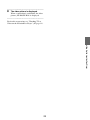
8
The video picture is displayed.
When a connection is established, the video
picture (LF-B20/LF-B10) is displayed.
For details on operation, see "Watching TV or
Video on the LocationFree Player" (1 page 12).
Setting Up the LocationFree Player
23
Item
Advanced Settings
for the
LocationFree Player
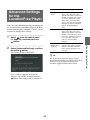
You can set the domain name and port number for
use in connecting your PSP® system to the Base
Station from outside your home. Usually, you do
not need to change these settings.
1
Domain
Name
Sets the domain name for use
when connecting to the Base
Station from outside your home
through a network device such
as a router. Adjust the setting
when using a Dynamic DNS
service other than the Dynamic
DNS pre-registered on the Base
Station. (LF-PK1/LF-X11
only)
Port Number
Sets the port number for use
when connecting to the Base
Station from outside your home
through a network device such
as a router. Adjust the setting as
necessary when using the
router’s port forwarding
function.
Overwrite
During [Basic
Settings]
If selected, settings for the
domain name and port number
will be overwritten when the
basic settings (1 page 8) are
activated.
Select
from the control panel
(1 page 14), and then press the
button.
Select [Advanced Settings], and then
press the
button.
The settings screen is displayed.
z Tip
For details on changing the settings for the
Dynamic DNS and the port number for the Base
Station, refer to the Operating Instructions
document supplied with the Base Station.
Once you have adjusted all necessary
settings, select [OK], and then press the
button. The settings will be completed.
24
Setting Up the LocationFree Player
2
Description
3
Base Station
Settings
Select [Settings], and then press the
button.
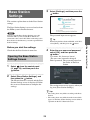
This section explains how to do the Base Station
settings.
The Base Station Setting is accessed and set from
the PSP® system's Internet browser.
Note
You can open the Base Station Settings page only
when the PSP® system and the Base Station are
connected to the same LAN. When connecting to the
Base Station via the Internet, you cannot open the Base
Station Settings.
The password input screen appears.
z Tip
Before you start the settings
4
Check that the Base Station is turned on.
Opening the Base Station
Settings Screen
1
Select
from the control panel
(1 page 14), and then press the
button.
2
Select [Base Station Settings], and
then press the
button.
The Internet browser is started and the Base
Station Settings screen is displayed. Follow
the on-screen instructions to complete the
settings.
Enter the user name and password,
select [OK], and then press the
button.
User name: lfx (lowercase letters)
(The user name cannot be changed)
Initial password: The password printed on
the sticker of the Base
Station
The settings menu screen appears when you
log in to [Base Station Settings].
z Tips
• The setting items may differ according to the Base
Station.
• The setting items may differ from the items which
appear on the Base Station Settings screen which is
opened from the PC's Internet browser.
25
Setting Up the LocationFree Player
When using the Base Station LF-PK1 or LF-X11,
select [Enter], and then press the
button.
Other
Trademarks
• "LocationFree" and "Memory Stick Duo" are trademarks or registered trademarks of Sony
Corporation.
• " ", "PlayStation" and "
" are registered trademarks of Sony Computer Entertainment Inc.
• All other company names and product names mentioned here may be the trademarks or registered
trademarks of their respective companies. The symbols for ™ and ® for some products are omitted in
these instructions.
Other
26
LocationFree Customer Support
1-866-925-SONY (7669) - U.S.
1-239-768-7688 - International
9:00 a.m. - 9:00 p.m. EST, Mon.-Fri. (English Only)
LocationFree Web sites
<U.S.>
sony.com/locationfree/
For questions about the PSP® (PlayStation®Portable) system, contact SCEA Consumer Services:
www.us.playstation.com/psp
1-800-345-7669
6:00 a.m. - 8:00 p.m. PST, Mon.-Sat.; 7:00 a.m. - 6:30 p.m. PST, Sun