1
6
Notes
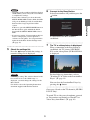
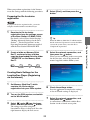
Select the product type of the
connected device, and then press the
right button.
• If you press the button several times but are not
able to turn the power on and off, press the left
button to return to the previous screen and
check that the manufacturer and product type
selections are correct.
• To perform the remote control test, the PSP®
system and Base Station must have an active
connection between them.
z Tips
z Tip
The number shown following the product type,
for example the "(1)" in "DVD Recorder (1)",
indicates the remote control’s mode. Select one of
the remote control modes and if the remote
control does not operate properly, try using the
other remote control modes. For details on the
remote control’s mode, refer to the instructions
supplied with the device in use.
7
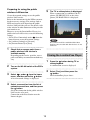
After you have confirmed that the remote
control is working properly, press the right
button to go to the next screen.
8
Test the remote control to make sure
it works.
By selecting [Power] and then pressing the
button, you can turn the device on and
off.
In some cases it may take as long as 5
seconds for the device to turn on after you
press the
button.
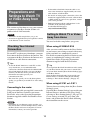
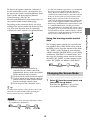
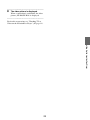
Save your settings.
Press the
button to save the remote
control information to the PSP® system.
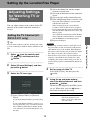
Using Basic Settings
You can perform basic setup (1 page 8) for use
of the PSP® system’s LocationFree Player
feature.
• Device registration on the Base Station
• Creation of a network connection
21
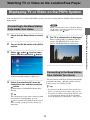
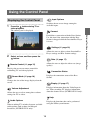
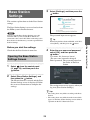
1
Select
from the control panel
(1 page 14), and then press the
button.
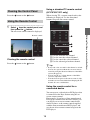
2
Select [Basic Settings], and then
press the
button.
The Basic Settings screen is displayed.
Follow the on-screen instructions.
Setting Up the LocationFree Player
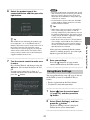
• When using a remote control to watch TV or
video, even if the power turns on and off
correctly with [Power], other buttons may not
be enabled. If this happens, the remote control
settings may be incorrect. Adjust the settings to
use the correct remote control.
• Some devices may not have a [Power] button
(for example, some DVRs do not). In this case,
after completing the remote control settings,
use the on-screen remote control to confirm
that the buttons are enabled.