1
Operation
EL
IM
IN
A
R
Y
Sharpness: “Sharpness” is the amount of high-frequency detail in the image. To adjust
sharpness, select Sharpness from the Picture menu and press ENTER or SELECT. On
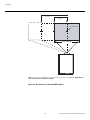
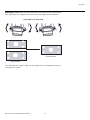
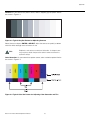
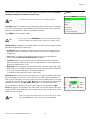
your external test pattern source, select a pattern like the one shown in Figure 4-5. Adjust
as needed, looking for white edges around the transitions from black to gray and
differently-sized lines in the “sweep” patterns at the top and bottom. Lower the sharpness
setting to eliminate them.
Figure 4-5. Typical Test Pattern for Adjusting Sharpness
Note
PR
Use the controls in the Input Position Menu to fine-tune the aspect ratio and image
position for the current source.
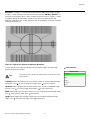
Input Position
Input Position
The input position settings are automatically saved for each input
and resolution.
Left/Right
Up/Down
Width
Height
Left/Right: Select Left/Right from the Input Position menu to shift the projected image
horizontally. Press
to shift the image to the right; press
to shift it to the left.
Up/Down: Select Up/Down from the Input Position menu to shift the projected image
vertically. Press
to shift the image upward; press
to shift it downward.
Width: Select Width from the Input Position menu to change the projected image width.
Press
to increase the width; press
to decrease it.
Height: Select Height from the Input Position menu to change the projected image
height. Press
to increase the height; press
to decrease it.
Runco VX-22d Installation/Operation Manual
55
Overscan
Phase