1
About MIDI
MIDI stands for Musical Instrument Digital Interface,
and is a world-wide standard for exchanging various
types of musical data between electronic musical
instruments and computers. When MIDI cables are
used to connect two or more MIDI devices,
performance data can be exchanged between the
devices, even if they were made by different
manufacturers.
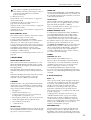
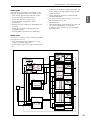
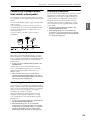
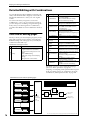
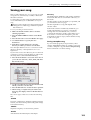
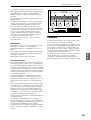
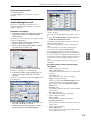
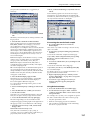
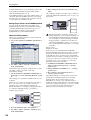
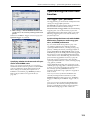
Controlling an external MIDI tone
generator from M3
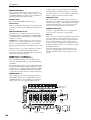
If you want to use the M3’s keyboard, pads and other
controllers, sequencer, and KARMA function to play or
control an external MIDI sound module, use a MIDI
cable to connect the M3’s MIDI OUT connector to the
MIDI IN connector of your external MIDI sound
module.
MIDI OUT
MIDI IN
M3
MIDI keyboard
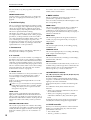
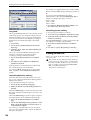
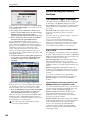
You can connect a USB 2.0 compatible hard disk drive
or other USB storage device to the M3’s USB A
connector, and use it to save or load M3 data such as
PCG or SNG files or WAVE files.
If you connect a USB CD-R/RW drive, you’ll be able to
make an audio CD from songs you created on the M3
(and converted to WAV files).
Setup
By connecting the M3’s MIDI connectors to an external
MIDI device you can transfer sound settings and
performance data such as note messages between your
external MIDI device and the M3.
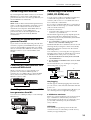
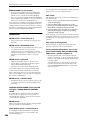
Connecting a USB device
(HDD, CD-R/RW, etc.)
To make the connections:
• Connect the M3’s USB A connector to the USB
connector of your USB device.
Sampling Sequencer Combination Program
Connecting MIDI devices
Introduction Quick Start
Connections Connecting MIDI devices
The maximum supported capacity depends upon the
format of the USB device. With FAT16 format, the
maximum capacity is 4 GB; with FAT32, the maximum
is 2 Terabytes (2,000 GB).
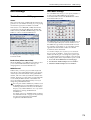
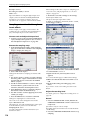
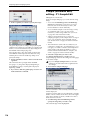
1. Use a USB cable to connect your external USB
device to one of the M3’s USB A ports.
Standard USB cables have a different connector at each
end. Plug the flat, rectangular connector into the M3,
and plug the square-ish connector into the external
USB storage device.
Note: If the device you are using does not support hotplugging, make connections with the device poweredoff, and then turn on the power of your device.
2. Execute the Media mode Utility menu command
“Scan USB Device.”
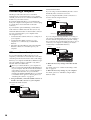
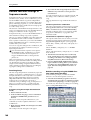
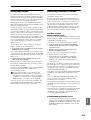
Controlling M3’s tone generator from
an external MIDI device
Global
3. Use the Media mode Media Select screen to check
the connection.
For more information, see “Loading & saving data,
and creating CDs” on page 139.
CD-R/RW,
hard disk,
removable disk, etc.
Type A
USB hub
USB cable
Type B
Effect
Type B
Media
M3
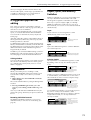
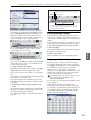
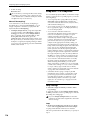
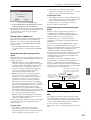
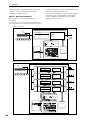
When you wish to play or control the M3’s tone
generator from an external MIDI keyboard or
sequencer etc., use a MIDI cable to connect the MIDI
OUT connector of the external MIDI device to the
MIDI IN connector of M3.
Type A
Hot-plugging
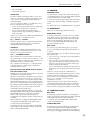
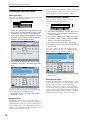
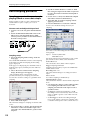
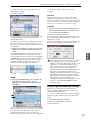
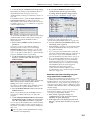
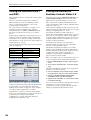
Controlling two or more external MIDI
tone generators from M3
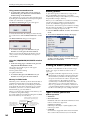
You can also use a MIDI patch bay to control multiple
MIDI devices.
MIDI OUT
KARMA
Note: In order to use hot-plugging, the USB device you
are connecting must also support hot-plugging.
8 USB devices maximum
M3 has two separate USB 2.0 A ports, and can support
up to 8 USB devices simultaneously. Note that it
doesn’t matter how the devices are connected; even if
you use hubs or different ports, the maximum is
always 8 devices.
M3
USB Power
MIDI IN
MIDI IN
The M3 supports USB hot-plugging. This means that
you can connect or disconnect the USB cable while the
power is on.
Drum Track
MIDI keyboard
Other
MIDI OUT
M3
MIDI OUT
MIDI patch bay MIDI OUT
MIDI IN
Appendices
MIDI IN
MIDI keyboard
Some USB devices get their power from the USB
connection. These are called “bus-powered” devices,
and they are supported by M3.
MIDI tone generator
33