1
84 Configuring Symantec Mail Security for Microsoft Exchange
Securing your network
performance may be affected. At lower levels of protection, the possibility that
an unknown virus may escape detection increases, but the trade-off for system
performance decreases.
Symantec Bloodhound heuristics technology copies a suspicious executable file
into its own virtual computer. It then runs the file, probing for and assessing
suspicious behavior, such as whether the file has replicated itself a number of
times in a specified period of time. Because the problem file runs within a
separate virtual computer that replicates the operating system environment,
the potentially infected file cannot harm other files on the computer. Based on
occurrences of suspect behaviors, the heuristic scanner assigns a score to the
problem file, which indicates the probability of infection.
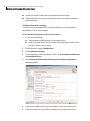
To configure Bloodhound scanning options
1
Do one of the following:
■
Open Symantec Mail Security for the single server.
■
In the Symantec Mail Security for Microsoft Exchange console, in the
left pane, select a server group.
2
In the left pane, expand Configuration.
3
Click General Settings.
4
Under Bloodhound Detection, select a level of protection.
5
Click Save.
Maximizing bandwidth for scanning
To ensure that your network has adequate bandwidth for scanning, Symantec
Mail Security lets you set the number of VSAPI scanning threads and the
number of scan processes. The default is configured using the following
formula: (number of processors) x 2 + 1. You should accept the default, unless
you have a compelling reason to do otherwise.
To configure scanning threads and number of scan processes
1
Do one of the following:
■
Open Symantec Mail Security for the single server.
■
In the Symantec Mail Security for Microsoft Exchange console, in the
left pane, select a server group.
2
In the left pane, expand Configuration.
3
Click General Settings.