1
SETTING UP YOUR GOLDTOUCH ADJUSTABLE KEYBOARD
Connecting Your Keyboard via PS/2
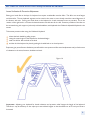
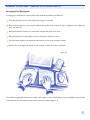
Round 6-pin PS/2 Port. Important: Always turn off your computer before connecting or disconnecting your keyboard.
Turn off your computer and all attached devices
Locate the Round 6-pin PS/2 keyboard port
Disconnect and remove any keyboard now attached to the computer.
Attach the keyboard connector to the PS/2 keyboard port on your computer. Care needs to be taken as the
orientation of the connector is important. The connector pins on a PS/2 port can be easily damaged.
Restart the computer.
Connecting Your Keyboard via USB
Shut down your computer.
How are you set up? Determine which applies to you:
Laptop with a Docking Station:
If you are using a laptop through a Docking Station, please be sure to connect the keyboard directly into an available USB
port on the computer itself the first time. Once you have followed the instructions below, you can connect the keyboard
through the Docking Station for use.
Multiple computers via KVM switch:
If you are connecting two or more computers through a KVM switch, be sure to install the keyboard onto each computer
that will be used before connecting it to the KVM switch. A KVM switch will not allow the drivers to install automatically;
therefore it is necessary to connect the keyboard directly into each computer for proper installation the first time. Be sure
that your KVM switch is for USB devices, not PS/2.
Desktop or Laptop with limited USB input ports:
Determine the number of available USB ports on your computer. You may want to add a USB Hub or port expander to
accommodate multiple devices like mice, printers, keyboards, numeric keypads, PDA’s, etc.
3