1
Advanced operations
English
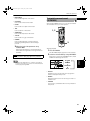
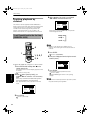
Playing from a specific
position on a disc
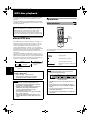
You can play a disc from the selected track, title or
chapter, or from the specified time.
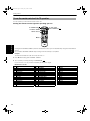
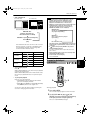
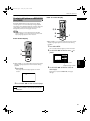
To locate a desired scene from the DVD
menu
DVD discs generally have their own menus which show
the disc contents. These menus contain various items
such as titles of a movie, names of songs, or artist
information, and display them on the TV screen. You can
locate a desired scene by using the menu.
TV
DISC
SELECT
TV2
3
TV5
TV6
4
5
6
TV7
TV8
TV9
7
8
9
TV -/--
TV0
MUTING
10
0
+10
VFP
ANGLE SUBTITLE AUDIO
S.FREQ
DIGEST
7
3
STROB
E
8
¡
CH+
VOL
+
5
ENTER
NU
∞
CHS
ON
CRE
REPEAT
2
3D
TV/VIDEO
PHONIC CANCEL RETURN
TV1
EN
DVD
STANDBY/ON
TV
DVD
DISC
SELECT
ME
5
5
TV
SLOW+
1
E
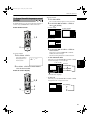
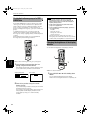
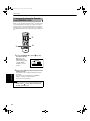
To locate a desired scene from the menu
of the Video CD with PBC
NEXT
SELECT
SLOW
OIC
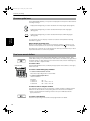
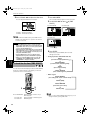
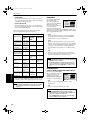
The disc does not have a menu.
• The MENU button does not work while stopped.
¢
4
CLEAR
PROGRESSIVE
SCAN
- ZOOM +
PAGE
S
PREVIOU
CH
• When
appears on the TV screen by pressing MENU
in step 1:
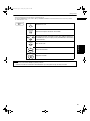
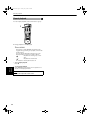
Some Video CD discs supports the PBC function. PBC is
an abbreviation of “PlayBack Control.” A Video CD disc
recorded with PBC has its own menus, such as a list of
the songs of the disc. You can locate a specific scene by
using the menu.
TV3
2
TV4
VOL
-
The disc does not have a menu listing the titles or
groups.
STANDBY/ON
TV
DVD
1
P
TO NU
ME
• When
appears on the TV screen by pressing TOP
MENU in step 1:
3D
TV/VIDEO
PHONIC CANCEL RETURN
TV1
1
NOTES
TV2
TV3
1
2
3
TV4
TV5
TV6
4
5
6
TV7
TV8
TV9
8
9
TV0
MUTING
10
0
+10
VFP
ANGLE SUBTITLE AUDIO
REMOTE CONTROL
S.FREQ
DIGEST
NEXT
¢
4
1
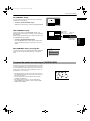
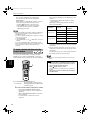
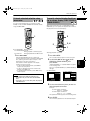
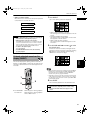
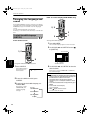
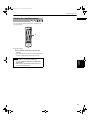
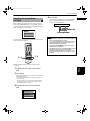
1 Press TOP MENU or MENU.
CLEAR
7
SELECT
3
SLOW
STROB
E
8
SLOW+
¡
1
P
T O NU
ME
PROGRESSIVE
SCAN
- ZOOM +
PAGE
S
PREVIOU
¶ Whenever a DVD disc is loaded
2
7
TV -/--
CH+
ME
5
The menu appears on the TV screen.
ENTER
NU
VOL
+
5
5
VOL
-
Advanced
operations
REPEAT
DVD
• With some discs, you can also select items by entering the
corresponding number using the numeric buttons, which
may cause the unit to automatically start playback.
∞
CH
OIC
CHE
ON
SCR
EEN
REMOTE CONTROL
About menu
Normally, a DVD VIDEO disc
Example:
which contains more than
one title may have a “title”
menu which lists the titles.
Similarly, a DVD AUDIO disc
which contains more than
one group may have a “top”
menu which lists the groups.
In such a case, the menu
appears on the TV screen by
pressing the TOP MENU button. Some DVD discs may also have
a different menu which appears by pressing the MENU button.
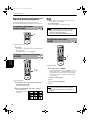
¶ When a Video CD disc with PBC is stopped
1 Press 3.
A disc menu
appears on the TV
screen (The PBC
function is
activated).
Example:
See the instructions of each DVD disc for its particular menu.
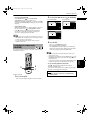
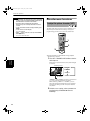
2 Use CURSOR 5/∞/2/3 to select a desired
item, then press ENTER.
The unit starts playback of the selected item.
“PBC” is indicated in the display window on the
front panel.
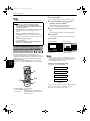
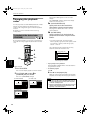
2 Use the numeric buttons to select the desired
item.
• See page 14 for details about how to use the
numeric buttons.
33