1
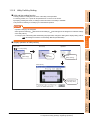
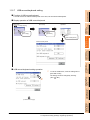
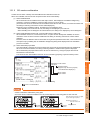
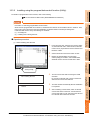
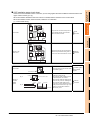
(3) Copy operation
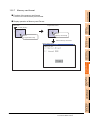
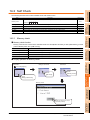
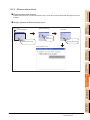
Uploads the project data written in the C drive (Flash Memory) to the A drive (Built-in SD card)/E drive (USB
drive).
• Copying to another directory in the same drive
• Copying between A drive and E drive
Copy to/from C drive or copy to C drive/D drive is disabled.
(This item explains using the A drive.)
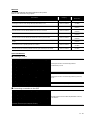
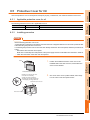
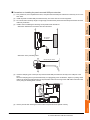
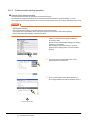
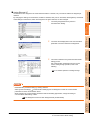
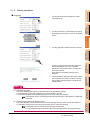
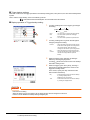
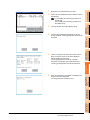
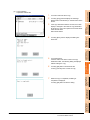
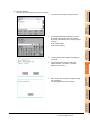
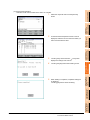
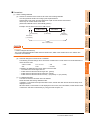
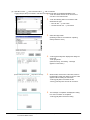
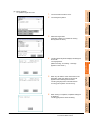
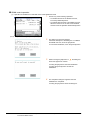
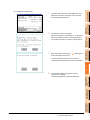
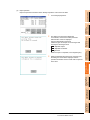
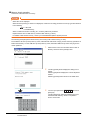
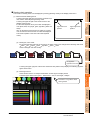
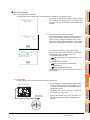
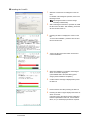
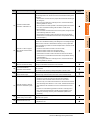
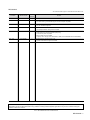
1.
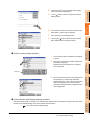
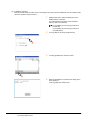
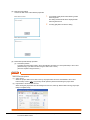
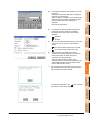
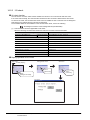
Install SD card in the PC, in which create a folder for
the copy destination.
Set the same character with [System Setting] of
[System Environment] of GT Designer3 for the folder
name.
GT Designer3 Version1 Screen Design Manual
(Fundamentals)
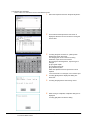
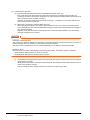
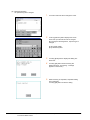
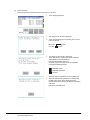
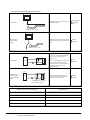
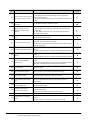
2.
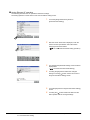
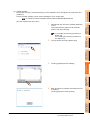
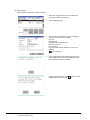
Install the SD card mentioned above to GOT.
For inserting/removing method of SD card/USB
memory, refer to the following.
8.1.2 Installing and removing procedures of
the SD card
8.2.2 Installing and removing procedures of
the USB memory
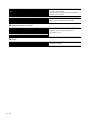
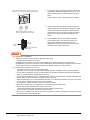
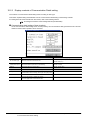
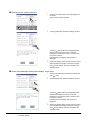
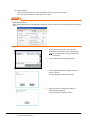
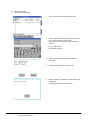
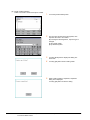
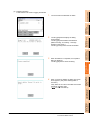
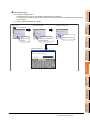
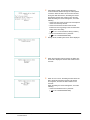
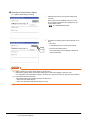
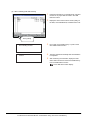
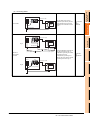
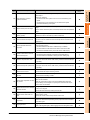
3.
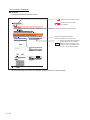
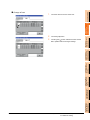
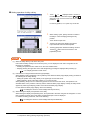
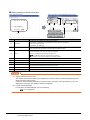
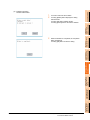
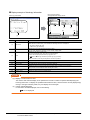
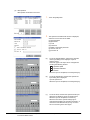
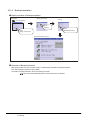
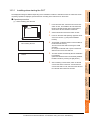
Dialog for selecting a copy destination folder
4.
5.
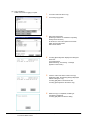
6.
13 - 20
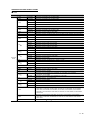
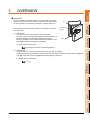
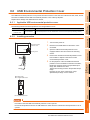
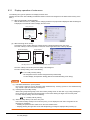
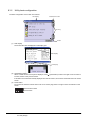
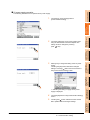
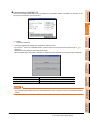
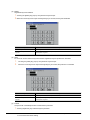
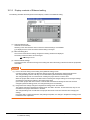
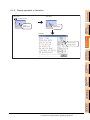
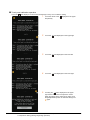
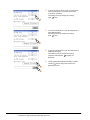
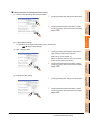
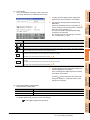
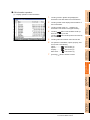
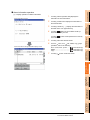
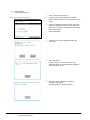
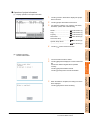
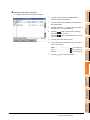
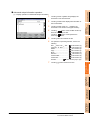
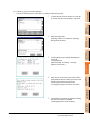
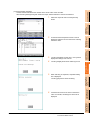
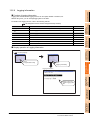
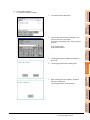
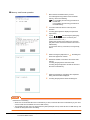
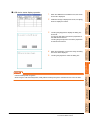
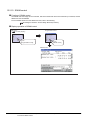
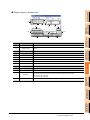
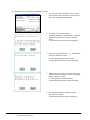
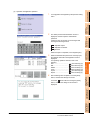
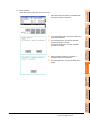
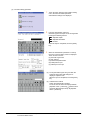
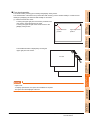
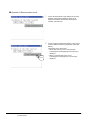
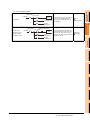
Open [Project Information] screen to select the file to
copy.
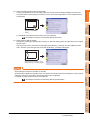
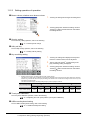
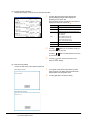
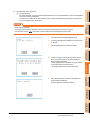
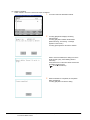
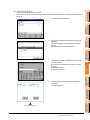
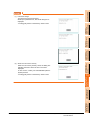
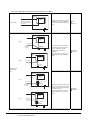
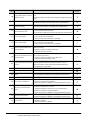
Touching [Copy] button displays the message
[Please select a destination.] in the left bottom of the
screen.
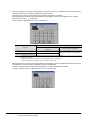
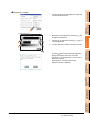
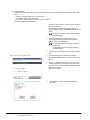
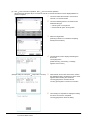
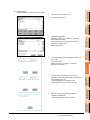
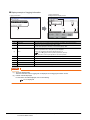
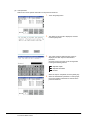
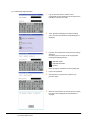
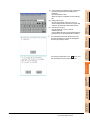
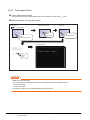
If the copy destination folder is touched, the screen
display is changed to the folder of copy destination.
At this time, it cannot be copied into the same folder
where the file exists.
Select other folders.
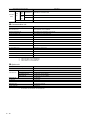
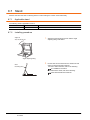
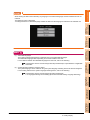
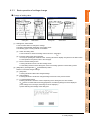
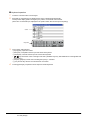
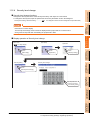
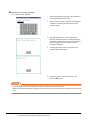
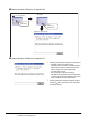
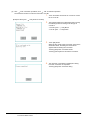
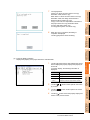
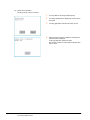
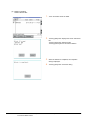
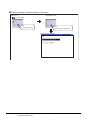
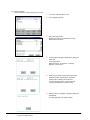
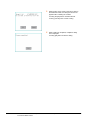
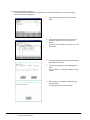
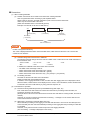
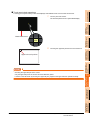
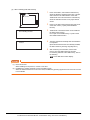
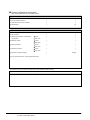
Touching [Exec.] button displays the dialog box
shown left.
13. FILE DISPLAY AND COPY (PROGRAM/DATA CONTROL)
13.2 Various Data Control