1
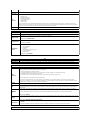
Option
Description
Use the check box to enable/disable multi core support for the CPU.
Multi Core
Support
Default setting: Enabled Multi Core Support checked
This option allows you to optimize your HDD's performance and acoustic noise level based on your personal preferences. Settings are
Bypass, Quiet, and Performance.
HDD Acoustic
Mode
Default setting: Bypass
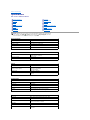
Power Management
Option
Description
Use the check box to enable/disable the ability for USB devices to wake the system from Standby.
USB Wake
Support
This feature is only functional when the AC power adapter is connected. If the AC power adapter is removed during Standby, the BIOS will
remove power from all of the USB ports to conserve battery power.
This field allows the computer to power up from the off state when triggered by a special LAN signal or from the Hibernate state when
triggered by a special wireless LAN signal. Wake-up from the Standby state is unaffected by this setting and must be enabled in the operating
system.
Wake on
LAN
l
l
Disabled — Do not allow the system to power on when it receives a wake-up signal from the LAN or wireless LAN.
LAN Only — Allow the system to be powered on by special LAN signals.
Default setting: Disabled
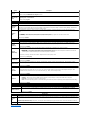
POST Behavior
Option
Description
Use the check box to enable/disable the BIOS warning messages when you use certain power adapters. The BIOS displays these
messages if you attempt to use a power adapter that has too little capacity for your configuration.
Adapter
Warnings
Default setting: Enabled
This option lets you choose one of two methods to enable the keypad that is embedded in the internal keyboard.
l
l
Keypad
(Embedded)
Fn Key Only — The keypad is only enabled when you hold down the <Fn> key.
By Num Lk — The keypad is enabled when (1) the Num Lock LED is on and (2) no external keyboard is attached. Note that the
system might not notice immediately when an external keyboard is detached.
When Setup is running, this field has no effect—Setup works in the Fn Key Only mode.
Default setting: Fn Key Only
Use the check box to enable/disable the Num Lock LED when the system boots.
Numlock LED
Default setting: Enabled
USB Emulation
This option defines how the BIOS, in the absence of a USB–aware operating system, handles USB devices. USB emulation is always
enabled during POST. Use the check box to enable/disable this feature.
Default setting: Enabled
This field lets you use the <Scroll Lock> key on an external PS/2 keyboard the same way you use the <Fn> key on the computer's internal
keyboard. Use the check box to enable/disable this feature.
Fn Key
Emulation
USB keyboards cannot emulate the <Fn> key if you are running an ACPI operating system such as Microsoft® Windows® XP. USB
keyboards will only emulate the <Fn> key in non-ACPI mode (e.g., when you are running in DOS).
Default setting: Enabled
This field can speed up the boot process by bypassing some compatibility steps.
l
Fast Boot
l
l
Minimal — Boot quickly unless the BIOS has been updated, memory changed, or the previous POST did not complete.
Thorough — Do not skip any steps in the boot process.
Auto — Allow the operating system to control this setting (this works only when the operating system supports Simple Boot Flag).
Default setting: Minimal
Wireless
Option
Wireless Devices
Description
Use the check boxes to enable/disable any available wireless devices. The available options are Internal WLAN and Internal
Bluetooth.
Default setting: Enabled
Maintenance
Option
Service
Tag
Asset Tag
Description
This field displays your system's Service Tag. If for some reason the Service Tag was not already set, you would be able to use this field to set
it.
If a Service Tag has not been set for this system, the computer will automatically bring up this screen when users enter the BIOS. You will be
prompted to enter the Service Tag.
This field allows you to create a system Asset Tag. The field can only be updated if the Asset Tag is not already set.
Back to Contents Page