1
 Improving faxed images
There are several settings that allow you to improve the quality of faxed documents.
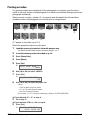
Setting color or black & white transmission
Follow the procedure for sending a document ( p. 8-1) and set color or black & white
sending as follows when required to do so:
For color sending: Press [Color] to turn on its light.
For black & white sending: Press [B&W] to turn on its light.
The setting automatically reverts to black & white after a document is sent or canceled.
NOTE
• If you attempt to send a color document to a fax machine that does not support color faxing, you will
get an error message. Try sending again in black & white. Alternatively, you can enable the <COLOR
DIRECT TX> setting ( p. 13-4) that will send a color document in black & white if the recipient’s fax
machine does not support color faxing.
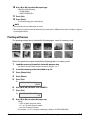
Adjusting the image quality (fax resolution)
You can adjust the image quality (fax resolution) of the document you send. The higher the
resolution, the better the output quality at the other end, but the slower the transmission
speed. Adjust the scanning resolution according to the type of document you are sending.
Follow the procedure for sending a document ( p. 8-1) and adjust the resolution as follows
when required to do so:
1
Press [Image Quality].
2
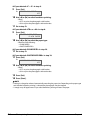
Use [2] or [3] to select the resolution.
• In black & white mode, select:
– <B&W STANDARD> for text-only documents.
– <B&W FINE> for fine-print documents.
– <B&W PHOTO> for photographs.
In color mode select:
– <COLOR STANDARD> for normal color documents.
– <COLOR FINE> for fine color documents.
3
Chapter 8
Press [Set].
Sending faxes
8-3