1
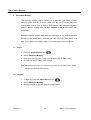
Cloud Voice Service 6 Using Phone Log If your phone display indicates that you have missed calls, you can use the Missed Call option on the Directory menu to view your call history and to call back the person that you have missed. You can also view call history and place calls from the Received Calls and Placed Calls directories. 6.1 Viewing and Dialing from the Phone Log 1. Press the Applications button . 2. Select Call History. (Use the Navigation bar and Select button to scroll and select.) 3. Select All Lines or the line that you want to view. 4. From the Call History list, select the call you want to dial and do one of the following: Press the Call softkey. Press the line key. Pick up the handset. Press the Speakerphone or Headset button. 6.2 Deleting Call Record from Phone Log 1. Press the Applications button 2. Select Call History. (Use the Navigation bar and button to scroll and select.) 3. Select All Lines or the line that you want to view. 4. Select the call you want to delete. 5. Press the Del Call softkey (you may need to press the more softkey first). 6. Press the Delete softkey to delete the call, or press the Cancel softkey to go back to the Call History screen. Note: For dialing Missed call from external parties, you should press More and EditDial to add “9” to the contact number Version 1.0 18 ©Wharf T&T Limited 2011