1
Cloud Voice Service
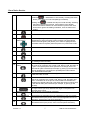
• Solid red
—Shared line in-use remotely. Pressing this button
allows you to barge in on the call (if Barge is enabled).
3
Back button
—Shared line call put on hold remotely. Pressing
• Pulsing red
this button resumes the held call. (The positions of the session
buttons and feature buttons can be reversed on phones that use a
locale with a right-to-left reading orientation, such as Hebrew and
Arabic.)
Returns to the previous screen or menu.
4
Release button
Ends a connected call or session.
5
Navigation pad and
Select button
The four-way Navigation pad allows you to scroll through the menus,
highlight items, and move within a text input field. The Select button
(center of the Navigation pad) allows you to select a highlighted item.
The Select button is lit (white) when the phone is in power-save mode.
6
Conference button
Creates a conference call.
7
Hold button
Places a connected call on hold.
8
Transfer button
Transfers a call.
9
Keypad
Allows you to dial phone numbers, enter letters, and select menu items
(by entering the item number).
10 Speakerphone
button
11 Mute button
12 Headset button
13 Volume button
14 Messages button
15 Applications button
16 Contacts button
Version 1.0
Selects the speakerphone as the default audio path and initiates a new
call, picks up an incoming call, or ends a call. During a call, the button is
lit green. The speakerphone audio path does not change until a new
default audio path is selected (for example, by picking up the handset). If
external speakers are connected, the Speakerphone button selects
them as the default audio path.
Toggles the microphone on or off during a call. When the microphone is
muted, the button is lit red.
Selects the headset as the default audio path and initiates a new call,
picks up an incoming call, or ends a call. During a call, the button is lit
green. A headset icon in the phone screen header line indicates the
headset is the default audio path. This audio path does not change until
a new default audio path is selected (for example, by picking up the
handset).
Controls the handset, headset, and speakerphone volume (off hook) and
the ringer volume (on hook). Silences the ringer on the phone if an
incoming call is ringing.
Dials to retrieve your Voicemail messages.
Opens/closes the Applications menu. Depending on how your system
administrator sets up the phone, use it to access applications such as
call history, preferences, and phone information.
Opens/closes the Contacts menu. Depending on how your system
administrator sets up the phone, use it to access personal directory,
5
©Wharf T&T Limited 2011