1
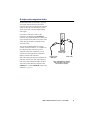
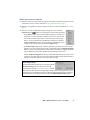
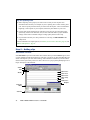
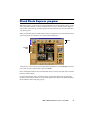
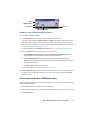
PC-VCR Remote menu window
(with video file playback)
Shuffle playlist
Video file loop
Mode
indicators
(click to
toggle)
Timer event
Sleep mode
Volume gauge
Elapsed time
Name of current video file
Playback status bar
(click to ‘seek’)
Open PC-VCR Remote
Properties dialog box
Change menu window
Increase setting value
Decrease setting value
Input setting
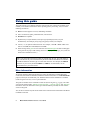
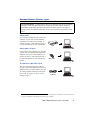
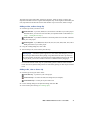
After you’ve made sure your external video devices are properly connected, click
an INPUT button on the PC-VCR Remote to select a video source for the video
window.* This input setting affects many PC-VCR Remote controls. Select a
button based on what kind of input you want to use:
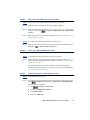
FILE – for video file playback.
TV – to use your Matrox TV tuner.
LINE – to use a device connected to your Matrox VIDEO IN or S-VIDEO IN connector. This can
be a video camera or video player.
Video file input
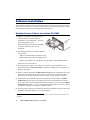
With PC-VCR Remote, you can play AVI, MOV, MPG, MPS and DAT video files, including the
video files you record with PC-VCR Remote (AVI files).
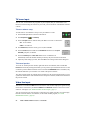
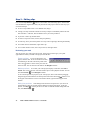
To view a video file
1
On the PC-VCR Remote, click the FILE button.
2
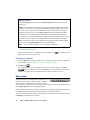
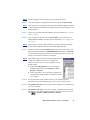
Click Open Video Files (
3
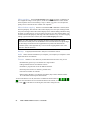
Click Play (
), then select a video file in the resulting dialog box.
).
* Depending on your graphics card and display settings, there are maximum video window resolutions (sizes). We
recommend you use a 16-bit color palette setting for your display. For more information, see page 49.
Matrox Rainbow Runner G-Series – User Guide
21