1
MT5600DSVD and
MT5600DSVD2
Data/Fax/Voice Modem
Quick Start
MT5600DSVD Quick Start Guide
P/N 82081203 Revision D
Copyright 2004 by Multi-Tech Systems, Inc.
All rights reserved. This publication may not be reproduced, in whole or in part, without prior expressed written permission from Multi-Tech Systems, Inc.
Multi-Tech Systems, Inc. makes no representations or warranties with respect
to the contents hereof and specifically disclaims any implied warranties of
merchantability or fitness for any particular purpose. Furthermore, Multi-Tech
Systems, Inc. reserves the right to revise this publication and to make changes
in the content hereof without obligation of Multi-Tech Systems, Inc. to notify any
person or organization of such revisions or changes.
Record of Revisions
Revision
Date
A
B
C
D
5/18/98
3/28/01
7/25/03
1/16/04
Description
Manual released.
Manual reorganized and updated.
Manual updated.
Manual revised to include MT5600DSVD2.
Trademarks
MultiModemDSVD, Multi-Tech, and the Multi-Tech logo are trademarks of Multi-Tech
Systems, Inc. Adobe and Acrobat are trademarks of Adobe Systems Incorporated.
Windows 98, Windows Me, Windows NT, and Windows 2000 are either registered
trademarks or trademarks of Microsoft Corporation in the United States and/or other
countries.
Technical Support
Country
By Email
France:
U.K.:
U.S and Canada:
Rest of the World:
[email protected]
[email protected]
[email protected]
[email protected]
By Phone
+(33) 1-64 61 09 81
+(44) 118 959 7774
(800) 972-2439
Notice
Though this modem is capable of 56K bps download performance, line impairments,
public telephone infrastructure and other external technological factors currently
prevent maximum 56K bps connections.
Multi-Tech Systems, Inc.
2205 Woodale Drive
Mounds View, MN 55112 U.S.A
(763) 785-3500 or (800) 328-9717
Fax (763) 785-9874
Technical Support (800) 972-2439
Internet http://www.multitech.com
MultiModemDSVD Quick Start Guide
Introduction
The purpose of this Quick Start Guide is to help you to quickly
set up your modem. A User Guide, which includes a command
reference, a troubleshooting chapter, and an index, can be
found on the MT5600DSVD System disk in the modem
package. The User Guide, which is in Adobe Acrobat format,
can be viewed on your monitor or printed out for easy
reference.
What Is in Your Modem Package?
Your modem package has several components. Make sure
you have them all before trying to operate your modem. Your
package should include:
•
An MT5600DSVD modem
A DC power supply
• A set of four plastic feet
• A modular telephone cable
• A headset (MT5600DSVD only)
• This Quick Start Guide
• A system CD containing modem drivers, the User Guide,
PhoneTools (a data communications program), and
Acrobat Reader.
If any of these items are missing, please contact Multi-Tech
Systems or your dealer/distributor.
•
1
MultiModemDSVD Quick Start Guide
What You Will Need
In addition to the contents of the MultiModemDSVD package,
you will need the following items:
•
•
•
•
•
•
•
A computer with an available serial port
A shielded RS-232 serial cable with a male DB-25
connector on one end and a connector to match your
computer’s serial port on the other end
A nearby AC power outlet
A nearby telephone line jack
An optional PC stereo microphone
An optional amplified speaker or sound card with speakers
For connecting to a sound card, an optional male-to-male
stereo patch cord with 1/8-inch mini plugs
Safety Warnings
• Use this product only with UL- and CUL-listed computers.
• To reduce the risk of fire, use only 26 AWG or larger
telephone wiring.
• Never install telephone wiring during a lightning storm.
• Never install a telephone jack in a wet location unless the
jack is specifically designed for wet locations.
• Never touch uninsulated telephone wires or terminals unless
the telephone line has been disconnected at the network
interface.
• Use caution when installing or modifying telephone lines.
• Avoid using a telephone during an electrical storm; there is
a risk of electrical shock from lightning.
• Do not use a telephone in the vicinity of a gas leak.
2
MultiModemDSVD Quick Start Guide
Step 1: Mount the Feet
The modem comes with a strip of self-adhesive plastic feet,
which you can optionally mount on the bottom of the modem.
To install the feet, simply peel them from their paper strip and
press them into the recesses on the bottom of the modem.
Step 2: Change the Speaker Jumper
To change the speaker jumper, see your User Guide.
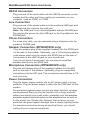
Step 3: Connect the Modem to Your System
Placing the modem in a convenient location, connect it to
your computer’s serial port, to the telephone line, to AC
power, and, optionally, to your telephone. For voice
operations, connect it to the supplied headset or, optionally, to
a microphone and a speaker or sound card.
MT5600DSDV only
PWR
RS232
PHONE
LINE
3
MultiModemDSVD Quick Start Guide
RS232 Connection
Plug one end of the serial cable into the RS232 connector on the
modem and the other end into a serial port connector on your
computer, such as COM1 or COM2.
Line Connection
Plug one end of the phone cable into the modem’s LINE jack and
the other end into a phone line wall jack.
Note: The LINE jack is not interchangeable with the PHONE jack.
Do not plug the phone into the LINE jack or the line cable into the
PHONE jack.
Phone Connection
For voice-only calls, you can optionally plug a telephone into the
modem’s PHONE jack.
Speaker Connection (MT5600DSVD only)
Plug the speaker plug of the supplied headset into the SPKR jack
on the side of the modem. Optionally, use a 1/8-inch-plug male-tomale stereo patch cord to connect the SPKR jack on the side of
the modem to the LINE IN jack on your sound card.
If you do not have a sound card, you can plug an amplified
speaker directly into the SPKR jack.
Microphone Connection (MT5600DSVD only)
Plug the microphone plug of the supplied headset into the MIC
jack on the side of the modem. Optionally, plug an unamplified
microphone into the MIC jack. The microphone should have a 1/8inch mini plug.
Power Connection
Plug the power supply module into an AC power outlet or surge
protector. Plug the power supply’s cable into the PWR jack on the
modem.
For protection against power surges and other transient voltages,
we recommend that you plug the modem into a surge protector
rather than directly into a wall outlet, preferably one that provides
protection against electrical spikes on the telephone line as well as
on the power line. Please note, however, that not even a surge
protector can guard against damage from a nearby lightning strike.
For maximum protection during an electrical storm, you should
unplug all your computer equipment.
4
MultiModemDSVD Quick Start Guide
Note: Use only the power supply supplied with the modem. Use of
any other power supply will void the warranty and could damage
the modem.
Power-On Test
Test the modem by turning it on (a power switch is located on the
right side). When you apply power, the modem performs a
diagnostic self-test, indicated by several indicators flashing for a
second or two, after which the 56 indicator should light. If this does
not happen, check that the power switch is on, the power supply is
solidly connected, and the AC outlet is live. If these measures do
not work, see Chapter 5 of the User Guide, “Solving Problems.”
Step 4: Install the Modem Driver
If you use Windows 98 or above, you must install the modem
driver, which is installed using the Windows Plug and Play feature.
Follow the four-step procedure below. If you use another operating
system, see the User Guide.
1. Make sure your modem is connected properly, and then turn on
your computer. Windows should detect your new modem and
open the Install New Modem wizard.
2. Insert the MT5600DSVD System CD into your CD-ROM drive,
and then click OK.
3. Windows installs and configures the modem.
4. Click Finish to exit.
For Windows NT, the Install New Modem wizard presents one
additional prompt before Step 2. At this prompt, select Don’t
detect my modem; I will select it from a list, and then click
Next. A dialog box with a list of manufacturers and a list of modem
models appears. Select your modem. Continue with Step 2 above.
Step 5: Install Data Communications Software
Data communications software is designed to send and receive
messages. Multi-Tech includes PhoneTools communications
software with your modem. However, the modem will work with most
data communications software. To install PhoneTools, insert the CD
into the CD-ROM drive; click the PhoneTools icon. You will be
asked to choose your language. The software automatically loads
onto your PC.
5
Patents
This device is covered by one or more of the following patents: 6,031,867; 6,012,113;
6,009,082; 5,905,794; 5,864,560; 5,815,567; 5,815,503; 5,812,534; 5,809,068; 5,790,532;
5,764,628; 5,764,627; 5,754,589; D394,250; 5,724,356; 5,673,268; 5,673,257; 5,644,594;
5,628,030; 5,619,508; 5,617,423; 5,600,649; 5,592,586; 5,577,041; 5,574,725; D374,222;
5,559,793; 5,546,448; 5,546,395; 5,535,204; 5,500,859; 5,471,470; 5,463,616; 5,453,986;
5,452,289; 5,450,425; D361,764; D355,658; D355,653; D353,598; D353,144; 5,355,365;
5,309,562; 5,301,274. Other patents pending.
82081203