1
Watson SHDSL Router
Web-based Management Manual
Watson-SHDSL-Router-GUI-Manual.doc
Version 2.3-03
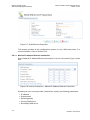
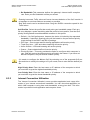
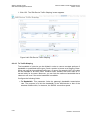
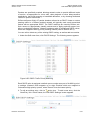
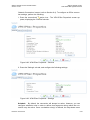
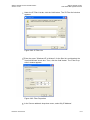
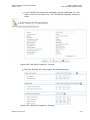
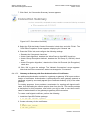
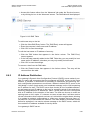
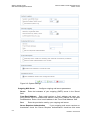
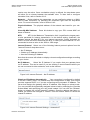
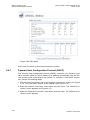
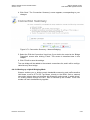
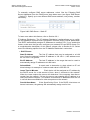
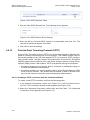
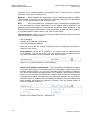
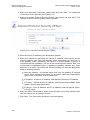
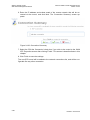
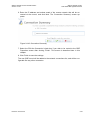
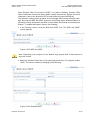
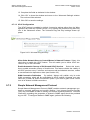
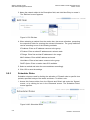
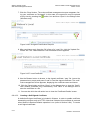
7. Click the 'Close' button. The main certificate management screen reappears, listing your certificate as "Unsigned". In this state, the request file may be opened
at any time by pressing the
action icon and then 'Open' in the dialogue box
(Windows only).
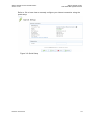
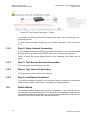
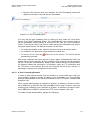
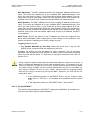
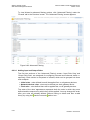
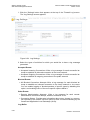
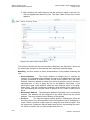
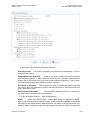
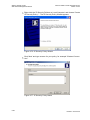
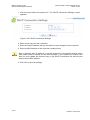
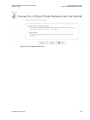
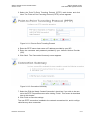
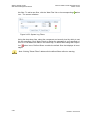
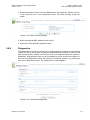
Figure 9-186: Unsigned Certification Request
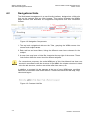
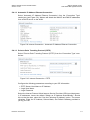
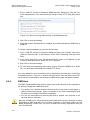
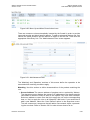
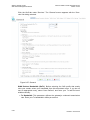
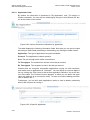
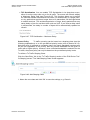
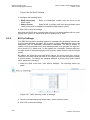
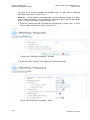
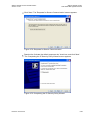
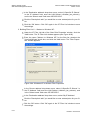
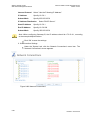
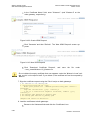
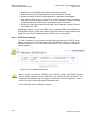
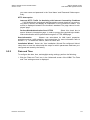
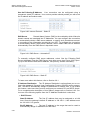
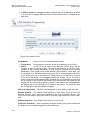
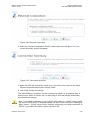
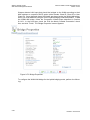
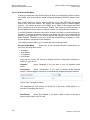
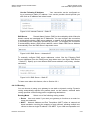
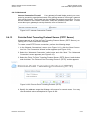
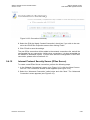
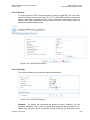
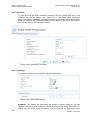
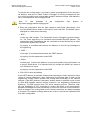
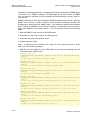
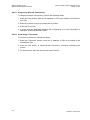
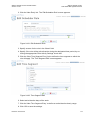
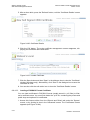
8. After receiving a reply from the CA in form of a '.pem' file, click the 'Upload Certificate' link. The 'Load Watson's Local Certificate' screen appears.
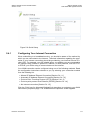
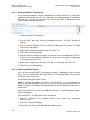
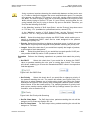
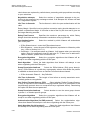
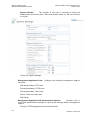
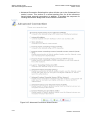
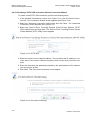
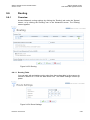
Figure 9-187: Load Certificate
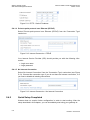
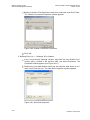
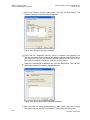
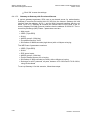
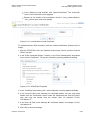
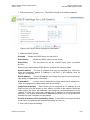
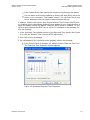
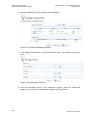
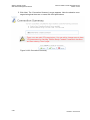
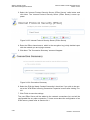
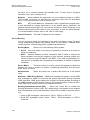
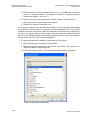
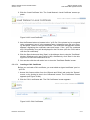
9. Use the Browse button to browse to the signed certificate '.pem' file. Leave the
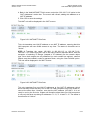
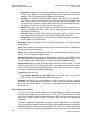
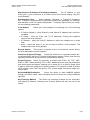
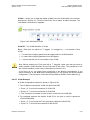
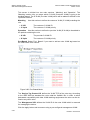
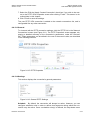
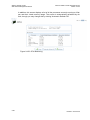
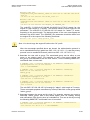
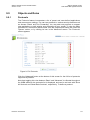
password entry empty and press "Load" to load the signed certificate. The certificate management screen appears, displaying the certificate name and issuer.
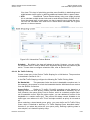
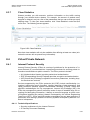
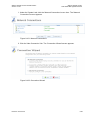
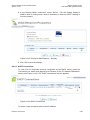
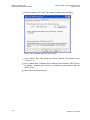
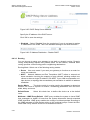
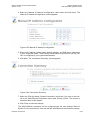
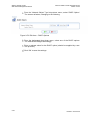
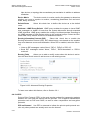
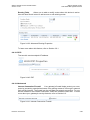
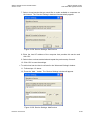
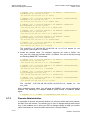
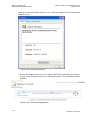
10. Click the Save button and then 'Open' in the dialogue box to view the 'Certificate' window (Windows only). Alternatively, click 'Save' in the dialogue box to
save the certificate to a file.
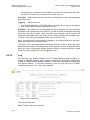
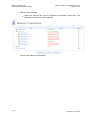
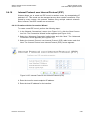
11. You can also click the edit action icon to view the 'Certificate Details' screen.
9.9.4.2.2
Creating a Self-Signed Certificate
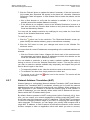
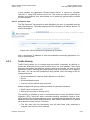
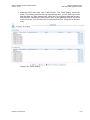
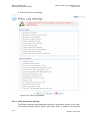
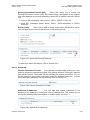
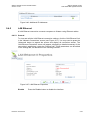
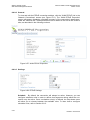
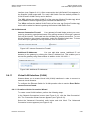
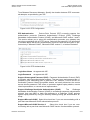
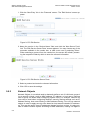
A default self-signed certificate is included in Watson, in order to enable certificate
demanding services such as HTTPS. Note that if deleted, this certificate is restored
when Watson's Restore Defaults operation is run (refer to Section 9.8.4). To create
a self-signed certificate:
9-14
Revision: 2012-02-29