1
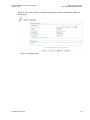
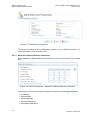
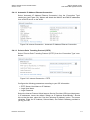
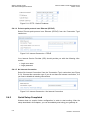
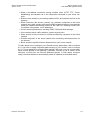
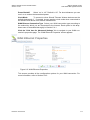
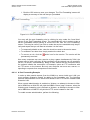
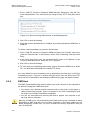
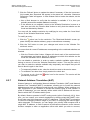
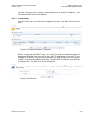
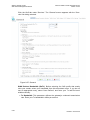
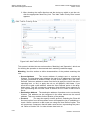
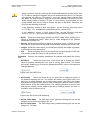
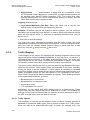
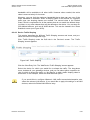
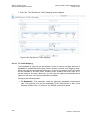
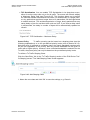
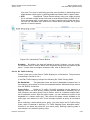
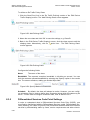
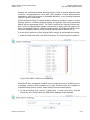
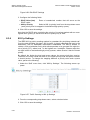
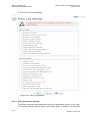
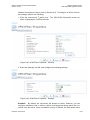
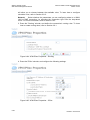
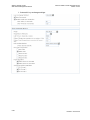
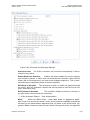
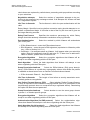
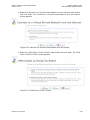
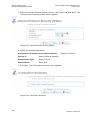
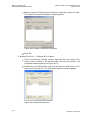
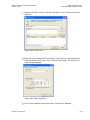
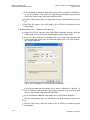
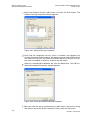
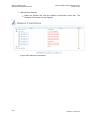
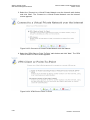
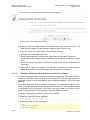
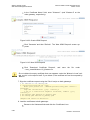
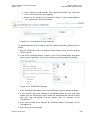
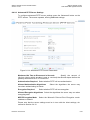
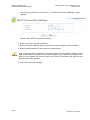
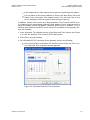
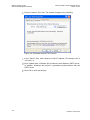
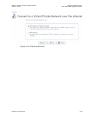
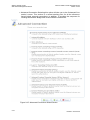
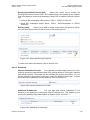
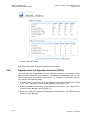
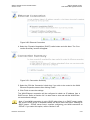
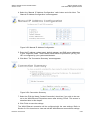
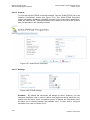
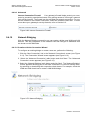
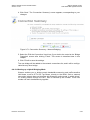
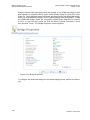
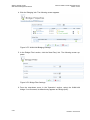
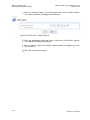
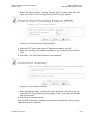
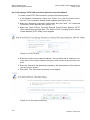
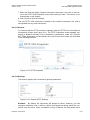
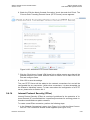
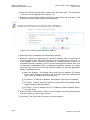
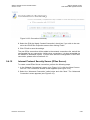
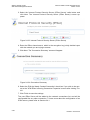
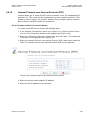
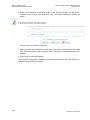
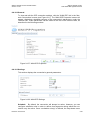
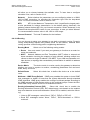
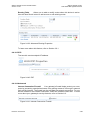
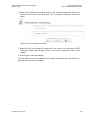
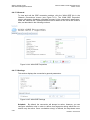
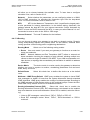
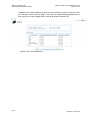
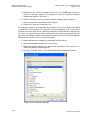
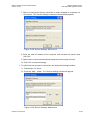
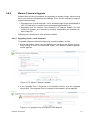
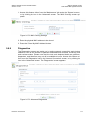
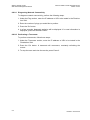
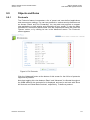
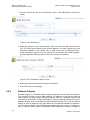
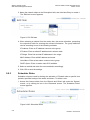
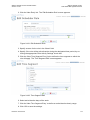
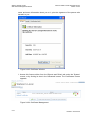
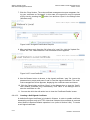
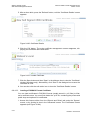
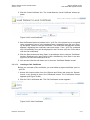
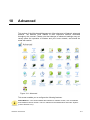
Watson SHDSL Router Web-based Management Manual Watson-SHDSL-Router-GUI-Manual.doc Version 2.3-03 2. Double-click the 'Internet Gateway Device' icon. The WBM login screen appears in a browser window. This method is similar to opening a browser window and typing in '192.168.1.1'. To monitor the status of the connection between Watson and the Internet: 1. Open the 'Network Connections' control panel. 2. Double-click 'Internet Connection' icon. You may also make services provided by computers in the home network available to computers on the Internet. For example, you may designate a PC in your home network to act as a Web server, allowing computers on the Internet to request pages from it. Or a game that you want to play over the Internet may require that specific ports be opened to allow communication between your PC and other players. Please refer to Section 8.2.3 for more information. To make local services available to computers on the Internet: 4. Open the 'Network Connections' control panel. 5. Right-click 'Internet Connection' and choose 'Properties'. The 'Internet Connection Properties' window appears. 6. Press the 'Settings' button. The 'Advanced Settings' window will appear Figure 9-158: Advanced Settings 9-104 Revision: 2012-02-29