1
Creating Custom Digital Gobos
Overview
Custom digital gobos can be created in two formats: SVG and AI (Adobe Illustrator®). Adobe Illustrator is the best
application for creating custom digital gobos because it provides the best toolset for features that Mbox supports.
SVG files are the most compatible and they provide better functionality than AI files.
The Mbox vertex array compiler pays attention to "object fill" information in these file types. Path and Stroke
information is ignored, unless special steps are taken with the file. (Refer to the Adobe Illustrator documentation for
more information on path, fill, and stroke.)
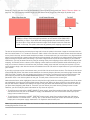
Scale-To-Fit vs. Arbitrary Fit
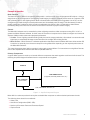
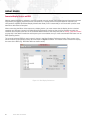
Before beginning, determine the intent of the digital gobo. If you create an SVG gobo file, you have two options for
how a texture is mapped to the digital gobo:
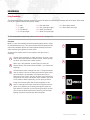
+ Scale To Fit - This will have a texture stretched (or squashed) to fit onto the digital gobo, provided you have a
shape that you want to apply the texture to.
+ Arbitrary Fit - This will have a texture applied to a digital gobo with a specific fill factor given to the texture - if you
are using a digital gobo as a texturable masking aid or if you don't want the texture scaled. If you create an AI
gobo file, you are limited to the Scale To Fit option, and the procedure is slightly different.
Creating a Digital Gobo with Adobe Illustrator CS5
The following steps provide a general guideline for creating custom digital gobos using Adobe Illustrator CS5. Note
that older versions of Illustrator may require slightly different steps to achieve the same results. For more information
regarding the use of Illustrator, consult the Illustrator Help documentation included with the application.
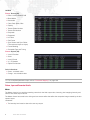
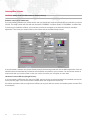
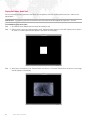
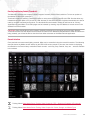
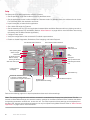
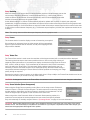
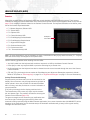
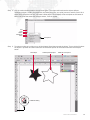
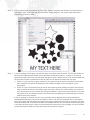
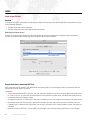
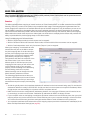
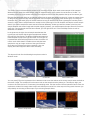
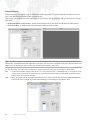
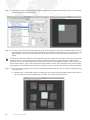
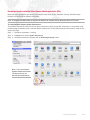
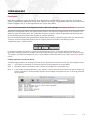
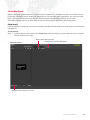
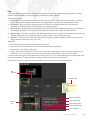
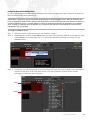
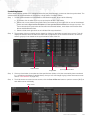
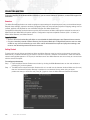
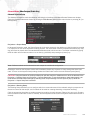
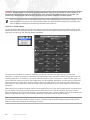
Step 1. Start a new document and name it appropriately. The size of the artboard and orientation of the document
are not critical, nor is the color space (RGB or CMYK). Basically, just make sure the document is large
enough to hold all of the objects.
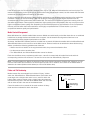
Drawing Tools
Document Name
48
MBOX® MINI USER MANUAL
Artboard
Other Tools