1
ENGLISH
Miscellaneous Information:
Printing Photos
Sonstige Informationen:
Bilder ausdrucken
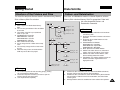
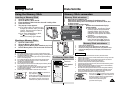
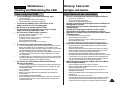
Printing with PictBridge Function
Drucken mit PictBridge
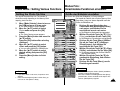
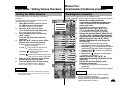
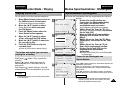
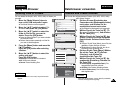
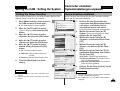
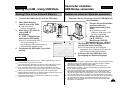
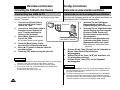
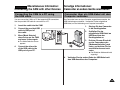
With the PictBridge Support, you can control the
printer directly through the CAM in order to print
out stored pictures.
For direct printing of your stored pictures using the
PictBridge function, you must connect the CAM to
a PictBridge printer using a USB cable.
1.
2.
3.
4.
5.
6.
Aufgrund der PictBridge-Unterstützung ist es möglich,
den Drucker direkt über den Camcorder zu
steuern.Zum direkten Drucken der gespeicherten
Bilder mit Hilfe der PictBridge-Funktion müssen Sie
den Camcorder über ein USB-Kabel mit einem
PictBridge-fähigen Drucker verbinden.
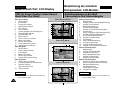
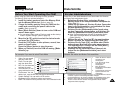
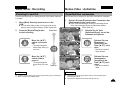
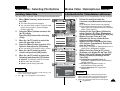
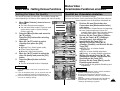
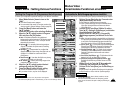
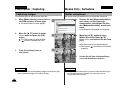
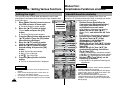
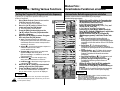
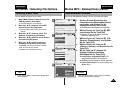
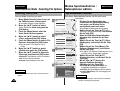
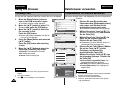
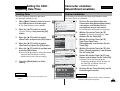
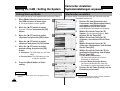
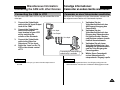
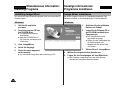
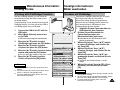
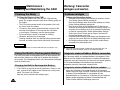
Connect the CAM to the PC with the
USB cable.
Move [Mode Selector] down to turn
on the CAM.
USB 2.0 MassStorage
◆ USB
USB 1.1 MassStorage
menu screen appears automatically.
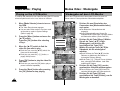
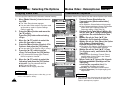
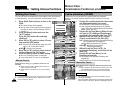
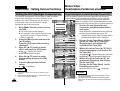
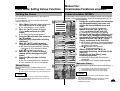
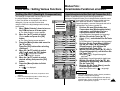
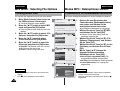
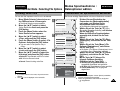
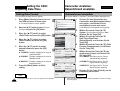
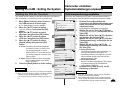
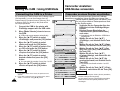
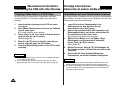
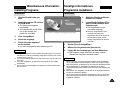
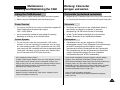
Move the [ ▲ /▼ ] switch to select
<PictBridge> and press the [OK] button.
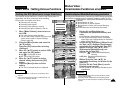
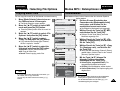
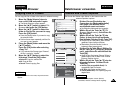
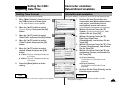
Move the [ ▲ /▼ ] switch to select
<Copies> and press the [OK] button.
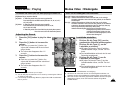
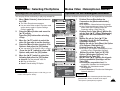
Move the [ ▲ /▼ ] switch to select desired
number and press the [OK] button.
USB Mode
PC-Cam
Back
PictBridge
PictBridge 100-0056
Off
◆ You can select the number of copy from 1 to 99.
Copies
5
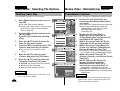
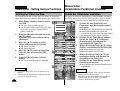
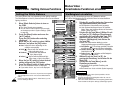
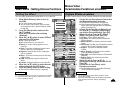
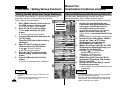
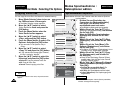
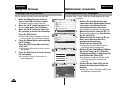
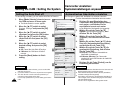
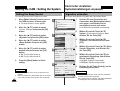
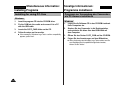
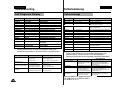
Move the [ ▲ /▼ ] switch to select
<Print> and press the [OK] button.
Next Photo
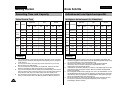
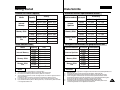
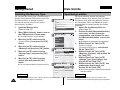
✤ If you select <Back> in the menu, the previous menu
appears.
✤ If you want to select the next or previous photo, select
<Next> or <Previous> using [ ▲ /▼ ] switch.
✤ For further details about printing photos, refer to the
User's manual of the printer.
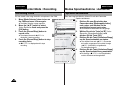
1. Verbinden Sie den Camcorder über ein
USB-Kabel mit dem Computer.
2. Drücken Sie zum Einschalten des
CamcordersCamcorders den
[Moduswahlschalter] nach unten.
◆ Automatisch wird der Bildschirm USBModus eingeblendet.
3.
Date
Notes
DEUTSCH
Print
4.
5.
◆ Sie können eine Anzahl zwischen 1 und 99
wählen.
Previous Photo
PictBridge 100-0056
Date
Off
Copies
5
Print
Next Photo
Previous Photo
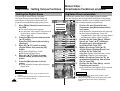
Wählen Sie mit der Taste [ ▲ /▼ ] switch
to select <PictBridge> und drücken Sie
die Taste [OK].
Wählen Sie mit der Taste [ ▲ /▼ ]
<Copies> (Abzüge), und drücken Sie die
Taste [OK].
Wählen Sie mit der Taste [ ▲ /▼ ] die
gewünschte Anzahl, und drücken Sie die
Taste [OK].
6.
Wählen Sie mit der Taste [ ▲ /▼ ] <Print>
(Drucken), und drücken Sie die Taste
[OK].
Hinweise
✤ Wenn Sie die Menüoption <Back> (Zurück) auswählen, wird das
vorherige Menü angezeigt.
✤ Um das nächste oder das vorherige Bild auszuwählen, wählen
Sie mit der Taste [ ▲ /▼ ] <Nächstes> bzw. Vorheriges.
✤ For further details about printing photos, refer to the
115
User's manual of the printer.