1
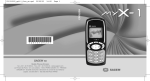
251108518.qxd 19/12/01 9:36 Page 1 ENGLISH MY 302X MY 304X 1 IN A FEW WORDS ... Switch on Press Press . Press Dial the number then press . Answer Make a call from a number stored in the directory press , scroll down the list to find your correspondent, then press to call. By location in the directory: enter the location number then press to call. . * Switch off Press twice. By name: enter the first letter of the name, . Hang up Press * then OK. Redial last number Call Press Lock and unlock the keyboard from the standby screen (long press). Hands-free . Briefly, the functions ✄ To communicate, press MY_304X_EN-00.p65 1 28/12/01, 11:16 2 MENUS Enter using Validate using OK Quit or return to the previous menu using C or Navigate using and Services Directory Games Accessories Text messages Security Call services Controls Ringing and beeps MY_304X_EN-00.p65 2 ✄ Briefly, the menus 28/12/01, 11:16 You have just bought a mobile phone and we congratulate you on your choice. Your phone will allow you to use different international networks depending on the roaming agreements between the operators. We would like to remind you that this phone is approved to European standards. To get the most out of using your phone, we recommend that you read this manual carefully and keep it handy for future reference if needed. 3 GLOSSARY Outgoing call Incoming call SIM card PIN PIN2 WARNING According to the configuration of the networks and associated subscriptions, certain functions may not be available (indicated by *). Compatibility of If an incompatible SIM card is your SIM card inserted, a message will be displayed when switching on your Your phone is compatible with SIM phone. For further information, 3V cards only. contact your Operator. Phone code The SAGEM logo and trademark are the property of SAGEM SA. AT is a registered trademark of Hayes Microcomputer products Inc. Hayes is a registered trademark of Hayes Microcomputer Products Inc. T9 Text Input is a registered trademark of ©Tegic Communications Inc. T9 is licensed under one or more of the following U.S. Patents: 5,818,437, 5,953,541, 5,187,480, 5,945,928, 6,011,554 and additional patents are pending worldwide. Service provider or Operator MY_304X_EN-00.p65 3 IMEI SMS A call made from your phone. A call received by your phone. The card containing your subscription and access rights to services. The detachable part is the micro-SIM. The personal code linked to your SIM card. The second personal code linked to your SIM card to access certain functions (*). The phone code is a secret code intended to protect the phone in case of theft. The identification number of your phone. Short Message Service: sending and receipt of text messages, icons, animated screen savers and melodies. Company which manages the network subscription. 28/12/01, 11:16 1. Presentation of the phone ..................................... 6 1.1 Exchanging the coloured front panel ................... 9 2. Getting started ..................................................... 10 2.1 2.2 2.3 2.4 2.5 2.6 Information on the SIM card .............................. 10 Installing the SIM card and the battery .............. 11 Charging the battery ......................................... 12 Switching on/switching off, starting up .............. 13 Menu access .................................................... 14 Deleting characters ........................................... 14 3. Initial communication - Hands-free mode ............ 15 3.1 3.2 3.3 3.4 3.5 Making a call ..................................................... 15 Receiving a call ................................................ 16 Volume control .................................................. 16 Hands-free mode .............................................. 16 Ending a call ..................................................... 16 4. Menu list .............................................................. 17 5. How to use the directory ...................................... 20 5.1 5.2 5.3 5.4 5.5 5.6 5.7 5.8 5.9 Directory display ............................................... 20 Storing a number .............................................. 20 Deleting a number ............................................ 21 Call groups ....................................................... 21 Sorting .............................................................. 23 Sending a short message to a stored number .. 23 Directory space memory ................................... 23 Displaying personal numbers ........................... 23 Making a call with a stored number ................... 23 4 6. SMS ..................................................................... 25 6.1 Receiving an SMS message ............................. 25 6.2 Editing a message using Easy Message T9 .. 28 6.3 Edited messages .............................................. 30 7. How to use the call related features .................... 31 7.1 Forwarding calls ............................................... 31 7.2 Viewing the list of the last numbers used .......... 32 7.3 Monitoring the duration and cost of calls ........... 32 7.4 Displaying the numbers .................................... 33 7.5 Authorising double call ...................................... 34 7.6 Configuring automatic redial ............................. 34 7.7 Voice mail number ............................................ 34 7.8 Local information distribution ............................ 34 7.9 Replacing the international prefix ...................... 34 7.10 Placing calls on hold ........................................ 34 7.11 Multi-conferencing (*) ...................................... 35 8. How to adjust the ringing tones and the vibrator ................................................... 36 8.1 Selecting the volume and the type of ringing tone ................................................... 36 8.2 Call groups ....................................................... 37 8.3 Personalising the ringing tone ........................... 37 8.4 Setting the vibrator ............................................ 37 8.5 Selecting silent mode ........................................ 38 8.6 Setting the beeps .............................................. 38 8.7 Deleting DTMF tones ........................................ 38 Contents MY_304X_EN-00.p65 4 28/12/01, 11:16 9. How to adjust and customize your phone ............ 39 9.1 9.2 9.3 9.4 9.5 9.6 9.7 Customizing your phone ................................... 39 Selecting the display language ......................... 41 Select the type of response .............................. 41 Selecting the network ....................................... 42 Setting the time and date .................................. 43 Controlling screen contrast ............................... 43 Converting currencies ....................................... 43 5 15.Upkeep ................................................................ 55 16.Recommendations .............................................. 56 Answers to your questions ........................................ 59 10.How to use the security features of your phone ....................................................... 44 10.1 10.2 10.3 10.4 10.5 10.6 10.7 10.8 10.9 Locking the keyboard ...................................... 44 Changing the PIN number ............................... 44 Changing the PIN2 number (*) ........................ 45 Changing the phone code ............................... 45 Changing the operator password (*) ................ 46 Limiting incoming calls (*) ................................ 46 Limiting outgoing calls (*) ................................ 46 Setting up the pre-set directory (*) ................... 47 Charge checking (*) ........................................ 47 11. Other functions .................................................... 48 11.1 11.2 11.3 11.4 11.5 Calculator ........................................................ 48 Setting the alarm ............................................. 49 Setting the timer .............................................. 49 Configure your phone with a car kit ................. 49 Data parameters ............................................. 49 12. WAP Function ..................................................... 50 13.Games ................................................................. 53 14.Available accessories .......................................... 54 MY_304X_EN-00.p65 5 Contents 28/12/01, 11:17 6 Antenna Indicator light Ear phone/speaker High definition graphics screen Programmable key 1 @ Correction Stop/End call Programmable key 2 (depending on model) Mobile Internet access key Operate/Call Activation of hands-free Validate Scrolling arrow Microphone WARNING! During a call, mind you do not obstruct the microphone with your hand. Scrolling arrow Battery charging and accessories socket 1. Presentation of the phone MY_304X_EN-01.p65 6 28/12/01, 11:19 7 Function keys Stop Reject a call Hang up Go Call a number Receive a call Hands-free mode C Short press: Return to the previous menu Delete a character Long press: Exit menu mode Complete deletion of the entry OK Validate - Programmable keys for direct access to the functions that you have selected (depending on model) - Volume control during conversation key: louder) ( key: lower, - Contextual action @ Mobile Internet access key and Entry and scrolling through the menus. Alphanumeric keyboard Made up of 12 keys: 0 to 9, and #. * To obtain a number or letter, hold down the relevant key until the desired number or letter appears. Letters with accents are obtained by a long press on after entering the letter with no accent. * Punctuation marks and special symbols are obtained by a long press on the # key. Key 1 A long press on key 1 allows you to access the voicemail service (depending on model). 1. Presentation of the phone MY_304X_EN-01.p65 7 28/12/01, 11:20 8 Display The high definition graphics screen enables you to read messages easily. Various icons inform you about the status of functions. Battery charge indicator (black if charged, clear if discharged) Received signal strength indicator (maximum strength: 5 bars) ; the R letter indicates if the network found does not correspond to the subscription If flashes, the phone is searching for a network Receipt of SMS and presence of SMS not read; Flashing: SMS memory full. Voice messages present. The three keys located under the screen are allocated to actions described at the bottom of the screen just above the key, each time it is necessary. For example: Validate Pressing function. validates the current Hands-free loudspeaker Call in progress Permanent call forwarding Silent mode 1. Presentation of the phone MY_304X_EN-01.p65 8 28/12/01, 11:20 9 1.1 Exchanging the coloured front panel Release the front panel by moving the retention lugs (❷) if necessary and pushing them with a pen for example. Switch off the phone. Remove the rear cover and the battery (see on page 11). Hold the phone with the front panel facing downward, and with the antenna pressed against you. Free the front panel by moving the retention lugs (➊). 1 1 1 2 1 Install the keyboard in the new front panel. Position the phone and the new front panel as shown. 1 2 2 Replace the battery and the cover. 1. Presentation of the phone MY_304X_EN-01.p65 9 28/12/01, 11:20 10 2.1 Information on the SIM card To use your phone, you have a small card called a SIM card. In addition to all of the information necessary for the network, this card contains other information that you can modify: secret codes (PIN and PIN2 Personal Identification Number) directory mini-messages functioning of specific services. 2. Getting started 2. Getting started MY_304X_EN-02.p65 10 28/12/01, 11:21 SIM card This card must be handled and stored with care in order to avoid excessive stresses or scratches that would damage it. If your SIM card is lost, contact your Operator or Service Provider immediately. Note: Do not leave you SIM card within the reach of small children. 11 PIN code This is the personal code for your SIM card. You may be asked to enter this code when the instruction: Pin number ? appears after you switch on your phone. Enter the code of between 4 and 8 digits given to you by your operator. These digits will not be displayed on the screen for security reasons. Press # or OK or to validate. PIN2 code (*) If one was given to you by your Operator, a second PIN code provides secure access to certain functions. Warning If the wrong PIN code is entered three times in a row, the card will be locked. To unlock your card: - enter **05* - enter the PUK code (Personal Unlocking Key) provided by your Network Operator and validate, - enter your PIN code and validate, - enter your PIN code again and validate. After 5 or 10 times (depending on SIM card type), the SIM card will be permanently locked. Contact your Operator or your Service Provider to obtain a new card. The same procedure (entering 052) applies when the PIN-2 code is blocked (PUK 2 code). 2.2 Installing the SIM card and the battery Switch off your phone and disconnect the charger. The SIM card is inserted beneath the phones battery. Turn your phone over and remove the rear cover. Press on top and make it slide. Slide the card along the base beneath the retaining plate, with the gold coloured sections facing towards the phone and the cutoff corner lined up to match the drawing on the phone. Place the battery by first inserting the upper section into the opening. Replace the cover sliding it until it locks. 2. Getting started MY_304X_EN-02.p65 11 28/12/01, 11:22 1 S 2 12 2.3 Charging the battery Your phone is powered by a rechargeable battery. A new battery must be charged for at least 4 hours before it is used for the first time. It will reach its nominal capacity after several usage cycles. When your battery has run down, the phone displays it and cuts out. To recharge your battery: Connect the charger to a wall outlet. Connect the end of the charging cable to the bottom of your phone. ;y The phone will start charging. The battery charging indicator indicates the charge. Charging stops by itself. Unplug the cable. It is possible that during charging, the battery may heat up slightly; this is normal. WARNING There is a risk of explosion if the battery is incorrectly replaced or disposed of in fire. Do not short-circuit. The battery does not contain any components that can be changed by you. Do not attempt to open the battery case. Only use the correct chargers and batteries as shown in the manufacturers catalogue. Spent batteries must be collected at the appropriate sites. You are advised to remove the battery if you intend to leave your telephone unused for a long period. 2. Getting started MY_304X_EN-02.p65 12 28/12/01, 11:22 13 2.4 Switching on/switching off, starting up To switch on your phone: Press to switch on your phone. If access to the SIM card is protected by a secret code, the phone will ask you to enter your PIN code. Enter the code of between 4 and 8 digits given to you when you were given your SIM card. These digits will not be displayed on the screen for security reasons. Press # or OK or to validate. Control of the PIN code If your phone displays SIM absent, press (long press) to switch off your phone and check that your SIM card is correctly positioned. Searching for a network The phone then searches for a network on which it can communicate: If it finds one, the name of the network appears on the screen, and the indicator light flashes green. You are ready to make or receive a call. If the R letter and a network name are displayed, calls can be made and the indicator light flashes green. If the R letter is displayed without any network name, only emergency services will be accessible (police, ambulance, fire brigade). Network indicator The indicator of the level of network signal received enables you to visualise the quality of reception. If it shows less than three bars, look for better reception to make your call in good conditions. If the flashes, the phone will keep searching. No network is available. 2. Getting started MY_304X_EN-02.p65 13 28/12/01, 11:22 14 Switching off 2.6 Deleting characters You can cancel an entry error: Press quickly on C to delete the last character. If you press this key longer, you will delete the previous word. Hold down the key until the end message is displayed. Release the key. The phone switches off. 2.5 Menu access The menu functions permit you to verify or modify the various functions of your phone to adapt it to your needs. Press the scrolling arrows or to access the menus. Scroll through the menus using the scrolling arrows then press OK to access the selected menu. Each time you want to validate an action, press OK. To abandon an action, press C. To exit the menu mode, press and hold C. Direct access to menus To directly access a menu, press then enter the number of the selected menu. 2. Getting started MY_304X_EN-02.p65 14 28/12/01, 11:22 15 3.1 Making a call International call The network is displayed. Dial the number, including the area code if necessary, by pressing keys on the alphanumeric keypad. Press 0 (long press) to display + then dial the country code without waiting for a tone, then the number you require. Press 3. Initial communication Hands-free mode . During the call, flashes on the screen, and tones may signal the establishment of a connection. When the person you have called answers, speak. Emergency services Depending on the operator, you can contact the emergency services with or without a SIM card or when the keyboard is locked. It is sufficient to be in a zone served by a network. To call the international . emergency service, dial 112 then press Other emergency service numbers may exist, depending on the country. 3. Initial communication MY_304X_EN-03.p65 15 28/12/01, 11:23 16 3.2 Receiving a call When you receive a call: Press then speak. The callers number is displayed when it is presented to the network. All incoming and outgoing call numbers are registered in the list of the last calls. 3.3 Volume control Increase or decrease the volume during a conversation by pressing the or keys. 3.4 Hands-free mode During a call, you can transfer from handset mode to hands-free mode simply by pressing one key and the reverse. Press . The screen displays for handset mode and for « hands-free » mode. Before putting the phone to your ear, check the volume control settings as well as the selected listening method, especially if using integrated hands free mode, which could cause ear damage if used incorrectly. 3.5 Ending a call Press . The end of call message appears on the screen. 3. Initial communication MY_304X_EN-03.p65 16 The Hands-free mode enables you to follow a conversation with several people and be free to move, for example, to take notes during your conversation. 28/12/01, 11:23 17 You have the option of personalising the presentation of the menus, and so of limiting access to certain functions (See chapter How to adjust and customize your phone). The following list presents the expert level (limiting itself to the 3rd sub-menu). Services Access to specific services offered by the operator Directory 4. Menu list According to the model of your phone, to the configuration of the networks and associated subscriptions, certain functions may not be available (indicated by *). Directory menu Sort by location Create record Call groups Available memory Personal numbers Quit Scroll through the names entered See record Modify Delete Call Send message Quit 4. Menus MY_304X_EN-04.p65 17 04/01/02, 08:37 20 23 18 Text messages Access to the SMS 25 Call services Call forwarding All voice calls All conditional fwd Cancel voice forwards Forward if busy Forward if no answer Forward if unavailable Data forwarding Faxes forwarding View last numbers Options Call Duration and cost of calls (*) Counters Delete durations Costs (*) Delete costs (*) Display of duration Display numbers Anonymous mode Your number Callers number 31 Double call Activation De-activation Status Automatic redial Voice mail number Local information (*) Replace + prefix (*) Ringing and beeps 32 32 33 Volume and choice of music Call groups Personalised ringing tone Create a tune Vibrate Vibrate and ring Vibrate then ring Inactive vibrate Only vibrate Silent mode Beeps Keypad beeps Network beep Low battery beep Tones 4. Menus MY_304X_EN-04.p65 18 04/01/02, 08:37 34 34 34 34 34 36 37 37 37 38 38 38 19 Controls Customization Menus type Energy saving Screen Saver Greeting message (*) Prog. Key (*) Select language Automatic response Auto. answer Any key Network selection Networks available Preferred networks Setting time/date Display contrast Currency converter Rapid exchange Exchange rate Currencies 39 41 41 42 Security Keyboard locking PIN number Modify Control PIN PIN2 number (*) Phone code Modify Control phone code MY_304X_EN-04.p65 Operator password (*) Limit incoming calls (*) Incoming voice calls Incoming data calls Incoming fax calls All incoming calls Limit outgoing calls (*) Outgoing voice calls Outgoing data calls Outgoing fax calls All outgoing calls Pre-set directory (*) Costs (*) Settings Limitation 43 43 43 Accessories 44 44 Games Calculator Alarm Timer Car kit (*) Data parameters 45 45 4. Menus 19 04/01/02, 08:37 46 46 46 47 47 48 49 49 49 49 20 5.1 Directory display You can store the telephone numbers that you call regularly: in the SIM card, in the phone itself. Different icons will inform you of the directory location where the number is stored when you search for it: SIM card directory 5. How to use the directory Your phones directory SIM card pre-set directory. 5.2 Storing a number In the Directory menu, select Create record. Validate by pressing OK. Enter the name (the number of accepted characters depends on the SIM card used). Validate. Enter the number including the area code, if necessary (up to 20 characters). Validate. 5. Directory MY_304X_EN-05.p65 20 The number of telephone numbers stored in the SIM card directory varies depending on the capacity of the card. Your Operator or your Service Provider can provide you with this information. 28/12/01, 11:24 It is advisable to store numbers in their international format (+, country code, and number). You can verify the contents of a record and modify it by selecting the required name. You can enter spaces in the number When sorting by (displayed as commas ,) by location, pressing on pressing (long press) on or #. The the key launches * * for the first a search figures entered after a space are available location; processed in a DTMF sequence pressing on # (usable after a number). returns to the start If necessary, select the call group of the list. to which you want to assign this number. Depending on the available space, you can select the storage location of the number entered: SIM card or phone itself. 5.3 Deleting a number To delete the contents of a directory location, select the name using the scrolling arrows. Validate by pressing OK. Select Delete, then validate. 5.4 Call groups You are also able to classify contacts recorded in the directory into Call Groups. To each of these groups you attribute certain characteristics (icon, ringing tone, vibrator, etc.). MY_304X_EN-05.p65 21 21 Creating a group By default, groups have already been created in the phone. In order to look up their characteristics, display a list of the groups - Directory/ Directory menu/Call groups menu. Using the scrolling arrows, choose a group and press OK. You are then able to look up or alter its characteristics or to erase the group. To create a new group: Go into Directory/Directory menu/Call groups. Choose Create group. Enter a name and validate. Choose an icon using the scrolling arrows and validate. Choose a ring tone, then choose a vibrator mode, and validate. The selection of a call group is made when entering a number into the directory, or when modifying a number you have already saved. 5. Directory 28/12/01, 11:25 Activate the Call Groups function 22 If call groups are not enabled, you cannot attach correspondents to groups. If you want the characteristics of the groups to apply to each call: Go into Directory/Directory menu/Call groups. Choose Activate groups. Tick the box and validate. The calls received from contacts who do not belong to a Call group use the parameters provided in the Ringing and beeps menu. Available memory To ascertain the number of groups which can still be created: Go into Directory/Directory menu/Call groups. Choose Available memory. The first number shows the number of groups which can still be created, and the second shows the maximum number of groups. Looking up a group Select the group to be looked up and press OK. Choose See group. The screen presents the name, the icon, and the choice of vibrator mode of the group. If there are contacts attached to this group, press the key can be used to view the list of these ones. Modifying a group Select the group to be modified, and press OK. Choose Modify. Carry out the wanted modifications. Validate by OK. Deleting a group Select the group to be deleted, and press OK. Choose Delete. Confirm by OK. 5. Directory MY_304X_EN-05.p65 22 28/12/01, 11:25 23 5.5 Sorting Directory menu enables you to sort the stored numbers by name or location; for the latter, the free locations are indicated in the list. 5.6 Sending a short message to a stored number Select the recipient scrolling using the scrolling arrows and validate using OK. Select Send message and validate using OK. Compose your text message. Press OK. Select Send and validate using OK. The recipient number is displayed. Send your message using key. 5.7 Directory space memory In Directory menu, select Available memory. Validate using OK. The screen will display the amount of available space on the SIM card and on the phone itself. MY_304X_EN-05.p65 23 5.8 Displaying personal numbers Using Directory menu/Personal numbers menu, you can create records for your own numbers in order to be able to consult them. 5.9 Making a call with a stored number Here are all the ways you can call a correspondent, whose number you have saved in the directory, from the standby screen: 1) Enter the first letter(s) of your correspondents name, as you saved it . into the directory, and then press The directory list is displayed, with the first name that corresponds with the letter you entered at the top. If your correspondent is not at the top, use the scrolling arrows to select the name. Press on to make the call. 5. Directory 28/12/01, 11:25 2) Enter the number under which you have saved your correspondents details, and then press on (rapid dial). 24 * 3) Enter the number under which you have saved your correspondents details, and then press on #. Your correspondents number is displayed, at which point you can modify or add to the number. to make the call. Press on 5. Directory MY_304X_EN-05.p65 24 28/12/01, 11:25 25 6.1 Receiving an SMS message Several types of SMS messages Access to this can be received: service depends on the network. For text messages more information, consult your icons for call groups Operator or your animated screen savers Service Provider. melodies WAP bookmarks. When you receive an SMS message, a beep is heard, (the beep selected in the menu Ringing and beeps/Volume and choice of music/Messages) a flashing red light icon is displayed on appears and the your phone screen. This icon remains on screen as long as the SMS messages have not been read. When the memory flashes, it is full. 6. SMS 6. SMS MY_304X_EN-06.p65 25 28/12/01, 11:26 The receipt of icons, animated screen savers or melodies can take several minutes. Messages inform you of the downloading progress. You can hide that screen at any time by pressing (e.g. to make a call or access other information on your phone) or delete the download in progress by pressing . Go into the Text messages menu to access the list of messages received. 26 Ask your Operator about the downloading of SMS icons, animated screen savers or melodies. Unread SMS messages are in bold. Meaning of the symbols at the top of the screen This symbol indicates a written text message. If this symbol is flashing, it means that the SMS message has not been sent. This symbol indicates an SMS message received. If this symbol is flashing, it means that the SMS message has not been read yet. This symbol indicates an SMS message which is incomplete or in the process of being downloaded. This symbol indicates that an SMS message has been altered: it consists of several fragments, some of which have been deleted. Meaning of the symbols in front of each SMS message Call group icons Animated screen savers Text messages Melodies. Actions possible on an SMS message received Select an SMS message. By pressing , you can: read an SMS text message view and save an SMS icon or animated screen saver listen to and save an SMS melody. When you press (Options), various options are available according to the type of SMS message received: read it delete it 6. SMS MY_304X_EN-06.p65 26 28/12/01, 11:26 reply forward it to another person consult the available memory delete all SMS messages already read delete all SMS messages choose a sending option enter the number of the messaging centre add a WAP bookmark (see below) save it in your phone (SMS melody, animated screen saver and icon (see below)). Adding a WAP bookmark in your phone To add a WAP bookmark received: If you have just read it, choose the Add WAP bookmark option by pressing (Options) or Select it in the list and choose the Add WAP bookmark option by pressing (Options). Warning Only the screen savers and melodies without Copyright may be forwarded to another person and depending on model. 27 Saving a melody in your phone Warning A melody is saved in the Ringing and beeps/Personalised ringing You must listen to tone menu. the entire melody in order to be able to If you have just listened to it, save it. press (Record) or Select it in the list and choose the Save option by pressing (Options). The space required as well as the space available in the phone are indicated. If the maximum number of melodies or the maximum capacity has been reached, you will be asked if you wish to delete some melodies or replace an existing melody with the new one. ü This sign placed in front of a melody indicates that it can be deleted and will free enough memory space to save the new one. This sign placed in front of a melody indicates that it can be deleted but will not free enough memory space to save the new one. 6. SMS MY_304X_EN-06.p65 27 28/12/01, 11:26 Saving an animated screen saver on your phone An animated screen saver is saved Warning in the Controls/Customization/ You must view the Screen Saver menu. entire screen saver If you have just viewed it, press in order to be able to (Record) save it. or Select it in the list and choose the Save option by pressing (Options). The space required as well as the space available in the phone are indicated. If the maximum number of animated screen savers or the maximum capacity has been reached, you will be asked if you wish to delete some animated screen savers or replace an existing one with the new one. Saving an icon in your phone An icon is saved in the menu Ringing and beeps/Call groups/Call groups menu. If you have just viewed the icon, press (Record) or 28 Select it in the list and choose the Save option by pressing (Options). The space required as well as the space available in the phone are indicated. If the maximum number of icons or the maximum capacity has been reached, you will be asked if you wish to delete some icons or replace an existing one with the new one. 6.2 Editing a message using Easy Message T9 The Easy Message T9 function helps you to easily enter short messages. Select the Text messages/Write new... menu and press OK. Selecting the editing language Validate T9 by pressing the key. Select using the scrolling arrows, the language required and validate by pressing OK. 6. SMS MY_304X_EN-06.p65 28 28/12/01, 11:26 T9 mode is activated as soon as you create or modify a message. Language By default, the language used is that which is activated on the phones menu display (or English if a language not supported by Easy Message T9 is selected in the menu). Using T9 mode Press the key corresponding to the letter required, compose the word by continuing to press the keys corresponding to the different letters, without worrying about the display, until the whole word is entered: it will appear in negative, white on black. If the word proposed corresponds to the one you are looking for, press 0 to validate it, create a space and go on to the next word. It is possible that there are several words in the dictionary As you go along, that contain the same sequence depending on the of keys pressed. If the word that keys pressed, the appears is not the one you want, software looks in a press @ to scroll through the dictionary for the corresponding words words present in the dictionary, corresponding to this sequence of that are most keys. When you find the word you frequently used. want, press 0 to validate, type a space and go on to the next word. If the word that you want does not appear in the dictionary, several additional modes allow you to vary the nature of the words entered. 29 Additional entry modes The key selects one mode or another. The 123 mode inserts numbers. The Insert symbol mode displays a list of symbols and the figures from 0 to 9 that correspond to them. To enter a symbol, simply type the number that appears above the character required, for example: 6 for ?. The symbol is inserted into the text and you return automatically to Easy Message T9 mode. Several lists are accessible using the scrolling arrows. The ABC mode enters words that do not exist in the dictionary or in another language. To obtain a letter, hold down the corresponding key. The letters and numbers scroll. Release the key when the required letter appears. Capital letters You can type capital letters, by pressing the key before entering the relevant * The following characters will character. automatically return to lowercase. 6. SMS MY_304X_EN-06.p65 29 28/12/01, 11:26 Words in capital letters You can also choose to type a whole word in capital letters by pressing twice on the * key before entering the word. It is possible to return to lower case mode by pressing once on the key. * Punctuation marks Punctuation marks are obtained by using either the 1 key (except in numeric mode), or using the Insert symbols mode (quick access using # key). Accented characters Accented characters are automatically generated in the word in Easy Message T9 mode. In ABC mode, you need to wait for the accented character to be displayed whilst holding down the corresponding key. The number of messages stored in the SIM card changes depending on the SIM card capacity; contact your Operator or your Service Provider. for further information. 30 After validating your text, you can choose one of the following options: Send your message Store your message De-activate Zoom Cancel. 6.3 Edited messages Pressing the key (Options), different options are available for an edited message: read it send it delete it modify it view the memory occupation level delete them all select a send option (acknowledgement, reply given, period of validity, message format) enter the message centre number. 6. SMS MY_304X_EN-06.p65 30 28/12/01, 11:26 31 7. How to use the call related features 7.1 Forwarding calls Look out for incompatibilities; for more information, consult your Operator or your Service Provider. Forwarding voice calls Depending on your subscription, this service allows you to transfer incoming calls to another number or a mailbox. Scroll through the menu to activate the type of forwarding that you require: Forward all voice calls: all incoming calls are forwarded to a number you define Forward all conditional calls Forward calls when your line is busy Forward calls when there is no answer on your extension after a period that you can define by answering the questions on the menu Forward calls when your phone is unavailable, outside of network coverage or switched off. Enter the number to which you want to forward your calls. If necessary, include the area code you would use if you were calling the number from your phone. 7. Call related features MY_304X_EN-07.p65 31 28/12/01, 11:27 Validate by pressing . A message on the screen confirms that forwarding has been activated. You can also cancel all types of forwarding. You can view the status of a type of call forwarding in order to verify whether it is active or not. This function is also useful for controlling the number to which your calls are forwarded. The information supplied is provided by the network. Forwarding data or faxes Depending on your subscription, this service permits you to transfer data or faxes that are addressed to you to another number. You can activate the data or faxes forwarding service, to enter the required number, cancel it and view the status of the service. 32 The forwarding number to the messaging centre depends on the subscription type. Warning Cancellations of forwarding can cause particular reactions in certain networks. 7.2 Viewing the list of the last numbers used You can consult the list of the last numbers used (outgoing and incoming if available). To redial a number: Select from the list using the scrolling arrows. Make the call by pressing on Shortcut From the standby screen, press on For services specific to a network, such as mailboxes, short dialling is only valid when covered by the particular network. You may possibly prefer an international number. This memory is linked to the phone and not to the SIM card. 32 . 7.3 Monitoring the duration and cost of calls (*) On the Counters menu you can view the duration of the last call and all calls made since the last deletion. The Delete durations menu enables you to delete the duration of the last call and reset to zero the total calls counter. 7. Call related features MY_304X_EN-07.p65 . Several options are available for this number: store it in your directory, send it a short message, delete it. You can also delete the whole list of numbers. 28/12/01, 11:27 On the Costs (*) menu you can This data is purely view the cost of the last call and indicative and does not represent proof. all calls made since the last The metering criteria deletion. for the network can The Delete costs (*) menu be appreciably enables you to clear the cost of different (indivisible the last call and to reset the call minutes, etc.). counter after entering your PIN2 code. The Display of duration menu enables you to select the duration display during a call. 7.4 Displaying the numbers This menu permits you to see the status of the display numbers function for: your identity (phone number) the identity of the person calling you. Anonymous mode You can decide whether the person you are calling is given your phone number or not. Preset: the phone network default mode. No: you do not wish to use the anonymous mode and the person you are calling will know your number. MY_304X_EN-07.p65 33 33 Yes: you wish to use the anonymous mode and the person you are calling cannot know your number. Your number On outgoing calls you can check that your phone number is displayed on the phone of the person you are calling (CLIR). On incoming calls, you can check that the telephone number of a phone to which you are transferring calls will appear on the phone of a person calling you (COLR). Callers Number On outgoing calls, you can see the phone number to which your call is being transferred (COLP) if the person you are calling has authorised his or her identity to be displayed by deactivating the COLR option. On incoming calls, when it is activated, this function displays on your phone the phone number of the person calling (CLIP). This function is only possible if the caller has authorised his identity to be displayed by deactivating his CLIR option. 7. Call related features 28/12/01, 11:27 7.5 Authorising double call Call waiting You can activate, deactivate and view the status of the call waiting service in order to check whether it is active or not. (Service depending on the operator) During a call, a special tone can inform you that another caller is trying to reach you. The callers number - and name, if stored - is displayed on the screen. During a call, when pressing the @ key, the key changes function and gives access to different possibilities of actions with this call. 7.6 Configuring automatic redial You can activate automatic redial either by default or on demand. 7.7 Voice mail number To program a special permanent call number, type in this number and validate. This number is used when calling the voice mail centre with the programmable keys. 34 7.8 Local information distribution This menu allows you to activate and select reception of information Contact your operator for further distributed by the network. details) 7.9 Replacing the international prefix (Depending on model) In the event that a call is not possible with the + prefix, you have the option of choosing a replacement prefix with no need to change the number(s) already recorded with the prefix + in the directory. 7.10 Placing calls on hold (Service depending on the operator) During a call, you can put the current call on hold by pressing Ok. During a call, when pressing the @ key, the key changes function and enables you to access different options for the call. 7. Call related features MY_304X_EN-07.p65 34 28/12/01, 11:27 Warning In this case, ends all pressing calls. 35 7.11 Multi-conferencing (*) (Service depending on the operator and depending on model) Multi-conferencing enables you to talk A multi-conference is limited to 6 to several callers participants: 5 in a multi-conference (depending on the and one additional call network capacity During a call, when pressing the @ and on the model). key, the key changes function and gives access to different possibilities of actions with this call. Standard commands Sequences of standard keys also permit access to services such as call notification, call holding, multi-conferencing, and open up additional possibilities: 0 Reject a call holding or waiting (or multi-conference calls). 1 End the current call holding or waiting (or the multi-conference calls if there are any) and accept the call (or multi-conference calls). End the current call order number X. 2 Place on hold the current call (or multi-conference calls) and accept the call holding or waiting (or multi-conference calls). Place on hold the multi2X conference calls except for the current call order number X (private call). 3 Add a call holding (or multiconference calls) to the current call (or to the multi-conference). Tel N° Place on hold the current call (or the multi-conference calls) and call another phone number. If you use this feature, we recommend that you first place the current caller on hold, then dial the new number as a courtesy to your caller and to ensure privacy with the other party if desired. End all calls except for a possible call waiting. 1X 7. Call related features MY_304X_EN-07.p65 35 28/12/01, 11:27 36 8. How to adjust the ringing tones and the vibrator 8.1 Selecting the volume and the type of ringing tone You can set your phone to ring on There are numerous receiving calls and/or short tunes available messages. (including a «silent ringing tone») and You can, during adjustment, several volume listen to the melody selected or levels including a not: activate or dont by pressing crescendo. @; the symbol appears barred or not. Select the ringing tone required using the scrolling arrows. Press to move on to the next section. Select the volume required for using the phone with the scrolling arrows (from 1 to 4 and + for the volume crescendo) and validate using OK. Press to move on to the next section. Select the volume required for using the hands free car or pedestrian kit with the scrolling arrows (from 1 to 4 and + for the volume crescendo) and validate using OK. 8. Ringing tones and vibrator MY_304X_EN-08.p65 36 28/12/01, 11:28 37 8.2 Call groups See chapter How to use the directory for all the functions about call groups. Downloaded icons If you have saved icons received by SMS (see SMS chapter), they will appear in the menu Ringing and beeps/Call groups/Call groups menu. If you select an icon in the list, it will appear at the top of the screen. You can then delete it or select one of the following options: change its title consult the available memory delete the selected icon delete all saved icons. 8.3 Personalising the ringing tone You have the option of creating a personalised call tune. A help menu, accessible by pressing , will guide you. If you have saved melodies received by SMS (see SMS chapter), they will appear in that menu. You can then modify it (if the copyright allows it), listen to it or select one of the following options: change its title send it by SMS to another person (if it is not Copyright protected) consult its memory capacity consult the available memory delete the selected melody delete all melodies. 8.4 Setting the vibrator Wherever you require your calls to arrive discreetly, you can use the vibrator or select the silent mode. Using the scrolling keys, select one of the following options: inactive vibrate, only vibrate, vibrate and ring, vibrate then ring. Validate by pressing . 8. Ringing tones and vibrator MY_304X_EN-08.p65 37 28/12/01, 11:28 38 8.5 Selecting silent mode If you want the ringing tone of your phone to be replaced by the vibrator and the beeps to be suppressed (except for the alarm tone), tick the box and validate by pressing OK. This mode is indicated by the symbol on the screen saver. Silent mode is automatically deactivated when the hands free kit car is connected as well as when the phone is switched on/off. 8.6 Setting the beeps Different controls are available: Setting the keypad tones Select the tone required using the scrolling arrows and validate (press ). Setting the network tone If you want your phone to give a warning beep when it locates a network on which it can communicate: Tick the box and validate by pressing OK. You can select the tones produced by your keypad: Beep, DTMF (musical keys) or non active tones (in this last case, when you press your keyboard, it does not make a noise). Setting the low battery tone If you want your phone to give a warning beep when your battery is low: Tick the box and validate by pressing OK. 8.7 Deleting DTMF tones (Depending on model) You can delete the emission of DTMF tones during a call. You can thus make a call, in a comfortable and discreet way for you caller. To be discreet, clear the selection from the box. Validate by pressing OK. 8. Ringing tones and vibrator MY_304X_EN-08.p65 38 28/12/01, 11:28 39 9.1 Customizing your phone Menus type 9. How to adjust and customize your phone You have the option of personalising the presentation of the menus, and so of limiting access to certain functions. Three levels are available: - Expert: presents all of the functions - Essential: presents the main functions - Restricted: limits access to certain functions. Installing the energy saving mode In order not to use the phones screen light and thereby increase its operating time: In the Customization/Energy saving menu, check No light and press OK to validate. 9. Phone adjustment MY_304X_EN-09.p65 39 28/12/01, 11:29 40 Configuring the idle mode You can choose between an animated idle screen or the economy mode. In the Customization/Screen Saver menu, use the scrolling arrows to select the animation you want, a text, a banner or the economy mode. Press to access the setting of the animation or economy mode activation interval. Press OK to validate. To exit the economy mode, press If you have saved animated screen savers received by SMS (see SMS chapter), they will appear in that menu. The following options are available according to the type of screen: validate the animated screen savers as default screen change its title (only downloaded screens) . The frequency of display of the screen saver has a direct impact on the phone's operating capacity. For optimal operating capacity, set the maximum interval. consult its memory capacity consult the available memory delete the selected screen delete all screens. Personalising the welcome screen Depending on model You can personalise the welcome screen of your phone by typing a text. Validate by pressing OK. Customizing the programmable keys Depending on model The action allocated This menu, accessible directly by a to a programmable short press on a programmable key key is triggered by a long press or two from the standby screen, enables you to configure the and keys. short presses only the standby There are different possibilities for from screen. each of the keys: Directory Validate Directory. When you press the key, you can see the names in the directory. 9. Phone adjustment MY_304X_EN-09.p65 40 28/12/01, 11:29 Rapid dial Select a name from the directory and validate. When you press the key, you will automatically call the name selected. Silent mode Silent mode Validate Silent mode. This mode, indicated The ringing tone of your phone the screen saver, will be replaced automatically by on is automatically the vibrator and all the beeps will deactivated/ be suppressed (except for the activated when the alarm). hands free kit is connected. Call voice mail Validate Call voice mail. When you press the key you will automatically call your mailbox number. Text messages Validate Text messages. When you press the key you can read the short messages stored in the SIM card or in the phone itself. View calls Validate View calls When you press the key, you can view the list of the last calls made and received if available. 41 9.2 Selecting the display language You can select the language in which you wish your phone display to operate: Automatic selection. The display language will be that of your SIM card (if available). otherwise select the language of your choice using the scrolling arrows and validate by pressig OK. 9.3 Select the type of response You can reply to a telephone call: either automatically, if you have ticked the Automatic ans. box (for a hands free kit) and validated by pressing OK. or by pressing any numeric key if you have ticked the Any key and validated by pressing OK. 9. Phone adjustment MY_304X_EN-09.p65 41 28/12/01, 11:29 9.4 Selecting the network Network Every SIM subscription card can store an ordered list of preferred networks. If the list has not been programmed, or if none of the networks on the list are available or authorised, the phone searches for an authorised network providing the highest level of signal. If none of the available network is authorized, you can use your phone to make emergency calls only until a network connection can be re-established. If no network is available, your phone continues to search for one. In all cases, the phone searches for its home network first. When your home network is not accessible (abroad, for example), your phone automatically searches for another available and authorised network in the order of preference indicated by the list on the SIM card. 42 Available networks This menu enables you to start a search for all available networks at the present location and to display them. Use the scrolling arrows to scroll the available networks and validate the one wanted (press ). Preferred networks To program a list of preferred networks into your SIM card: Use the scrolling arrows to select from the list. Validate. If the network is not on the list, select the country code then the network code (ask the organisation from which you obtained the SIM card). 9. Phone adjustment MY_304X_EN-09.p65 42 28/12/01, 11:29 Depending on model, you can choose a manual selection for a network search. A triangle appears in the antenna above the network icon to indicate the manual search. 43 9.5 Setting the time and date Setting time/date/Control menu Set the hours and minutes by pressing on the corresponding numbers or by scrolling through the values using the or arrows. to go to the next setting. Press Set the day, month and year. Press OK to validate. Setting time/date/Display menu Use the scrolling arrows to select the type of clock to be displayed on the screen or to display no clock. Press OK to validate. Rapid exchange If you tick the Rapid exchange box, the converter will operate on the standby screen, enter the digits required and use the scrolling arrows to perform a conversion. Exchange rate Enter the conversion rate corresponding to the two selected currencies. Currencies Enter the symbols of the two currencies to convert. A long press on C returns to the beginning of the line to enter them (if the symbols are already entered). 9.6 Controlling screen contrast Control screen contrast using the scrolling arrows, and validate by pressing OK. 9.7 Converting currencies This menu enables you to convert one currency into another. Using the scrolling arrows, you can select: 9. Phone adjustment MY_304X_EN-09.p65 43 28/12/01, 11:29 44 10.How to use the security features of your phone 10.1 Locking the keyboard Locked keyboard This menu enables you to lock your phones keyboard to prevent calls from being made unintentionally in your bag or pocket. Tick the Lock box: the keyboard will automatically be locked. To unlock your keyboard: Press then OK. * After unlocking, the keyboard will be locked after a certain period. You can still make emergency calls and answer calls. 10.2 Changing the PIN number Warning You can change your PIN number: To the question: Old pin number ?, enter your old PIN code and validate (press ). To the question: New pin number ?, enter your new PIN code (a number between 4 and 8 digits) and validate by pressing OK. 10. Security MY_304X_EN-10.p65 44 28/12/01, 11:30 For a quick keypad locking, press then OK from the standby screen. * If the wrong PIN code is entered three times in a row, the card will be locked. To unlock your card, call the organisation which issued your card for guidance in unlocking it. If your SIM card is permanently locked, contact your Operator or your Service Provider to obtain a new card. To the question: Verify pin number ?, enter your new PIN code a second time to verify and validate by pressing OK. Checking the PIN number You can activate your PIN number so that it is requested and checked every time the phone is switched on, so that if the phone is lost or stolen, your SIM card cannot be used: To the question: Pin number ?: enter your ). PIN number and validate (press Tick the box Pin number cont and validate by pressing OK. 10.3 Changing the PIN2 number (*) You have a second PIN number. The procedure for modifying the PIN2 number is identical to that for the PIN number. 10.4 Changing the phone code The phone code menu enables you to activate the phone code so that it is requested and checked each time the phone is switched on, in the case of a different SIM card being used. 45 If the incorrect code is entered, the time interval between each attempt increases, making use impossible. To change the phone code, you must first check that it is active (Control phone code menu). The phone code is a secret code, intended to protect the phone in the event of theft. It is linked automatically to the SIM card present on activation. To activate: To the question: Phone code?, enter 0000 and validate (press ). Tick the Telephone contr box and validate by pressing OK. To deactivate: To the question: Phone code?, enter your code (possibly changed) and validate (press ). Do not tick the Telephone contr box and validate by pressing OK: it will reset the code to 0000. Once the phone code is activated, you can modify it: To the question: Old phone code?, enter your old phone code and validate (press ). 10. Security MY_304X_EN-10.p65 45 28/12/01, 11:30 To the question: New phone code? enter your new phone code (a number of between 4 and 8 digits) and validate by pressing OK. To the question: Verify phone code enter your new phone code a second time to verify it and validate by pressing OK. 10.5 Changing the operator password (*) You have an operator password. The procedure for modifying this password is identical to that for your PIN code. 10.6 Limiting incoming calls (*) Depending on your subscription, this service enables you to restrict certain types of incoming calls. If you have this service, you will have been provided with a password when you subscribed. This password is necessary to activate this function. Access to this service depends on your subscription type. For more information contact your Operator or Service Provider. 46 You can activate, deactivate, and view the status of the type of call barring. You can also cancel ALL types of barring. 10.7 Limiting outgoing calls (*) Depending on your subscription, this service stops certain types of outgoing calls being made from your phone. If you have this service, you will have been provided with a password when you subscribed. This password is necessary to activate this function. You can activate, deactivate, and view the status of the type of call barring. You can also cancel ALL types of barring. 10. Security MY_304X_EN-10.p65 46 28/12/01, 11:30 The restriction can apply to ALL incoming calls or to incoming calls when you are not in your home country (if you have roaming). Access to this service depends on your subscription type. For more information contact your Operator or Service Provider. The restriction can apply to ALL outgoing calls, to all your INTERNATIONAL outgoing calls or to outgoing international calls EXCEPT those sent to your HOME country. 47 10.8 Setting up the pre-set directory (*) The pre-set directory allows you to limit calls. When you activate this directory, only the numbers you store in this directory can be called. Before creating it, you must first activate it: Display the Pre-set directory menu. Enter your PIN2 number. Tick the Pre-set directory box. Validate by pressing OK. To create the pre-set directory, proceed as you would proceed for another directory (see chapter How to use the Directory/Storing a number). This directory is linked to the SIM card. Thus, its size is determined by limitations of this card. - Currency: enter the currency name (maximum 3 characters) and charge per unit. Ask your operator for this value. - Telephone unit. The Limitation menu allows you to activate the credit function in the selected currency after entering your PIN2 code. Warning These functions depend on the ability of the network to send charge data to your phone in real time, and on the capacity or options on your SIM card. 10.9 Charge checking (*) The Settings menu allows you to select the type of charge indication after entering your PIN2 code: MY_304X_EN-10.p65 10. Security 47 28/12/01, 11:30 48 11.1 Calculator You can operate the calculator using the following keys: Add @ Subtract Multiply * # Divide OK Equals C Delete Long press on: Decimal point * or # or @ or Monetary operations if there is no calculation in progress (See chapter Phone adjustment, § 9.7). Monetary conversion. From the standby screen, you can convert a currency into another according to the settings chosen (calculator key ) or menu (Controls/ Currency converter). 11. Other functions 11. Other functions MY_304X_EN-11.p65 48 28/12/01, 11:34 11.2 Setting the alarm 49 The alarm function is represented on the screen by the symbol . Permanent flashing of this symbol indicates that an alarm time has been programmed but the date and time clock has not been initialised. To use your phone as an alarm clock: Using the numbers or the scrolling arrows, set the alarm time. Press to go to the next item. Set the minutes. Tick the box and validate by pressing OK. The ringer is stopped by pressing any key; the alarm remains programmed. The alarm function remains active when the phone is switched off. It is not affected by silent mode. 11.3 Setting the timer The same procedure is applied as for the alarm function, but in this case you start a time clock running against a defined value. The phone must remain switched on. 11.4 Configure your phone with a car kit (Depending on the model) To use your phone with a hands free kit, As regards the phone, there are see the notes several options: supplied with the kit. Programming the switch-off delay on your phone Set the phone off delay using the This delay starts numbers or scrolling arrows. counting down as Press to go to the next item. soon as the end of a call is detected. Tick the box and validate by pressing OK. Programming the alarm timing This can only You can be notified that your phone happen when the is ringing when you are not in your vehicle is not running. car. Set the delay after which an external warning is set off using the digits or scrolling arrows. Tick the box and validate by pressing OK. 11.5 Data parameters You can set the serial link speed when using AT commands. 11. Other functions MY_304X_EN-11.p65 49 28/12/01, 11:35 50 12.WAP Function Mobile Internet WAP: Wireless Application Protocol This is a protocol which converts Internet language into the language which can be understood by a mobile telephone. The WAP browser is licensed from: The WAP browser remains the exclusive property of Phone.com. It is therefore highly prohibited to modify, translate, reverse engineer, de-compile or disassemble the Phone.com browser or any part thereof. From the standby screen, press on Depending on the @ key to access the local menu model, scrolling menu 0 allows you for WAP functions. to access the WAP Home: connection to the home function. page. Bookmarks (depending on model): This menu enables from the standby screen, following a you to record a number key with the @ key initiates directory of Internet site names and access to the favourite addresses for easy corresponding with the number. and fast access. You can receive bookmarks by SMS and add them to this list (see SMS chapter). You can also send some by SMS: select a bookmark, press (Options), then select Send by SMS. Go to URL (depending on model): this menu enables you to directly enter an Internet address. Advanced...: access to the sub-menus: Connection settings which allow All of the information you to set the parameters for to be entered in the several access providers settings is supplied (depending on model). The by your Operator or current access service has a star Service Provider. in front of it. 12. WAP Function MY_304X_EN-12.p65 50 28/12/01, 11:36 Configuration of WAP parameters - Select the desired access service using the scrolling arrows then press on Modify ( key). - The parameters to be entered are: the name of the service, a user name, a password, the IP address of the WAP gateway: enter the IP number using the @ key (Next) then choose Secure or Non secure, the call number, the access mode (digital or analog). Once all the parameters entered, you can activate the selected service. - Confirm your choice with OK. Show URL which presents the current Internet address. Disconnect which ends the communication (allows a navigation whithout being connected). Linger timer enables you to set a time limit, after which the phone will disconnect automatically if you have forgotten to disconnect from a service. MY_304X_EN-12.p65 51 51 FastW@p (depending on model) which provides quicker access to the pages of Internet sites. Reset cache: empties data stored from previous connections. Quit: return to the phone standby screen. The G icon enables you, by pressing the @ key, to access two display modification possibilities: - the zoom to change the size of characters by pressing on successively - full screen display by pressing on . Connection From the Home menu, start up connection to a service. Once connected to a service, press on G then [Menu] to return to the local menu. When connecting on the GSM network, the @ character flashes, and the cost of communications starts to clock up as soon as it stops flashing. 12. WAP Function 28/12/01, 11:36 52 Disconnection You will be automatically disconnected after a short pause if you have forgotten to disconnect from a service. Disconnection is achieved by pressing on G then [Menu] and then by using the Advanced... menu and Disconnect. The @ character disappears from the screen. Exit from the WAP function To exit from the browser and end the current communication (if necessary): press . or from the local menu, select Quit and validate by pressing OK. 12. WAP Function MY_304X_EN-12.p65 52 28/12/01, 11:36 53 Depending on the model, several games are available. The presentation menu guides you on how to best use them. 13.Games 13. Games MY_304X_EN-13.p65 53 28/12/01, 11:37 54 Depending on the model, different accessories are available on your phone: Additional batteries Additional chargers Desk charger Cigarette lighter adapter Hands-free kits Coloured front panels. 14.Available accessories 14. Available accessories MY_304X_EN-14.p65 54 28/12/01, 11:37 Warning Do not connect/ disconnect the special socket on your phone during a call. The use of the EXTERNAL SIGNAL function to activate the lights on a vehicle or the horn, in order to take a call on a public road, may not be authorised. 55 Upkeep Clean your phone using a soft slightly damp non fluffy cloth. Battery After a long period of non use (several months), when the charger is being connected, the unit might not switch on. In this case: Disconnect the charger, wait a few seconds, and plug it in again. It may be necessary to repeat this several times. 15.Upkeep Warning Certain chemical products can damage plastic. Do not use aerosols, certain special cleaning products, corrosive products, solvents, alcohol and detergents. Maintenance menu This menu contains information that you could be asked for to perform specific operations. If they are rquired, you will be shown how to find information you need. 15. Upkeep MY_304X_EN-15.p65 55 28/12/01, 11:38 56 The use of your phone is controlled by safety regulations intended to protect both the user and his/her CE marking on the unit conforms to environment. Electrical safety 16.Recommendations Only use the appropriate chargers contained in the manufacturers catalogue. Using another charger could be dangerous and will invalidate the manufacturers warranty. The main plug socket must be easily accessible. The main voltage should correspond to that given on the manufacturers plate on the charger. 16. Recommendations MY_304X_EN-16.p65 56 28/12/01, 11:39 directives 1999/5/ EC, 89/336/CEE and 73/23/CEE. 57 In an airplane, your phone must be switched off to ensure that it does not interfere with the planes systems. Its use is illegal and you could be prosecuted or banned from using cellular networks in the future if you do not abide by these regulations. The phone must be shielded sufficiently from electronic equipment in the vehicle. It gives off micro-waves, which may affect the operation of such equipment. Installation of your phone in a vehicle must only be performed by qualified personnel. Areas containing combustibles Non ionising radiation It is advisable to switch your phone off in the vicinity of gas stations. Regulations limit the use of radio equipment in chemical factories, gas depots and any area where there are mines. You are advised to abide by these rules. To obtain maximum satisfaction from your phone, use it in a vertical position. Your personal safety can only be improved by doing so. Airplane safety Road safety Except in an emergency, do not use your phone when driving without a hands-free kit that enables you to maintain your freedom of movement. Always keep your eyes on the road when you are driving. To make a call, pull to the side of the road, then make your call. Abide by the current laws. MY_304X_EN-16.p65 57 Warning Ensure that no part of your body is permanently close to the aerial unless there is a metal screen (e.g.: a vehicle roof, ). Electronic medical equipment Your phone emits radio waves that could possible interfere with electronic medical equipment, for example an auditory prosthesis, heart pacemakers, Your doctor or the manufacturer of the medical item will be able to advise you on whether your phone could cause such interference. In hospitals, the phone must be switched off. 16. Recommendations 28/12/01, 11:39 58 General precautions Do not attempt to open your phone and repair it yourself. The manufacturer cannot be held responsible for any damage/ accident that may result from this. Any work carried out by non-authorised personnel will invalidate your warranty. Do not use your phone in damp areas (bathroom, swimming pool, ). Protect it from water and other liquids. Do not expose your phone to extreme temperatures. Do not leave your phone within the reach of small children (certain removable parts may be accidentally ingested). Use your phone with original accessories, or your warranty will be rendered invalid. The physicochemical processes created by chargers impose temperature limits when charging the battery. Your phone automatically protects the batteries in extreme temperatures. Removing the battery may mean that the time is lost. You are strongly advised not to connect your phone to the charger if it doesnt contain a battery. To avoid the risk of demagnetisation, do not let electronic devices close to your phone for a long time. 58 The constructor cannot be held responsible if the above recommendations are not followed or if the phone is incorrectly used. Note on downloading facilities You can use your mobile phone to download ringing tones, icons and animated screen savers. Some of these items may contain data that causes your mobile phone to malfunction or to lose data (viruses for example). Sagem declines all responsibility for (1) the reception of data that has been downloaded or loss of said data, (2) the consequences on the operation of the mobile phone and (3) damage resulting from the reception of said downloaded data or loss of said data. Moreover, Sagem draws attention to the fact that problems caused by the reception of downloaded data that does not comply with Sagems specifications are not covered by the guarantee. Consequently, the cost of diagnosing and repairing mobile phones affected by said downloaded data will be charged to customers. The software program developed by SAGEM remains the exclusive property of SAGEM SA. It is therefore highly prohibited to modify, translate, de-compile or disassemble this software program or any part thereof. 16. Recommendations MY_304X_EN-16.p65 Warning 28/12/01, 11:39 59 Answers to your questions The telephone does not turn on Remove the battery and then replace it. or Connect the phone to the charger (check that this is plugged in) for approximately 5 minutes. No network recognised Remove the SIM card. Check that there is no dust or grit in the SIM slot. Replace the SIM card being sure to push it right up to the stop point. Calls to a messaging service or voice server do not get through Check in the Ringing and beeps/Tones menu that the box is ticked. Unable to turn the phone on Charge the phone for 15 minutes before turning it on. Check the battery charging indicator: cycling: charging normally not cycling: disconnect the charger, reconnect and then check the battery charging indicator: if it is still not cycling, disconnect the charger and re-connect several times. If the battery is still not charging, contact the after sales service. When the battery charging indicator is continuously on, the battery is fully charged. Error message: BATTERY STATUS NOT KNOWN The battery pack is not recognised by the phone. Check that the battery pack is correctly fitted in the phone. Error message: LOW BATTERY This message is displayed when the battery charge is too low. The phone turns off automatically. Charge the phone. Error message: SIM NOT PRESENT Check that the SIM card has been inserted correctly. Answers to your questions MY_304X_EN-QR.p65 59 28/12/01, 11:39 Examine the SIM card. If it is damaged, contact your mobile phone operator sales point. If the message is still displayed, contact the after sales service. Error message: INCORRECT PIN The PIN has been incorrectly entered. If the PIN is entered incorrectly three times, the SIM card is blocked. Error message: SIM BLOCKED The PIN has been incorrectly entered three times. Use your Personal Unblocking Key (PUK) to unblock the SIM card. Enter: **05*PUK*PIN*PIN# PUK: your PUK code supplied by your Operator. PIN: your PIN code. After 10 (or 5 depending on the type of SIM card) unsuccessful attempts, the SIM card is blocked permanently. You must then contact your Operator to get a new card. 60 Error message: SIM LOCKED The Operator may require certain types of SIM card to be used. This message indicates that the SIM card is not accepted. Remove the SIM card and turn the phone on again. If you get the SIM not present error message, check with your phone dealer whether your SIM card is compatible. Otherwise, contact the after sales service. The phone display does not change Press a key. If nothing is displayed, check the position of the SIM card. If the problem continues, contact the after sales service. No connection made Check the form of the number called. Check that there is at least one field strength dot showing. If R is displayed but there is no mobile phone operator name, only emergency calls are allowed. Check that you have not used all your credit with the mobile phone operator. Check that the SIM card provides the service you required and that it has not expired. Answers to your questions MY_304X_EN-QR.p65 60 28/12/01, 11:39 Check and, if necessary, disable the outgoing call lock. The network is saturated. Please try later. If you still have problems getting a connection, contact the Hotline. Unable to receive calls Try to make a call to check that the phone and the network are operational. Check and, if necessary, disable the permanent call redirection (permanent call redirection icon displayed). Check and, if necessary, disable the incoming call lock. If you still have problems receiving calls, contact the Hotline. 61 No voice box Check that the SIM card provides this service. Set up the redirection to the voice box using the information provided by the Operator. Cannot send messages Check that the SIM card provides this service. Check that the message server is correctly set up. Try to make a call to check that the phone and the network are operational. Try sending the message later. Answers to your questions MY_304X_EN-QR.p65 61 28/12/01, 11:40 251108518.qxd 19/12/01 9:36 Page 2 *251108518* 251108518 DATA SUBJECT TO CHANGE WITHOUT NOTICE SAGEM SA MOBILE PHONES DIVISION Le Ponant de Paris - 27, rue Leblanc - 75512 PARIS CEDEX 15 - FRANCE Public Limited Company with an Executive Board and a Supervisory Board with capital of € 36,235,876 - 562 082 909 RCS PARIS