1
DirectTV Mnl rev1
10/25/01
7:31 PM
Page 11
PROGRAMMING OTHER DEVICE CONTROL
The DIRECTV universal remote control is also preprogrammed to operate an RCA TV, an RCA VCR, and a
Pioneer audio Receiver. To control devices other than the
default brands, perform the following steps; otherwise
skip this section:
NOTE: To control a DVD/PVR player, program the VCR key.
For TV/VCR Combo control, skip this section and perform the
instructions on the next page.
1.
Turn on a device and, if applicable, insert a
video cassette or DVD.
NOTE: Please read steps 2-4 completely before proceeding. Highlight or write down the codes and device
you wish to program before moving on to step 2.
2.
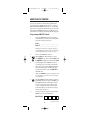
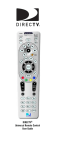
On the DIRECTV universal remote control,
press the device key you wish to program once
(e.g., TV, VCR, or AUX). Press and hold Setup
until the selected device key blinks twice and
then release Setup.
3.
Use the Manufacturer’s Codes (starting on
page 14) to locate the four digit number
corresponding to the brand name of the device
you want to control. Enter the first four-digit
code for your device. If performed correctly, the
light under the select device key will blink twice.
NOTE: If the selected device key emits a long blink,
the code is invalid. Repeat steps 2 through 3 and try
entering the same code again.
4.
Aim the DIRECTV universal remote control at
the device and press Power once. The device
should turn off. If it does not, repeat steps 2-3,
trying each code for your brand until you find
one that works. If it still does not work, try
Searching For Your Code on page 23.
NOTE: If the device does not have a Power key, press
the (Play) key.
5.
Repeat steps 1 through 4 for each device you
want the the DIRECTV universal remote control
to control. For future reference, write down
each working device code in the boxes on the
next page:
continued on next page...
11