1
5.4
USER OPTIONS
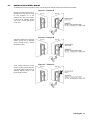
O ptions [1] and [2]: Ma ster Featur e
Wh en option [1] i s OFF, the User ca nno t pro gram other Users i nto the system.
Wh en option [1] i s ON and o pti on [2 ] is O FF, th e User can on ly mod ify existin g User A ccess Co des.
Wh en both op tio ns [1] and [2] are ON, th e User h as Ful l Ma ster rig hts. Th e User can cre ate or modify User Access
Cod es, User Optio ns, Use r Acce ss Control O pti ons, Access Ca rd Numbers and A rea Assign ments accordi ng to
the ir o wn pr ogra mmin g. For example , if th e Fu ll Master User ha s access to ar ea #1 and option [4] (B ypa ss) only, the
Ful l Master User ca n only assig n area # 1 a nd optio n [4] to othe r Users in the system.
O ption [3]: Du ress
Wh en op tio n [3 ] is ON, th e Duress fe ature is en able d. Thi s feature is u se d when some one forces a User to ar m o r
d isa rm an are a(s). B y e ntering a User A ccess Code (P.I.N.) reser ve d fo r the Du ress fea tur e, the system will ar m o r
d isa rm the a rea(s), and then sen d a sile nt al arm to the Central Mon ito ring Sta tio n.
O ption [4]: B ypass
Wh en option [4 ] is ON, the Bypass feature is e nable d. This fea tur e a llows the User to d eactiva te zone s when arming
the ar ea(s).
O ption [5]: A rm O nly
Wh en option [5 ] is O N, the Ar m On ly fe ature is en able d. The Use r can arm assi gned ar eas with either a car d o r
cod e, bu t cann ot di sa rm. When the op tio n is O FF, the User can either ar m or d isa rm a ssig ned are as.
O ption [6]: Stay & Instant A rm
Wh en op tio n [6 ] is ON, the Stay and Instant Arm features are enab led. The User can no w Stay or In stan t Ar m thei r
a ssig ned are as.
O ption [7]: Fo rce A rm
Wh en option [7] i s ON, the For ce ar m feature is ena bled . The Use r ca n now Fo rce a rm the ir assig ned ar eas.
O ption [8]: A rea Access
Wh en option [8] is ON, the ke yp ad wi ll p ermit a ccess to all th e a reas assigned to th e User Access Cod e. When
o ption [8] is OFF, the keypad will only pe rmit acce ss to the a reas it contro ls. For e xa mple, the keypad is assigned
a rea 1 onl y, and you r User A ccess Co de is a ssign ed are as 1 to 4. If the op ti on is O N, yo u ca n acce ss all four are as
from the keypad. If the o pti on is O FF, yo u can o nly a ccess area 1.
B y de fa ult al l Users ca n Regula r arm the syste m.
5.5
ACCESS CONTROL USER OPTIONS
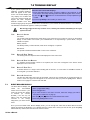
O ption [1]: A cce ss Card is A ctivated
Wh en option [1 ] is ON, the Access Control Card is activate d a nd ca n b e u se d whe n A ccess Con tr ol is enab led in the
syste m. When the optio n i s OFF, the Access Con tro l Ca rd ca nnot be used .
O ption [2]: Disar mi ng with A ccess Ca rd
Wh en o pti on [2] is ON, a User’s A ccess Control Ca rd can unlo ck an d disar m an a rmed A ccess Control Do or (see
section 6.2.2 on pag e 12).
For option [2] to function in the O N pos ition, option [5 ] “Arm Only ” in the Use r O pt ions m us t
be disable d (refe r to sec tion 5.4 on page 11).
O ption [3]: Ca rd with Extend ed Unlocked Pe riod
Wh en op tio n [3] is O N, “E xten ded Un locked Pe riod ” is enab led. “Extend ed Unl ocke d Per iod” r efers to th e ti me
p eriod p rogr ammed into each Access Co ntr ol Door by yo ur In stalle r th at extend s the unl ocke d time o f th e doo r. Fo r
e xa mple, if you r Installer sets the Un locke d per iod of th e doo r to 30 se co nds and the E xten ded Unlo cke d Perio d to
1 5 seconds, th en a User Access Co de with “Extende d Unlocked Pe riod ” enab led will h ave a to ta l o f 4 5 se co nds to
pa ss throu gh th e door.
O ptions [4] to [7]: Arming with Card
O ptions [4] to [7] de fin e the type of armin g wh en arming with an Acce ss Control Card (re fer to se ction 6.2.1 on page
1 2). You can eithe r Reg ular ar m, Stay arm, Instant a rm, or Force arm.
[4] O N, [5 ] to [7 ] OFF = Re gula r A rm
[4] & [5] ON, [6] & [7] O FF = Stay A rm
[4] & [6] ON, [5] & [7] O FF = In stan t Arm
[4] & [7] ON, [5] & [6] O FF = Force Ar m
LCD Keypad 11