1
• USER (Adjustable Color Bias and Gain)
• Linear (No processing is applied to the panel)
Use this setting to enable monochrome mode. Only the luminance of the image will be displayed as a grayscale picture.
■ On-Screen Tally
Use the On-Screen Tally option to turn the On-Screen tally ON or OFF.
■ Text Tally
■
RGB Bias and Gain
Select this submenu to fine-tune the monitor’s color balance (R, G, B). This should only be done by someone experienced
with video engineering, as this will alter the overall color shading of the screen. The purpose is to allow color matching to
other types of monitors and/or displays. Note: The Color Temperature preset will automatically switch to USER when Color
Bias settings are adjusted. It is normal for color bias adjustments to be very subtle.
Use the Text Tally option to lock the Text String color to the same color as the current Tally color. When there is no specific
tally color enabled, the text string will default to the Text Color selection made in the IMD & Tally Configuration menu option.
SYSTEM INFORMATION SUBMENU
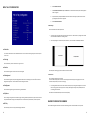
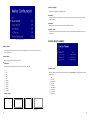
When selecting the RGB Bias and Gain submenu, gain adjustment indicators will appear at the top of the screen, and bias
adjustment indicators will appear at the bottom of the screen:
■ System
This shows the System firmware version of your monitor.
■ Power Module
This shows the Power Module firmware version of your monitor.
RGB Bias and Gain
Use the ▲ and ▼ buttons to select each individual bias or gain control. Press SELECT to begin adjusting the control. Use the ▲
and ▼ buttons to increase or decrease the value.
Alternately, the image adjustment buttons (Brightness, Color, Tint, Contrast) can be used to easily adjust the bias and gain
settings as shown below. The buttons affect whichever row of controls (gain or bias) is currently selected.
■
Check Field
■ Keypad
This shows the Keypad firmware version of your monitor.
■ Input Module (1 or 2)
This shows your module type and the firmware version of your module. If no module is present, the word EMPTY will appear
in parentheses.
NETWORK CONFIGURATION SUBMENU
Use the check field modes for monitor calibration or to analyze individual color components of an image. In Monochrome
mode, all color is disabled and only a grayscale image is shown. In Blue, Green, and Red check field modes, only the selected
color will be shown.
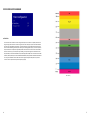
Use the following procedure when calibrating the monitor to SMPTE color bars with the following procedure:
12
1.
Allow the monitor to warm up for at least 5-10 minutes.
2.
Display SMPTE split-field color bars on the monitor using an external source.
3.
Enable Monochrome mode.
4.
Locate the pluge pattern (super black, black, and gray bars) at the lower-right corner of the screen. Adjust the
Brightness button until there is no visible difference between the super black and black bars, but the gray bar is
still visible.
5.
Adjust the Contrast button until an even grayscale appears along the top bars.
21