1
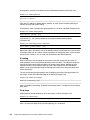
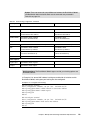
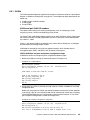
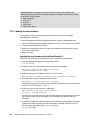
Important: The procedure described in this section might also be useful when you boot
the switch and the boot and OS versions are not equal.
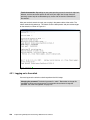
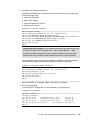
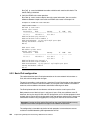
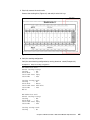
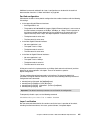
Then, power on the switch and you see some boot messages. From your terminal window,
press Shift + B while the Memory tests are processing and dots are showing the progress.
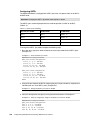
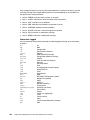
A menu opens. Select 3 for Xmodem download. Change the serial connection properties
as follows:
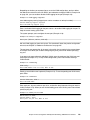
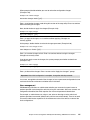
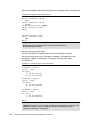
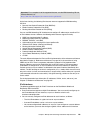
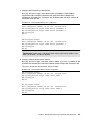
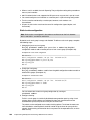
## Switch baudrate to 115200 bps and press ENTER ...
Change the settings of your terminal to meet the 115300 bps requirement and press Enter.
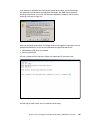
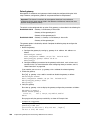
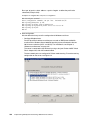
The system switches to download accept mode. You see a series of “C” characters in the
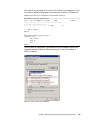
screen that prompt you when the switch is ready. Start an Xmodem terminal to push the boot
code you want to restore into the switch. Select the boot code for your system, and the switch
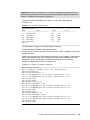
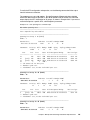
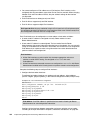
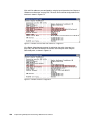
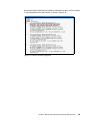
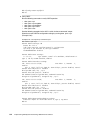
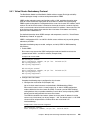
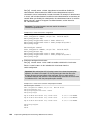
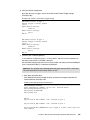
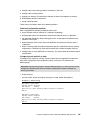
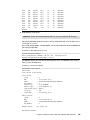
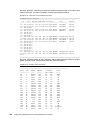
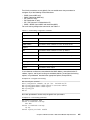
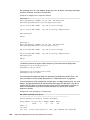
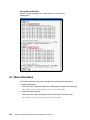
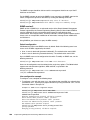
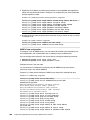
start the download. You should see a screen similar to Example 7-3.
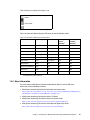
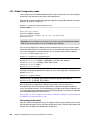
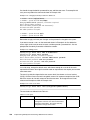
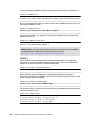
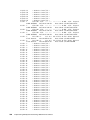
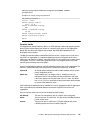
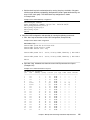
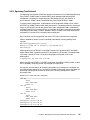
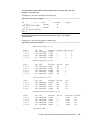
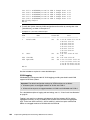
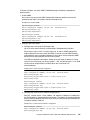
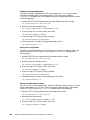
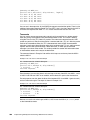
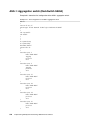
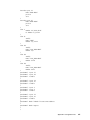
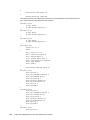
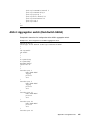
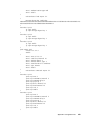
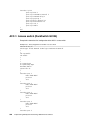
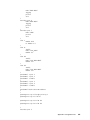
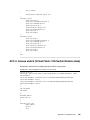
Example 7-3 Xmodem firmware download
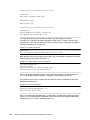
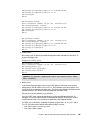
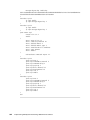
yzModem - CRC mode, 62494(SOH)/0(STX)/0(CAN) packets, 6 retries
Extracting images ... Do *NOT* power cycle the switch.
**** VMLINUX ****
Un-Protected 10 sectors
Erasing Flash............. done
Writing to Flash.............done
Protected 10 sectors
**** RAMDISK ****
Un-Protected 44 sectors
Erasing Flash............................................... done
Writing to Flash...............................................done
Protected 44 sectors
**** BOOT CODE ****
Un-Protected 8 sectors
Erasing Flash........... done
Writing to Flash...........done
Protected 8 sectors
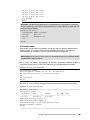
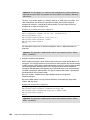
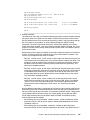
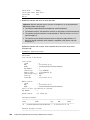
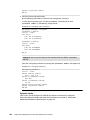
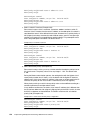
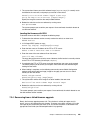
When this process is finished, you are prompted to reconfigure your terminal to 9600 bps
speed:
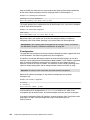
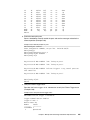
## Switch baudrate to 9600 bps and press ESC ...
Change the speed of your serial connection, and then press Esc. The Boot Management
Menu opens again. Select 3 again, and change the speed to 115000 bps when the following
message appears, to start pushing the OS image.
## Switch baudrate to 115200 bps and press ENTER ...
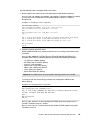
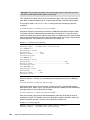
After you are done, press Enter to continue download. Select the OS image you want to
upload to the switch. The Xmodem client starts sending the image to the switch. When the
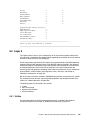
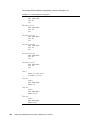
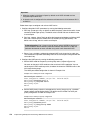
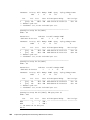
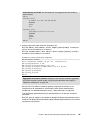
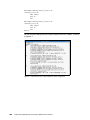
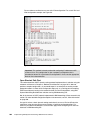
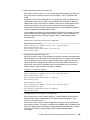
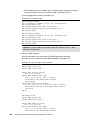
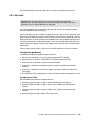
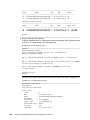
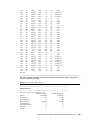
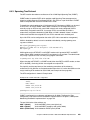
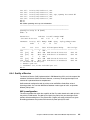
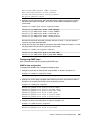
upload is complete, you see a screen similar to the one in Example 7-4.
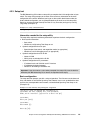
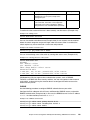
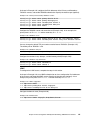
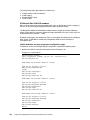
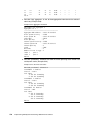
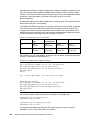
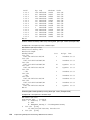
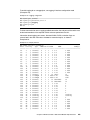
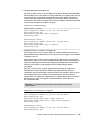
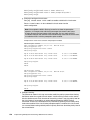
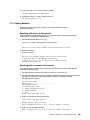
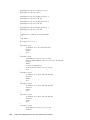
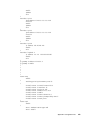
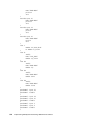
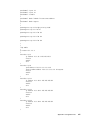
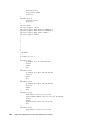
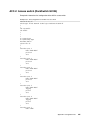
Example 7-4 OS image upgrade
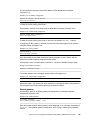
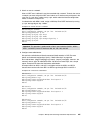
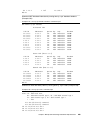
yzModem - CRC mode, 27186(SOH)/0(STX)/0(CAN) packets, 6 retries
Extracting images ... Do *NOT* power cycle the switch.
294
Implementing IBM System Networking 10Gb Ethernet Switches