1
CHAPTER 10: Firebox Read-Only System Area
5
Select an unused IP address behind the router on the same network to
which the Firebox is attached. Set the Firebox’s read-write passphrase
to wg. Set the timeout to 90 seconds. Click OK.
6
If the procedure is successful, the open operation on the Management
Station completes. You can then follow regular procedures described
in the User Guide to configure and download a new flash image to the
Firebox.
Managing Flash Disk Memory
The Flash Disk Management Tool performs specific tasks involving the
Firebox flash memory. The flash disk is divided into three areas:
• System (SysB)–Contains a permanently stored, basic Firebox
software image with the passphrase wg.
• Primary (SysA)–Contains the Firebox software image used in normal
operation and the enhanced read-only system area.
• SysA Continued–The remainder of the Firebox software image.
• PermFiles Area
The Flash Disk Management Tool performs three different tasks for
manipulating the Firebox boot configuration file.
Making a backup of the current configuration
To ensure that you always have a backup version of a current working
configuration, the backup configuration (everything but SysB) is stored
on the Management Station. From Control Center:
124
1
2
Select Tools => Advanced => Flash Disk Management.
3
Click Yes.
4
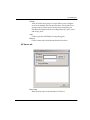
Use the Firebox drop list to select a Firebox or type the IP address
used by the Management Station to communicate with the Firebox.
Enter the configuration (read/write) passphrase. Click OK.
Select Make Backup of Current Image. Click Continue.
A verification prompt appears. Verify that the Management Station connects to the
Firebox Trusted interface either over the network (TCP/IP) or via a modem using
out-of-band management.
The Connect To Firebox dialog box appears.
WatchGuard Firebox System 6.0