1
Meeting your technology needs with inspiration and dedication!
QOMO Interactive Whiteboards
1) Connectivity/Driver Issues
a.
b.
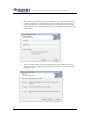
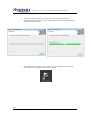
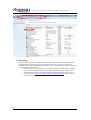
Please insert the CD that came with your whiteboard and follow the instructions. Make
sure to install the driver before you connect the board to the computer.
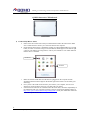
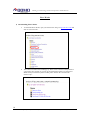
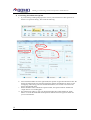
Ensure that the board driver is installed by looking for a Red and Black Bow-tie icon (IR
board) or a Blue TV with an orange circle (EM boards) should appear in the bottom right
corner of your desktop (see image below). This is your board driver icon which indicates
that the driver is installed.
EM Board
IR Board
c.
d.
e.
Make sure that the USB cable from the board is plugged into the computer and the
whiteboard and the indicator light on the bottom right of the board is on and steady (not
flickering).
Once you have the USB connection from your board to your computer, the two icons
should say connected when you hover over them with your mouse.
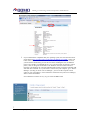
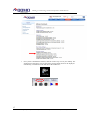
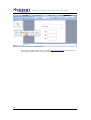
If the board icon indicates NO CONNECTION has been made, check the compatibility of
the whiteboard with your computer operating system by checking the QOMO website at
http://www.qomo.com/ProductList.aspx?CategoryID=5. Find your whiteboard model and
check the “specifications” tab.
6
46950 Magellan, Wixom, MI 48393 USA | Phone: 866-990-7666 | Fax: 248-281-1998 | Web: www.qomo.com