1
ST-EG100-E Installation and User Guide
•
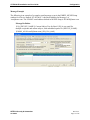
Configuration
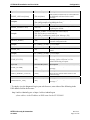
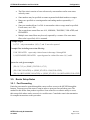
ChangeIP www.changeip.com
Any DDNS provider that adheres to the standard protocol used by these DDNS servers would
work.
Select a DDNS provider and visit their website to sign up for a free account. The free accounts
they offer are basic, but sufficient for accessing the ST-EG100-E from the Internet. For
additional fees, each provider has “extras” such as letting you select a fully custom URL, email
services, etc. The free service allows you to select a URL in one of their “sub-domains.” For
example, DynDNS has nearly one hundred sub-domains to choose from, one being
“dyndns.org.” You can prepend any name to the front of it (so long as it’s not already taken)
such as “MyM1,” giving you the URL “MyM1.dyndns.org.” Please be sure to read and adhere to
the provider’s policies. Because they provide the service for free, they must institute rules to
prevent abuse of their service.
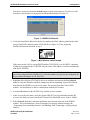
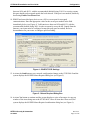
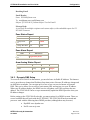
After setting up the account (it may take a day or two for it to begin working), enter the setup
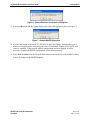
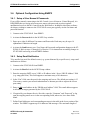
information for that account on the Dynamic DNS tab of the M1XEP Setup window in ElkRP2.
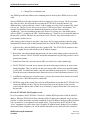
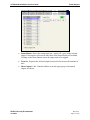
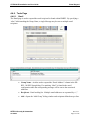
1. In the first box, enter the DDNS provider’s update URL. The ST-EG100-E connects to this
URL to update the provider whenever the IP address changes.
2. Below that, enter the username and password you chose when setting up the account on the
provider’s website. The ST-EG100-E needs this information to log into the provider’s site to
perform the updates.
3. In the Host Name box, enter the custom URL you selected (ie. mym1.dyndns.org).
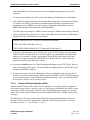
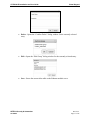
4. The ST-EG100-E can send you or anyone else an email message whenever an error occurs
during an update. This is to notify you that your custom URL will not work until the update
is successful. To enable this feature, enter the email address in the next box. You must also
fill in the necessary information on the Email tab (refer to Email Notification Section 3.4.2).
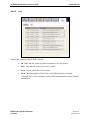
5. In addition to notifying you of update errors, you may also want to know when a successful
update occurs. Check the last box to enable this.
6. SEND the setup to the control, then activate the Test button to test that the ST-EG100-E can
contact the DDNS provider. The test does not perform an actual update, as the provider
would consider that an abuse of their service. Instead, it simply checks that it can connect to
the provider.
How the ST-EG100-E DDNS updates work:
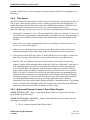
Every few minutes, the ST-EG100-E “checks in” with the DDNS provider to find its public IP
address. When the ST-EG100-E detects that the public IP address has changed, it logs in to the
provider’s website and sends a message containing its new IP address. Most providers will delete
a free account if it is not updated every month or two. To prevent this, the ST-EG100-E will
“force” an update every thirty days even if its public IP address hasn’t changed. If you enabled
email notification of updates, you will be notified when this occurs. Most providers consider it
SETECH Security & Automation
96-300001
Revision 1
Page 21 of 44