1
ColorStyler Manual
34
2.3 Split View
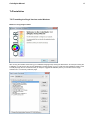
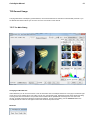
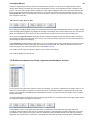
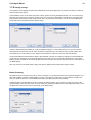
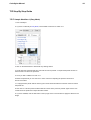
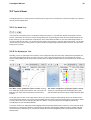
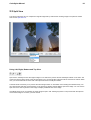
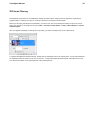
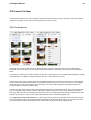
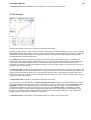
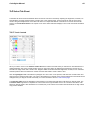
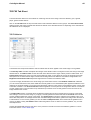
The various split views let you compare the original image side by side with the resulting image in the preview. Please
also see the split view tool.
Using Left, Right, Bottom and Top View
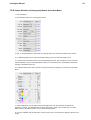
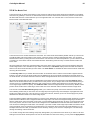
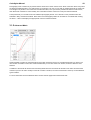
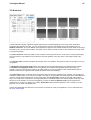
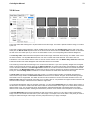
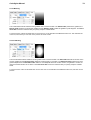
Split views in ColorStyler show the original image on one side of the preview and the ColorStyler effects on the other. The
combo box at the bottom center of the preview allows you to choose whether split view will be horizontal or vertical. Which
view you choose determines which side of the split view shows ColorStyler's effects.
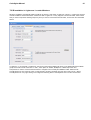
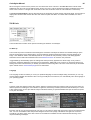
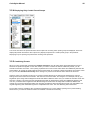
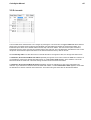
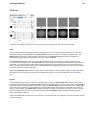
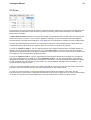
The Multi check box allows you to preview the same image section on both sides of the dividing line simultaneously. You
can click with the split view tool somewhere on the preview to display another different part of the image. You can use the
split view tool to click anywhere on the image to display a different area of the image.
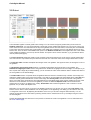
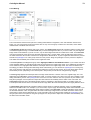
If the Multi check box is not checked, the whole image is split in half. Clicking anywhere on the preview with the split tool
moves the dividing line to where you have clicked.