1
ColorStyler Manual
36
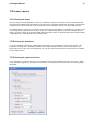
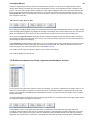
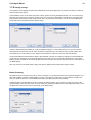
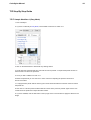
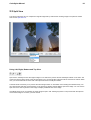
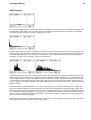
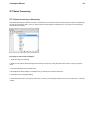
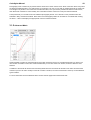
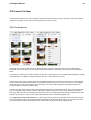
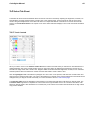
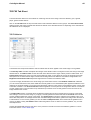
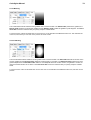
When moving the mouse over the preview, the color below the cursor is shown in the color box of the Info tab sheet.
Additionally the color is shown as RGB and HSL values. The x and y values represent the image coordinates of the pixel
whose color is shown. For images with 16-bit/channel the color values are shown as 8-bit values like in Photoshop.
The first line at the bottom of the Info tab sheet show the image size in pixels and the channel bit depth. The second line
displays the camera model and the ISO value with which the photo was taken. If no EXIF data is available, this line is
empty.
2.4.4 Prefs
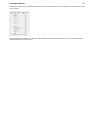
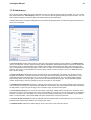
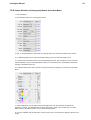
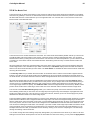
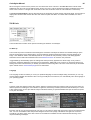
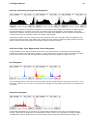
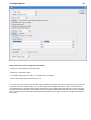
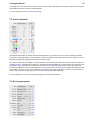
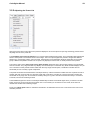
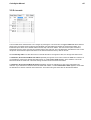
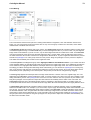
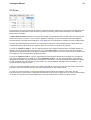
The Prefs tab sheet contains some options for defining the behavior of ColorStyler.
On Start Up
The On Start Up combo box defines which settings are used when ColorStyler is started. The "Default Settings" option
sets all controls back to their default values. "Previous Settings" loads the settings that were previously applied to an
image. "Own Defaults" loads a self-defined preset file. If no preset file was previously chosen, a file dialog appears.
Otherwise use the "Define Own Defaults" item of the Reset arrow menu to choose a new preset file.
"Logged Settings" automatically opens the settings that were previously applied to the same image. It only works in
Photoshop, Photoshop Elements, Paint Shop Pro and Photoline. Additionally it only works if you previously had the Log
Settings check box activated and if you already processed the same image file. This works in the same way as the Reset
option. Please see the Tools & Reset page for more information.
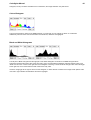
Language
The Language combo box allows you to set your preferred language for the ColorStyler dialog. At this time you can only
choose between English and German. When running ColorStyler for the first time, it is automatically set to the language of
your operating system.
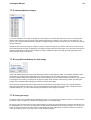
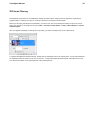
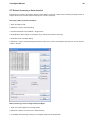
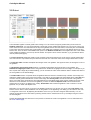
Skin
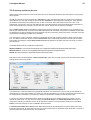
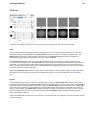
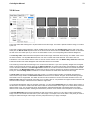
The Skin combo box features various skin options. Skinning means that the user interface receive a new look. There are
different options for imitating the user interface of Lightroom, Photoshop, Photoshop Elements and PaintShop Pro. There
is also a dark version of Aero (the default UI style of Windows Vista/7), a special PhotoWiz skin style as well as an option
to only skin the sliders.
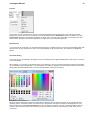
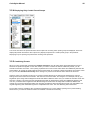
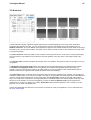
Each skin sets its own preview background color, but you can change it again with the Preview color box that is discussed
next. You can use a different skin and preview background color for the plugin, standalone and Lightroom versions of
ColorStyler. The None option of the Skin combo box recreates the standard controls and deactivates skinning, which
requires restarting ColorStyler.