1
Before you start
Important Safeguards
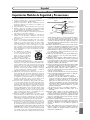
information with regard to proper grounding of the mast and
supporting structure, grounding of the lead-in wire to an antenna discharge unit, size of grounding conductors, location of
antenna-discharge unit, connection to grounding electrodes,
and requirements for the grounding electrode. (Fig.A)
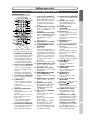
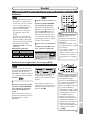
FIGURE A
EXAMPLE OF ANTENNA GROUNDING
AS PER NATIONAL ELECTRICAL CODE
ANTENNA
LEAD
WIRE
GROUND
CLAMP
Connections
ANTENNA
DISCHARGE UNIT
(NEC SECTION 810-20)
ELECTRIC
SERVICE
EQUIPMENT
NEC – NATIONAL ELECTRICAL CODE
S2898A
GROUNDING CONDUCTORS
(NEC SECTION 810-21)
GROUND CLAMP
POWER SERVICE GROUNDING
ELECTRODE SYSTEM
(NEC ART 250, PART H)
Playing discs
Editing
Changing the SETUP menu
VCR functions
Others Español
3
Recording
15. Lightning - For added protection for this video product during a lightning storm, or when it is left unattended and
unused for long periods of time, unplug it from the wall outlet and disconnect the antenna or cable system. This will
prevent damage to the video product due to lightning and
power-line surges.
16. Power Lines - An outside antenna system should not be located in the vicinity of overhead power lines or other electric
light or power circuits, or where it can fall into such power
lines or circuits. When installing an outside antenna system,
extreme care should be taken to keep from touching such
power lines or circuits as contact with them might be fatal.
17. Overloading - Do not overload wall outlets and extension
cords as this can result in a risk of fire or electric shock.
18. Object and Liquid Entry - Never push objects of any kind
into this video product through any openings as they may
touch dangerous voltage points or short-out parts that
could result in a fire or electric shock. Never spill liquid of
any kind on the video product.
19. Servicing - Do not attempt to service this video product
yourself as opening or removing covers may expose you to
dangerous voltage or other hazards. Refer all servicing to
qualified service personnel.
20. Damage Requiring Service - Unplug this video product from
the wall outlet and refer servicing to qualified service personnel under the following conditions:
a.When the power-supply cord or plug is damaged.
b. If liquid has been spilled, or objects have fallen into the video
product.
c. If the video product has been exposed to rain or water.
d. If the video product does not operate normally by following the operating instructions. Adjust only those controls
that are covered by the operating instructions as an improper adjustment of other controls may result in damage and
will often require extensive work by a qualified technician
to restore the video product to its normal operation.
e. If the video product has been dropped or damaged in any way.
f.When the video product exhibits a distinct change in performance this indicates a need for service.
21. Replacement Parts - When replacement parts are required,
be sure the service technician has used replacement parts
specified by the manufacturer or have the same characteristics as the original part. Unauthorized substitutions may
result in fire, electric shock or other hazards.
22. Safety Check - Upon completion of any service or repairs to
this video product, ask the service technician to perform
safety checks to determine that the video product is in
proper operating condition.
23. Heat - This video product should be situated away from heat
sources such as radiators, heat registers, stoves, or other
products (including amplifiers) that produce heat.
Getting started
1. Read Instructions - All the safety and operating instructions
should be read before the appliance is operated.
2. Retain Instructions- The safety and operating instructions
should be retained for future reference.
3. Heed Warnings - All warnings on the appliance and in the
operating instructions should be adhered to.
4. Follow Instructions - All operating and use instructions
should be followed.
5. Cleaning - Unplug this video product from the wall outlet
before cleaning. Do not use liquid cleaners or aerosol cleaners. Use a damp cloth for cleaning.
EXCEPTION: A product that is meant for uninterrupted
service and, that for some specific reason, such as the possibility of the loss of an authorization code for a CATV converter, is not intended to be unplugged by the user for
cleaning or any other purpose, may exclude the reference
to unplugging the appliance in the cleaning description otherwise required in item 5.
6.Attachments - Do not use attachments not recommended by
the video product manufacturer as they may cause hazards.
7. Water and Moisture- Do not use this video product near water,
for example, near a bath tub, wash bowl, kitchen sink, or laundry
tub, in a wet basement, or near a swimming pool, and the like.
8.Accessories - Do not place this video product on an unstable cart, stand, tripod, bracket, or table. The video product
may fall, causing serious injury to a child or adult, and serious damage to the appliance. Use only
with a cart, stand, tripod, bracket, or table
recommended by the manufacturer, or
sold with the video product. Any mounting of the appliance should follow the
manufacturer's instructions and should
use a mounting accessory recommended
by the manufacturer.
9. Transportation - A product and cart combination should be
moved with care. Quick stops, excessive force, and uneven surfaces may cause the appliance and cart combination to overturn.
10.Ventilation - Slots and openings in the cabinet are provided
for ventilation and to ensure reliable operation of the video
product and to protect it from overheating, and these openings must not be blocked or covered. The openings should
never be blocked by placing the video product on a bed,
sofa, rug, or other similar surface.This video product should
not be placed in a built-in installation such as a bookcase or
rack unless proper ventilation is provided or the manufacturer's instructions have been adhered to.
11. Power Sources - This video product should be operated
only from the type of power source indicated on the marking label. If you are not sure of the type of power supply to
your home, consult your appliance dealer or local power
company. For products intended to operate from battery
power, or other sources, refer to the operating instructions.
12. Grounding or Polarization - This video product is equipped
with a polarized alternating-current line plug (a plug having
one blade wider than the other). This plug will fit into the
power outlet only one way.This is a safety feature. If you are
unable to insert the plug fully into the outlet, try reversing
the plug. If the plug should still fail to fit, contact your electrician to replace your obsolete outlet. Do not defeat the
safety purpose of the polarized plug.
13. Power Cord Protection - Power supply cords should be
routed so that they are not likely to be walked on or
pinched by items placed upon or against them, paying particular attention to cords at plugs, convenience receptacles,
and the point where they exit from the appliance.
14. Outdoor Antenna Grounding - If an outside antenna or cable
system is connected to the video product, be sure the antenna
or cable system is grounded so as to provide some protection
against voltage surges and built-up static charges.Article 810 of
the National Electrical Code, ANSI/NFPA No. 70, provides
Before you start
Precautions (cont’d)