1
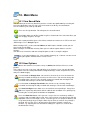
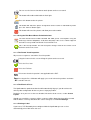
This is the Delete User button. It will delete whichever user is currently selected in the
‘Username’ dropdown.
Please note that the admin user cannot be deleted.
Press this button to Save changes and return to the previous screen.
This is the Copy User function. This will copy the settings and preferences of the
current user to a new user account.
10.3 Bluetooth Setup
Select this icon to setup your Bluetooth accessories to work with the Apollo 600. Switch on
the Bluetooth device you wish to pair with and ensure it is discoverable.
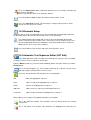
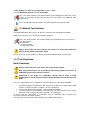
This will Bluetooth Search button will search the area for Bluetooth discoverable
devices and return to the previous menu. You can then use the arrow keys to select
the correct Bluetooth ID from the dropdowns for your Bar Code Scanner, Printer or
Mobile Device. Press ‘Save’ once complete.
Press this button to save changes and return to the previous screen.
10.4 Automatic Test Sequence Editor (PAT Edit)
Although the Apollo 600 comes with a number of pre-defined test sequences you can modify
existing, or create new test sequences of their own.
From the Menu function key select one of the following options using the arrow keys and the
Accept button.
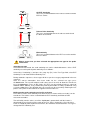
This is the Menu/Options key. This function will bring up a context sensitive menu
giving the options available for the current screen.
This is the Accept function. This will open the selected option.
Edit
Edits the highlighted sequence.
Copy
Makes a copy of the highlighted test sequence.
Delete
Deletes the highlighted test sequence.
Add New
Adds a new test sequence to the bottom of the list.
Insert New
Adds a new test below the highlighted test sequence.
When editing a test sequence the following functions are available
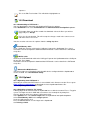
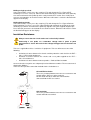
This is the Add Test function. This will add a new test directly under the currently
selected test.
This is the Delete Test function. This will delete the highlighted test from the test