1
USB Connection
USB Mode Connection
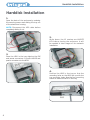
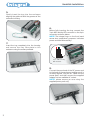
Hardware installation
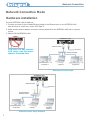
1. Connect your INTEGRAL LAN to the computer using the supplied USB cable
2. Switch on the power and your INTEGRAL LAN is ready to use.
CAUTION! Do not connect USB cable
and Ethernet cable at the same time.
Software installation
Mac OS 8.6
If you are using Mac OS 8.6, the software of Mass Storage Support 1.3.5 is required for
installation. You can download The USB Mass Storage Support 1.3.5 from the Apple Software
Updates web site Http://www.apple.com/support .
Mac OS9.0 or later
You don’t need to install this software if you have installed Mac OS 9.0 or above.
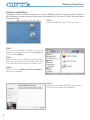
When you connect the INTEGRAL LAN into the USB port of the Mac computer, the mass storage
volume should appear on the desktop in a few seconds automatically.
Using the INTEGRAL LAN Device
After the first installation, you can connect or disconnect the INTEGRAL LAN device without powering
off the computer, please follow the steps when you want to do the above actions
Connecting the INTEGRAL LAN device
1. Connect one end (type B) of the USB cable into the USB port of your INTEGRAL LAN enclosure.
2. Connect the other end of the USB cable (type A) into any active USB port of the computer.
3. Plug the AC power cord to the INLET of your INTEGRAL LAN enclosure and turn on the power
switch. Your INTEGRAL LAN device is ready to use.
Disconnect the INTEGRAL LAN Device
When disconnecting your INTEGRAL LAN drive from
the computer, close all windows and quit all running
applications that are stored on the USB2.0 External
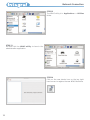
Drive and drag USB2.0 External Drive’s icon into “Trash”
to dismount it from the Desktop prior to unplugging
the USB2.0 External Drive from the USB port.