1
Adding Polish with
iMovie Themes
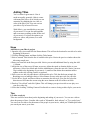
iMovie includes Apple-designed
iMovie theme elements that you can
use to add consistent looking scenes
throughout your movie. This is a great
way to add an interesting opening to
your movie, introduce a new chapter,
segue from one clip to another, or show
closing credits along with a closing
video.
Best of all, you can customize the
theme elements to incorporate your
own video or photos.
Steps
Add scenes to your project using iMovie themes
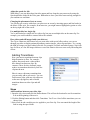
1. To view the different themes available in iMovie, click Themes. Use the pop-up menu at the top of
the Themes pane to get a feel for what each theme looks like. Select the Reflection - White
theme.
2. Use the scroll bar to see the various theme elements included with this theme.
3. Select the Open theme element and watch the preview. This is a great choice for the opening of a
movie, as it allows us to incorporate a title and video in an opening sequence.
4. In the Title 1 field, type a movie title. As the preview plays, you’ll see your title used at the end of
the preview.
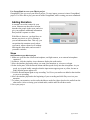
5. Make sure the Drop Zone Editor is visible. If it is hidden, click the Show Drop Zones button.
6. Drag video clips from your timeline into the drop zones labeled 1, 2, and 3. Notice the preview
changes to include your new video in the theme and a reflection of your video appears
underneath the theme drop zones. This is an example of the advanced compositing available with
iMovie themes.
7. Replace the video in drop zone 2 with a photo from your iPhoto Library. To do so, click Media,
and then click Photos. Drag a photo from your iPhoto Library to drop zone 2. Watch as the
preview updates to show your photo added to the theme.
8. Click Apply to create a new video clip that uses your title, video, and photo. You’ll see a new clip
added to the end of your movie. After iMovie finishes creating, or rendering, the clip, drag it to
the start of your movie to be your new opening sequence.
9. Select the Lower Third theme element. The preview updates the theme element with the video
from drop zone 1. This would be a great choice in the middle of your movie to give viewers
additional information, such as who a person is the first time they appear in your movie. Enter
the name of the person you want to introduce in the title field and click Apply to create this
sequence. Move it to the middle of your movie when it is finished rendering.
Congratulations! You’ve successfully applied your video, photos, and a title to two different theme
elements. Continue experimenting with different theme elements to see how they can best be
incorporated in your movies.
8
Apple Tutorial