1
S
3 – FVIC Configuration and Monitoring Features
Fibre Channel Configuration
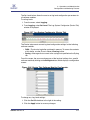
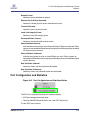
1. In the main status and navigation area, click on an FVIC.
2. From the FVIC menu, click Configuration.
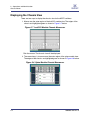
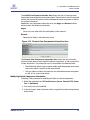
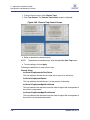
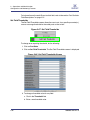
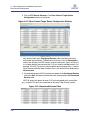
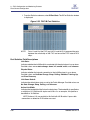
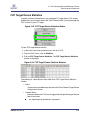
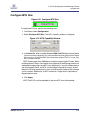
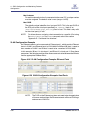
3. Click FC Port Configuration. The FCP Port Configuration screen is
displayed:
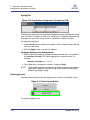
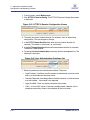
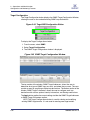
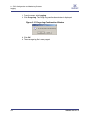
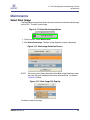
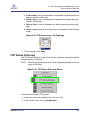
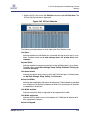
Figure 3-18 FCP Port Configuration Screen
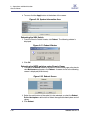
4. Select the FVIC port to be modified. The row changes to orange.
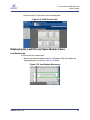
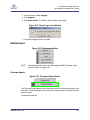
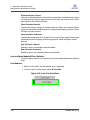
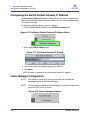
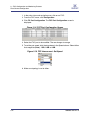
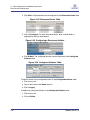
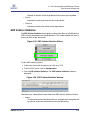
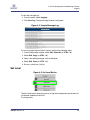
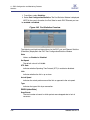
5. To set the port speed, click the drop-down in the Speed column. Select either
Auto-negotiate (Auto), 1 GB, 2 GB or 4 GB.
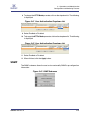
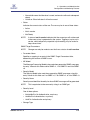
Figure 3-19 FCP Interconnect - Set Speed
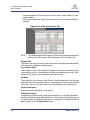
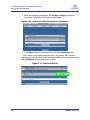
6. Make sure topology is set to either:
3-12
D000003-016 Rev. A