1
Hardware Options Window
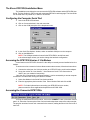
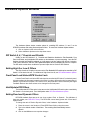
The Hardware Options window contains options for controlling DIP switches 5, 6 and 7 on the
DFR11EQ hardware and setting fixed and dynamic filters. To access the Hardware Options window:
1. Click on Options in the main menu bar.
2. Select Hardware Options on the drop-down menu.
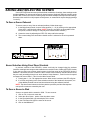
DIP Switch 5, 6, 7 Override and Disable
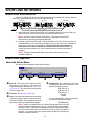
Setting High Q or Low Q Filters
The High Q and Low Q option is the same as the Filter Bandwidth DIP switch option controlled by DIP
Switch 5 on the back of the unit. For definitions of High Q and Low Q, see DIP Switch/Hardware Options.
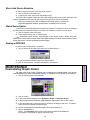
Front Panel Lock/Unlock/DFR Control Lock
Like the Front Panel Lock/Unlock DIP switch option controlled by DIP Switch 7 on the back panel,
this option allows the front panel controls to be locked, in order to protect the unit from tampering. In
addition, it provides a third option, DFR Control Lock, that protects the filters created by the Digital
Feedback Reducer but allows scenes to be changed on the front panel.
Hold/Update DFR Filters
The Hold/Update DFR Filter option is the same as the Hold/Update DIP switch option controlled by
DIP Switch 6 on the back panel. See Hold/Update under DIP Switch/Hardware Options.
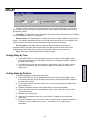
Setting Fixed and Dynamic Filters
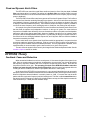
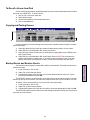
DFR11EQ feedback filters are set in one of two modes: Fixed or Dynamic. For definitions of
these two modes, see DFR11EQ Theory. The DFR11EQ comes factory preset with 5 fixed and 5
dynamic filters.
To change the ratio of Fixed to Dynamic filters, in the Hardware Options window:
1. Place the cursor in the Number of Fixed DFR Filters field by using the mouse.
2. Type in the desired number of fixed filters. The remaining filters automatically become
dynamic.
3. Click on the OK button to accept the changes.
25
Table of Contents
Clicking on the DIP Switches 5, 6, 7 Override and Disable box disables the Filter Bandwidth, Front
Panel Lock/Unlock, and Hold/Update DIP switches on the hardware, to prevent tampering. Once the DIP
Switches Override and Disable is activated, an X will appear in the box and the High Q/Low Q selection,
Front Panel Lock/Unlock, and DFR Filter Update/Hold options will be controllable only from the computer.
The DIP switch override does not affect the input and output level or Device ID DIP switches.