1
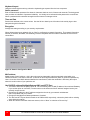
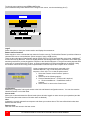
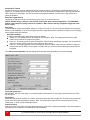
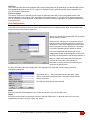
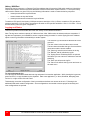
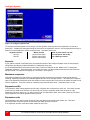
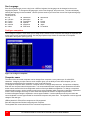
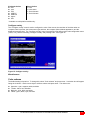
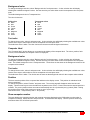
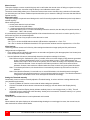
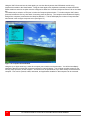
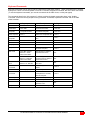
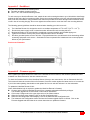
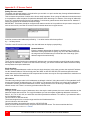
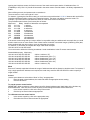
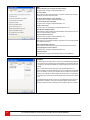
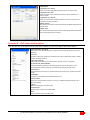
OPERATION Remote System Operation Connecting using a web browser Connecting to the UltraView Remote 2 from a network location or over the internet can be done two ways; using the Built-in Java VNC Viewer or Downloading Windows VNC Viewer from the unit and installing it on the remote computer. It is recommended that the Windows VNC viewer be downloaded from the unit and installed on the remote computer. The VNC viewer is more robust than the Java applet and has more functionality and features than the Java applet. If you experience problems using the Java applet, switch to the VNC viewer application. To connect to the UltraView Remote 2 from any workstation, start a web browser and enter the assigned IP address for the unit in the URL field of the browser (Example http://192.168.0.44). The UltraView Remote 2 will respond with the below three options displayed in the browser’s window. The first time a connection to the UltraView Remote 2 is made, it is recommended that you download the Windows VNC viewer from the unit, save it and run the VNC viewer to connect to the unit directly. Some operating systems may request permission to run or save the program. Save the program to the location wanted and create a desktop ICON for the program. The next time the RealVNC viewer is needed, just click on the desktop ICON to connect. After the installation is complete, run the VNC viewer program and the VNC Viewer Connection Details window will display. Make sure that the Server IP address is correct and the port number is 5900. If the port number was changed during the unit configuration procedure, this number will match that VNC port configuration number. Click on “OK” to enter your Username and Password Click on the OK tab and VNC Authentication box will display. Enter the Username and password and click OK. Upon validation, the remote connected computer’s video will display. NOTE: If the username or password is entered incorrectly five consecutive times, the remote user station’s IP address is locked out and remote access is denied. The lockout of an IP address will show up in the log as IP address “Blacklisted”. (See the troubleshooting section for the procedure to unlock the IP address) Click on the OK tab and the remote connected computer’s video will display. Viewer encryption settings The web browser viewers and VNC viewers (of level 4.0b5S or higher) offer four encryption settings: Always on - This setting will ensure that the link is encrypted, regardless of UltraView Remote 2 encryption setting. Let server choose - This setting will follow the configuration of the UltraView Remote 2. If the UltraView Remote 2 has ‘Always on’ or ‘Prefer on’ set, then the link will be encrypted. If the ‘Prefer off’ setting is selected at the UltraView Remote 2, then the link will not be encrypted. Prefer off - This setting will configure an un-encrypted link if the UltraView Remote 2 will allow it, otherwise it will be encrypted. Prefer on - If the UltraView Remote 2 allows it, this setting will configure an encrypted link, otherwise it will be unencrypted. 30 ULTRAVIEW REMOTE 2 INSTALLATION AND OPERATIONS MANUAL