1
M22M Camera Manual Part 1
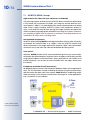
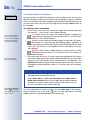
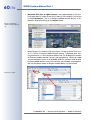
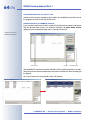
Once you have finished configuring the camera, you should always store the
settings in the camera's permanent memory. You can do so in each dialog
(clicking on Set at the bottom of each dialog will temporarily set the changes;
clicking on Close will ask you to store the complete configuration in the cameras permanent memory) or in the Configuration section of the administration menu (Admin Menu > Store current configuration into flash memory).
The Configuration section of the administration menu provides more functions for storing, copying and managing camera settings. For additional information on this topic, see chapter 5, Basic Camera Configuration, in the
Software Manual.
•
•
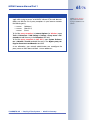
A camera that keeps time
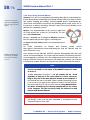
Apart from a multitude of possibilities for controlling the camera using time
(time tables, holiday and vacation, scheduled tasks, etc.), the camera can
also synchronize its internal clock. This allows you to keep the camera in
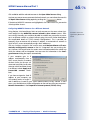
synch manually with a computer or fully automatic using a time server or
another MOBOTIX camera. The camera can use NTP time servers or time
servers providing Time Protocol (RFC 868). For additional information on this
topic, see section 5.4.2, Date and Time / Time Zones and Time Servers, in the
Software Manual.
47/76
Make sure to permanently
store changed parameters!
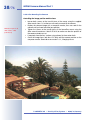
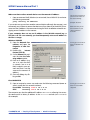
Automatic time synchronization using a time server
MOBOTIX cameras can do "More"
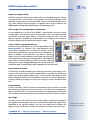
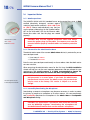
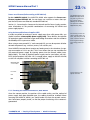
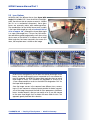
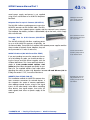
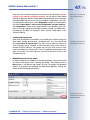
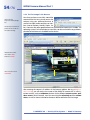
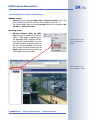
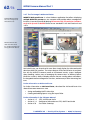
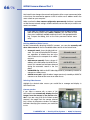
In order to improve the readability of the camera dialogs, some of them hide
less-often used options when showing the dialog. These dialogs have a
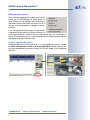
More button in the bottom right corner; click on it to display the advanced
options. If all options are displayed, the Less button appears. Clicking this
button will hide the advanced options.
Click on the More/Less
buttons to show/hide the
advanced options
© MOBOTIX AG • Security-Vision-Systems • Made in Germany
www.mobotix.com • [email protected]