1
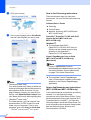
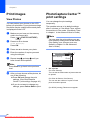
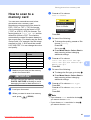
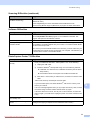
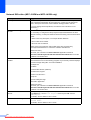
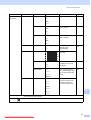
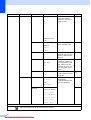
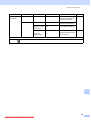
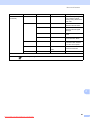
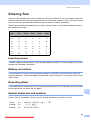
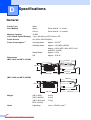
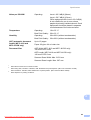
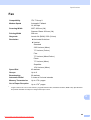
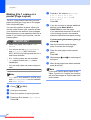
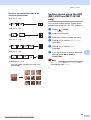
Making copies Enlarging or reducing the copied image You can choose an enlargement or reduction ratio. If you choose Fit to Page, your machine will adjust the size automatically to the paper size you set. 198% 10x15cmiA4 7 186% 10x15cmiLTR 142% A5iA4 100% 97% LTRiA4 93% A4iLTR (MFC-J220 and MFC-J265W only) 83% a Press b c d Load your document. (MFC-J410 and MFC-J415W only) 83% LGLiA4 Enter the number of copies you want. 69% A4iA5 Press a or b to choose Enlarge/Reduce. Press OK. 47% A4i10x15cm (COPY). e Press a or b to choose 100%, Enlarge, Reduce, Fit to Page or Custom(25-400%). f Do one of the following: If you chose Enlarge or Reduce, press OK and press a or b to choose the enlargement or reduction ratio you want. Press OK. If you chose Custom(25-400%), press OK and then enter an enlargement or reduction ratio from 25% to 400%. Press OK. If you chose 100% or Fit to Page, press OK. Go to step g. Fit to Page Custom(25-400%) g If you do not want to change additional settings, press Mono Start or Colour Start. Note • Page Layout is not available with Enlarge/Reduce. • Page Layout and Sort (MFC-J410 and MFC-J415W only) are not available with Fit to Page. • Fit to Page does not work correctly when the document on the scanner glass is skewed more than 3 degrees. Using the document guidelines on the left and top, place your document in the upper left hand corner, with the document face down on the scanner glass. • Fit to Page is not available when using the ADF. 21 Downloaded from ManualsPrinter.com Manuals 7