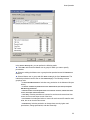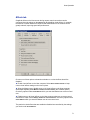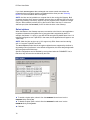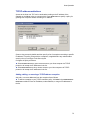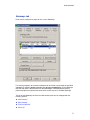
1
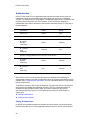
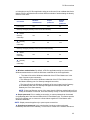
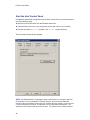
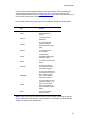
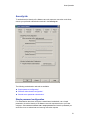
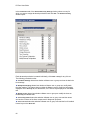
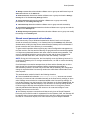
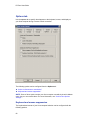
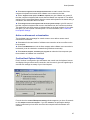
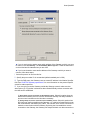
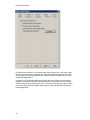
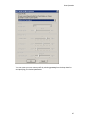
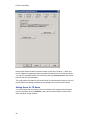
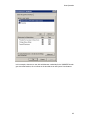
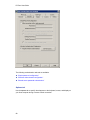
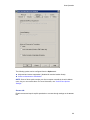
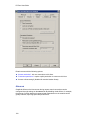
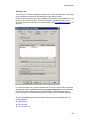
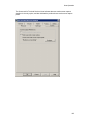
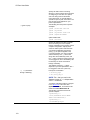
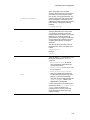
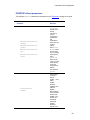
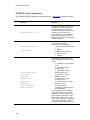
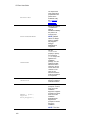
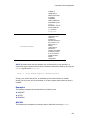
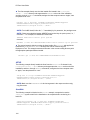
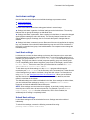
Host Operation Select Lock out or Permit connection based on time zone to permit or prevent remote connections to your Host computer based on the day of the week and the time of day. You can specify permitted access by time when you click Time Zone Settings. Time zone settings Use the Time Zone Settings window to specify the times at which the Host computer is available for remote connections. The time map is divided into half-hour time slots for each day of the week. Each half-hour time slot is marked with a dot or a blank, as follows: A dot indicates a connection is permitted during a specified half-hour period. A blank indicates a connection is not permitted during that half-hour period. In this example, remote connections are permitted only from 9:00 AM to 5:00 PM on Monday through Friday. To edit the time map, follow these steps: 1 Select a time period (rectangle) in the time zone map. 2 Click Permit or Lock to specify whether remote connections are permitted during the selected time period. You can also use the arrow keys to navigate to the desired time, and press the [+] or [-] keys on your keyboard to enable or disable connections for a selected time interval. 3 Click OK when you are finished Connection permission Specify certain conditions that must be met for remote control connections to your Host computer: Select No permission required (default) to allow remote control connections to your Host computer from any authenticated the Master user at any time. Select Permission must be granted by Host if you want to grant an authenticated the Master user explicit permission to connect to your Host computer. From the Host’s user must respond within drop-down list, select the time (10 seconds, 30 seconds, 1 minute, or 69