1
Chapter 3 – Using the Web Management Software
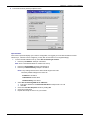
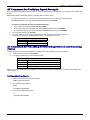
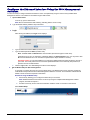
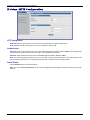
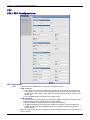
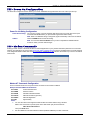
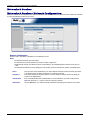
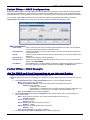
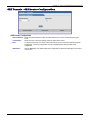
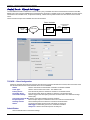
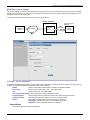
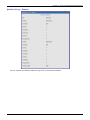
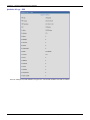
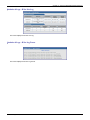
IP Setup > DDNS Configuration
80B
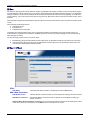
DDNS (Dynamic Domain Naming System) allows you to have a static domain name with a dynamic IP address. Whenever your
dynamic IP address changes, it is submitted to the DDNS server where your domain name is updated to point to the new IP
address.
Note: You have to register with a DDNS server to use this feature.
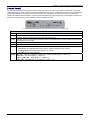
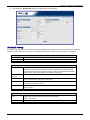
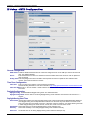
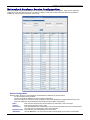
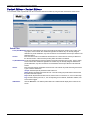
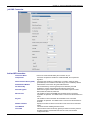
General
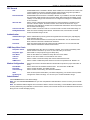
DDNS:
Use Check IP:
Check IP Server:
Check IP Port:
Server:
Port:
Max Retries:
Update Interval:
System:
Domain:
Check the Enable or Disable box. This enables/disables DDNS.
Default = Disable.
Check the Enable or Disable box. If enabled, the program will query the server to determine
the IP address before it performs the DDNS update (the IP address is still assigned by the
wireless provider and the DDNS will be updated based on the address returned by Check IP
Server). If disabled, the program will perform the DDNS update using the IP address that it
obtains from the PPP link. Default = Enable.
Enter the Server name from which the currently assigned IP address is obtained. This check
IP server is a server the router accesses to check it’s current IP address.
Enter the port number of the Check IP Server. Default is 80.
Enter the Server name to which the IP Address change is registered. Example:
members.dyndns.org
Enter the Server port number. Default is 80.
Enter the maximum number of tries that will be allowed if the update fails.
Default = 5. Range is 0 – 100.
Enter the intervals in days that will be allowed to pass when there is no IP Address change. At
the end of this interval, the existing IP Address will be updated in the server so that it will not
expire. Default = 28 days. Range is 1 – 99 days.
Sets the system registration type as either Dynamic or Custom. Default = Dynamic.
Enter the registered Domain name.
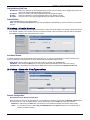
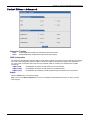
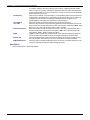
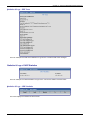
Authentication
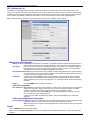
Username:
Password:
Enter the Username that can access the DDNS Server. Default = NULL. You should have
received your username when you registered with the DDNS service.
Enter the Password that can access the DDNS Server. Default = NULL. You should have
received your password when you registered with the DDNS service.
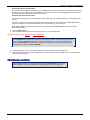
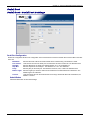
Submit
Click the Submit button to save these settings.
Note: You must click Save and Restart once you have completed and submitted all the screens on which you have made
changes.
Multi-Tech Systems, Inc. MultiModem rCell User Guide
25