1
00-UP-800/810(Basic)v2-B 07.7.25 5:54 PM Page 13
GLU opening by GLU code
Enter a GLU code and press the © key to open a new check.
GLU temporary closing by ı, f or removal of the optional real clerk key
After entering items, press the ı key or remove the optional real clerk key (contactless clerk key or WMF
clerk key) to temporarily close the check.
Temporary finalization by the f key allows you to open the check again for additional orders, and also
show the current balance including tax.
GLU re-opening by O key or GLU code
Press the O key to display the opened GLU list. Then select a GLU code from the list to re-open the check.
You can also directly enter the GLU code intead of pressing the O key.
GLU payment in part
When paid in part, enter the paid price and press the Y or A key.
GLU payment in full
When paid in full, settle the check by cash, check, credit or foreign currency.
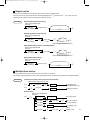
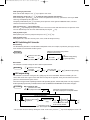
Bill totalizing/bill transfer
Bill totalizing
The bill totalizing function is used to totalize multiple bills when, for example, a particular guest pays not only
his or her bill, but also the bills of other guests.
Adding the total amount of the previous
bill to that of the new bill
Procedure
O
ı
[Select the GLU code]
GLU code
(1 to 9999.9)
g
(Without receipt printing)
B
GLU code
(1 to 9999.9)
g
[Payment operation]
Bill transfer
This function is used to change the GLU code of a particular bill.
Procedure
O
[Select the GLU code]
GLU code
(1 to 9999.9)
g
B
New GLU code
(1 to 9999.9)
ı (Without receipt printing)
g
Bill separating
This function is used when each guest of a group pays his or her own order. With this function, you can
select some items from a guest check and make an entry for the payment. Also, you can transfer the items
you have selected to other guest checks.
There are three types of bill separating functions: bill separating by item, amount and person. The key sequence
for bill separating by item only is introduced here. Refer to INSTRUCTION MANUAL for the other two types.
Procedure
Bill separating by item
O
[Select the GLU code]
GLU code (Original GLU code)
g
Information registered for the original
GLU code is displayed in the original window.
To select another item
To enter total q’ty
b
*
[
Touch the item to be
separated.
]
fl
Numeric entry
(Q’ty)
or touch the screen.
(To return to the original window)
e
[
Payment
operation
]
The selected item is moved
to the receiving window.
To end
b
ı
* You can also select the item by moving the cursor. In this case, press the · key first to display the cursor. 13