1
INSTALLING THE SOFTWARE
Set the IP Address
This setting is only required once when using the machine on a network.
8
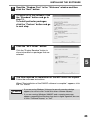
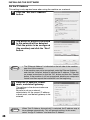
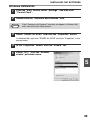
Click the "Set the IP Address"
button.
9
The printer or printers connected
to the network will be detected.
Click the printer to be configured
(the machine) and click the "Next"
button.
Note
10
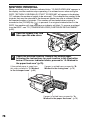
• The "Ethernet Address" is indicated on the left side of the machine
near the LAN connector.
• If the machine can not be recognized, enter the Ethernet Address
and click the "Initialize" button to initialize the IP address. Follow the
on-screen instructions to click the "OK" button and then the "Search"
button. If the machine is still not recognized, disable your computer's
firewall and then repeat the installation from the beginning.
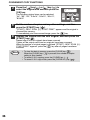
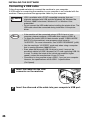
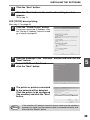
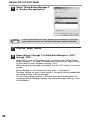
Enter the IP address, subnet
mask, and default gateway.
The settings in the above window are
examples.
Be sure to ask your network
administrator for the correct IP address,
subnet mask, and default gateway to be
entered.
Note
48
When "Get IP Address Automatically" is selected, the IP address may at
times change automatically. This will prevent printing. In this event,
select "Assign IP Address" and enter the IP address.