1
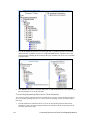
device. Note that standard, echelon, bas_controller, and mbus_integrator catalogs are pre-loaded in the
root/lonWorks/types/folder of the SmartServer flash disk.
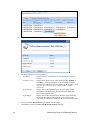
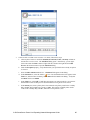
To copy a resource file to the SmartServer, follow these steps:
1.
Follow steps 1–3 in Copying Application Image Files.
2.
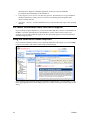
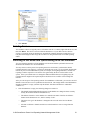
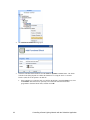
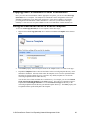
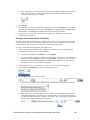
Access the root/lonworks/types folder on the SmartServer flash disk .
3.
Copy the resource file from the location where it saved to the root/lonWorks/types folder on the
SmartServer flash disk.
Setting the SmartServer to Standalone Mode
For a power line repeating network, you must operate the SmartServer in standalone mode. This is
because the SmartServer needs to operate as the exclusive network manager of the system in order to
establish and maintain the appropriate repeating chains. A repeating chain is the path a message must
travel on the PL-20 channel from the SmartServer to one or more repeating devices before reaching the
target device.
In standalone mode, the SmartServer controls the network management commands sent to the devices
attached to its channel (on a network operating in LNS mode, LNS handles these commands). In
standalone mode, the SmartServer can directly download the application image file to the devices and
commission, set the application state (online/offline), wink, test, and reset the devices attached to its
channel.
Placing a Network in Standalone Mode
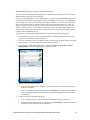
To set a network to standalone mode using the SmartServer Web pages, follow these steps:
1.
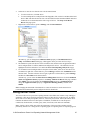
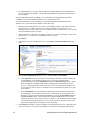
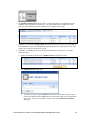
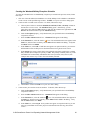
Open the SmartServer Web pages following Chapter 3 of the i.LON SmartServer User’s Guide.
2.
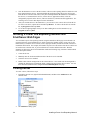
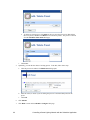
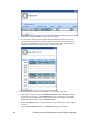
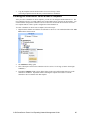
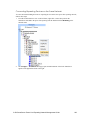
Click Driver at the top of the tree in the left frame.
3.
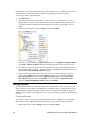
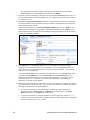
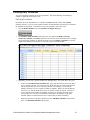
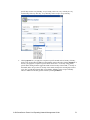
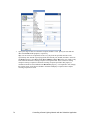
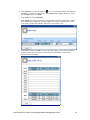
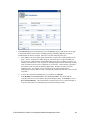
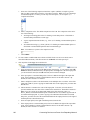
Click the Net network. The Setup – LON Network Driver Web page opens in the right frame.
4.
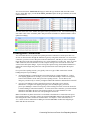
In the Network Management Service property, click Standalone.
5.
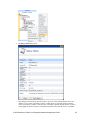
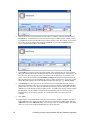
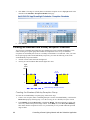
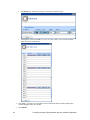
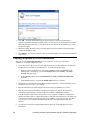
Click Submit. A dialog appears informing you that the SmartServer is being switched to
standalone mode.
i.LON SmartServer Power Line Repeating Network Management Guide
7