1
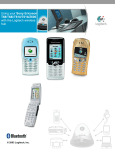
Using your Siemens S55 with the Logitech wireless hub Learn more about connecting This section contains other information that may be useful to you regarding pairing, disconnecting, and unpairing your mobile phone. Pairing your Siemens S55 on request If you skip the pairing process during the initial connection procedure, then when you try to later synchronize your Siemens S55 with your computer, you are requested by Bluetooth to pair the two devices. You must do this before you can synchronize. To pair the Siemens S55 and your computer on request: 1. Make your mobile phone discoverable. To make sure that your Siemens S55 is in discoverable mode, scroll to Menu Æ Setup Æ Connectivity Æ Bluetooth Æ Visib.t.others and select Always visible. 2. Display the device icon for your Siemens S55 mobile phone. To do this, double-click the Bluetooth icon, , in the Windows Taskbar and select Entire Bluetooth Neighborhood if you are using Windows 2000, or View devices in range if you are using Windows XP. Right-click on the device icon and select Pair Device. The following dialog is displayed: 3. Pair your Siemens S55 and computer. You do this by entering a PIN Code of up to 16 digits and clicking OK. (A PIN Code is also known as a Passkey.) On your Siemens S55 mobile phone you are prompted to choose whether to accept the pairing request from your computer. © 2003 Logitech, Inc. 34