1
12
Configuring CUP Port Connectivity
To create or edit CUP port connectivity configurations
1.
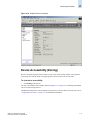
Display the CUP port connectivity configuration list, as described on page 12-7.
2.
You can either create a new configuration or edit an existing configuration.
•
To create a new configuration, click New.
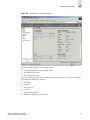
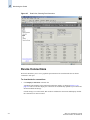
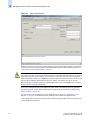
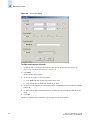
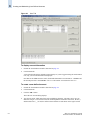
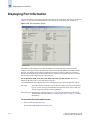
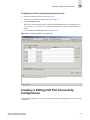
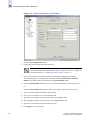
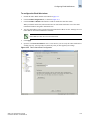
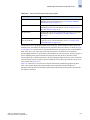
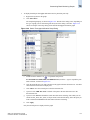
The Create Port CUP Connectivity Configuration dialog displays all ports and port names on
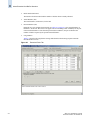
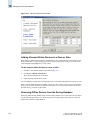
the selected switch (similar to the dialog shown in Figure 12-4). The Block column, Prohibit
column, and prohibited ports matrix are displayed as empty, for you to configure.
•
To edit an existing configuration, click the configuration and then click Edit.
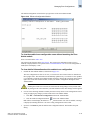
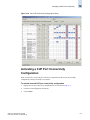
The Edit Port CUP Connectivity Configuration dialog displays the content of the selected
configuration from the switch in a table format (see Figure 12-4).
3.
Optional: Check the checkbox corresponding to a port you want to block on the Block column.
Repeat this step for all ports you want to block. Click the Block All checkbox to block all ports.
4.
Optional: Check the checkbox corresponding to a port you want to prohibit on the Prohibit column.
Repeat this step for all ports you want to prohibit. Click the Prohibit All checkbox to prohibit all
ports.
The cells in the matrix are updated with “X” icons to identify prohibited ports.
5.
Optional: Click the individual cells corresponding to the combination of ports you want to prohibit.
You cannot prohibit a port to itself.
6.
Review your changes. A blue background in a cell indicates that its value has been modified.
7.
After you have finished making changes, do any of the following:
•
Click Activate to save the changes and make the configuration active immediately, as
described in “Activating a CUP Port Connectivity Configuration” on page 12-9.
•
•
Click Save to save the changes but not make the configuration active.
•
•
12-8
Click Save As to save the configuration to a new configuration file. When you click Save As, a
dialog displays in which you should type a file name and description for the configuration file.
Click Refresh to refresh the information from the switch.
Click Cancel to cancel all changes without saving.
Web Tools Administrator’s Guide
Publication Number: 53-0000522-09