Download Apple Mac OS X Server Collaboration Services User`s guide
Transcript
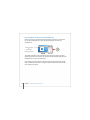
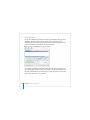
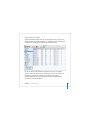
You can also use the Installer to open the Disk Utility application and then use it to erase the target volume or another volume. You can erase the target volume using the Mac OS Extended format or Mac OS Extended (Journaled) format. You can erase other volumes using either of those formats, Mac OS Extended format (Case-Sensitive) format, Mac OS Extended (Journaled, Case-Sensitive) format, or UNIX File System (UFS) format. You should not use UFS format or either case-sensitive format for a Mac OS X Server startup volume. Hardware-Specific Instructions for Installing Mac OS X Server When you install server software on Xserve systems, the procedure you use when starting the computer for installation is specific to the kind of Xserve hardware you have. You may need to refer to the Xserve User’s Guide or Quick Start that came with your Xserve, where these procedures are documented. Identifying Remote Servers When Installing Mac OS X Server For remote server installations, you need to know this information about the target server: Â The identity of the target server. When using Server Assistant, you need to be able to recognize the target server in a list of servers on your local subnet or enter the IP address of the server (in IPv4 format: 000.000.000.000) if it resides on a different subnet. Information provided for servers in the list includes IP address, host name, and MAC (Media Access Control) address (also called hardware or Ethernet address). Chapter 3 Installing Server Software 59