1
114
DSView Installer/User Guide
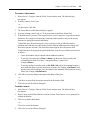
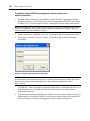
To change the DSView software Telnet application text color:
1.
Select Options - Preferences from the menu bar.
2.
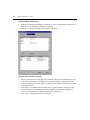
In the Colors panel, click the Text/Normal Mode box, and choose a color. The default value
is white.
Changing the cursor
You may specify whether the cursor (caret) on the DSView management software Telnet
application screen appears as an underline or as a block.
To change the DSView software Telnet application cursor appearance:
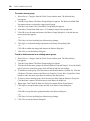
1.
Select Options - Preferences from the menu bar.
2.
In the Caret list, choose Block to display the cursor as a block or choose Underline to display
the cursor as an underline. The default value is Underline.
Enabling and disabling the exit warning prompt
When the exit warning prompt is enabled, a message appears when you select Telnet - Exit. You
may then choose to exit or continue the session. When disabled, the session closes without
further prompting.
To enable/disable an exit warning prompt for DSView software Telnet
application sessions:
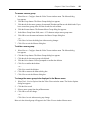
1.
Select Options - Preferences from the menu bar.
2.
Enable or disable the Prompt on Exit checkbox. The default value is enabled.
Customizing session properties
When you are connected to a device or port using the DSView management software Telnet
application, you may specify session properties that will be stored and reused every time you
connect to the selected device or port. When you select Options - Session Properties in the DSView
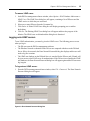
software Telnet application, the Terminal, Login Scripts and Logging tabs appear.
Changing the terminal window size
The Terminal Size lists specify the number of rows and columns to display in the virtual terminal
window. These values determine the window’s height and width.
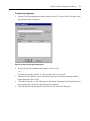
To change the DSView Telnet terminal window size:
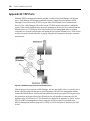
1.
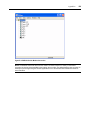
Select Options - Session Properties from the menu bar.
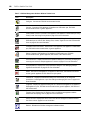
- or Click the Session Settings icon in the toolbar.
2.
Click the Terminal tab.