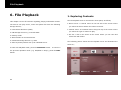
1
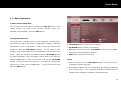
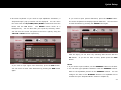
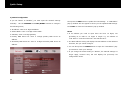
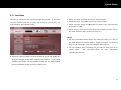
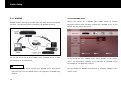
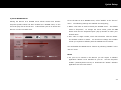
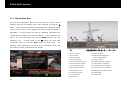
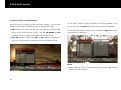
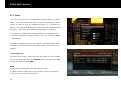
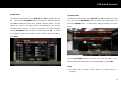
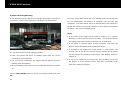
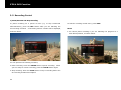
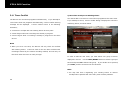
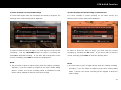
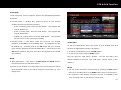
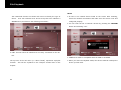
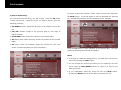
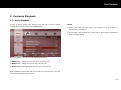
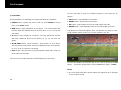
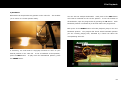
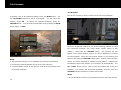
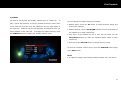
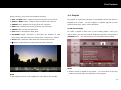
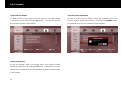
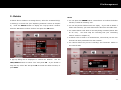
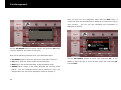
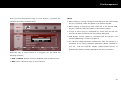
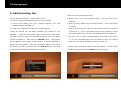
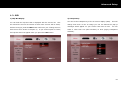
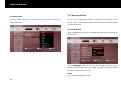
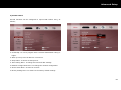
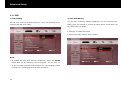
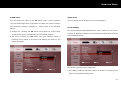
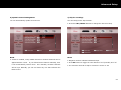
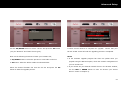
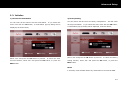
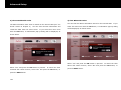
STB & PVR Function 3) Set timer To set a timer for a future program, perform the appropriate procedure as follows; For EPG Action = “Change Svc”, place the cursor on your desired program and use the following functions; To set a recording timer: Press the REC button. The program will now be shaded red. To set a viewing timer: Press the PLAY button. The program will To delete an existing timer: Press the STOP button. The program now be shaded blue. will now return to the normal grey shading. For EPG Action = “Set Timer”, place the cursor on your desired program. Press OK to set a recording timer. The program will now be shaded red. A second press of the OK button will set a viewing timer, and the program will now be shaded blue. A third press of the 4) Edit timer To edit an existing timer, place your cursor on your desired timer and perform the appropriate procedure as follows; OK button will delete the timer and return the program to the normal To edit a recording timer, press the REC button. grey shading. To edit a view timer, press the PLAY button. This will open the “Edit Timer” window. NOTE When EPG Action = “Set Timer”, the REC, PLAY and STOP buttons You can now make your desired changes to the timer (see “Edit Timer” section earlier in this chapter). can still be used to set and delete timers. Timers set via the EPG are created with a recurrence setting of “Once”. You must edit the timer if you wish to change the recurrence e.g. for a NOTE weekly timer. You can create and edit a timer quickly by pressing the REC button twice for a recording timer or the PLAY button twice for a view timer. If a program is only partially covered by a timer, it is shaded in pink for a recording timer or pale blue for a view timer. 61