1
Ulead DVD PictureShow User Guide
Create Slideshow
The Create Slideshow step allows you to add slideshows to the project. This is also where you can
modify slideshows already included in the project.
Assembling different types of slideshows:
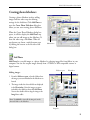
1. Click the buttons in the Create Slideshow dialog
box to choose the type of slideshow to add to the
project.
Photo
slideshow
Video
Ulead Photo
Explorer slideshow
• New Slideshow Use images from your
computer to create a photo slideshow.
• Add Video If you have multimedia slideshows
on video, you can import video files to the
project. Only a single video file can be added at
a time.
• Add UES Slideshow Import an existing Photo
Explorer Slideshow file (UES) to create the
slideshow.
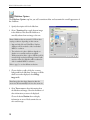
2. If you have numerous images, video files, or Photo
Explorer slideshows scattered in different folders,
you can easily add those files to your project
without manually locating them. Simply click
Batch Collect to select which of the three types of
files to collect and add them to your project.
When collecting images, images in each subfolder
will be added as a separate photo slideshow in the
project.
Editing slideshows:
•
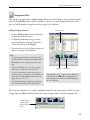
To rearrange slideshows in the project, drag and
drop the slideshow thumbnails to the desired order
in the Slideshow list window.
•
To edit a slideshow, double-click the slideshow
thumbnail or click
.
Notes:
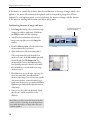
• When you edit a Photo Explorer slideshow, it will
first be converted into a photo slideshow. A
confirmation message appears when you attempt to
open it for editing. Changes will reflect only in your
DVD PictureShow project and will not affect the
original Photo Explorer slideshow file.
• Video cannot be edited in DVD PictureShow.
8