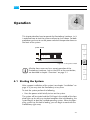
1
ProntoXway Hardware Guide
RAID 5 systems: Replace the failed disk as soon as possible. If
you do not replace a broken disk in time and another disk fails
in the meantime, your data may be unrecoverable.
RAID 0 systems: If a hard disk fails, your data will be unrecoverable. It is strongly recommended to perform backups of
your data at regular intervals.
The hardware replacement of a failed disk can be divided into three
steps:
1.
2.
3.
Remove the hard disk from the system.
Replace the hard disk.
Reassemble it into the system.
All steps are explained in the following.
Step 1: Removing the Hard Disk
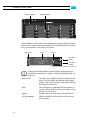
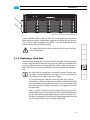
The hard disks that are accessible at the front of the system store the
data of the main storage. Because they are connected to the whole system with the help of disk carriers, they can be removed easily.
For an overview of a disk carrier as well as further information
about it see section “Hard Disk Array” on page 2-7.
To remove a hard disk from the system perform the following:
y If appropriate, stop all accesses to the hard disk array of your system, for example, by exiting the video system software and severing the network connections.
y Lift the faceplate of the system (see section “Faceplate” on
page 2-6).
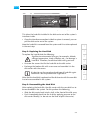
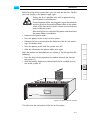
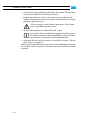
y Unlock the disk carrier of the defective hard disk by pressing the
opener of the disk carrier to the left (1).
This will cause the lever to come out of the disk carrier so that it protrudes a little from the rest of the front.
y Take the lever and turn it more to the left (2) until it cannot be
moved further:
5-4