1
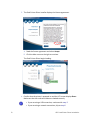
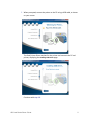
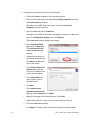
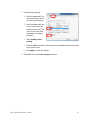
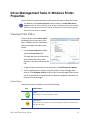
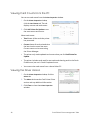
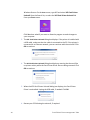
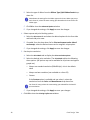
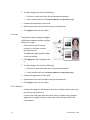
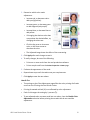
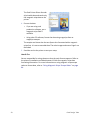
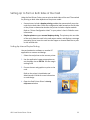
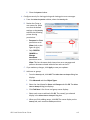
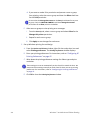
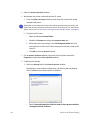
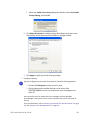
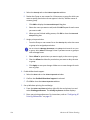
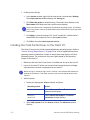
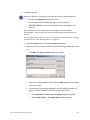
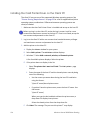
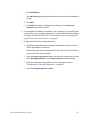
5. On the Layout tab, select Flip on Short Edge for the Print on Both Sides setting. 6. Click Apply.
Your PC application’s Print settings may override the settings in the Card Printer Driver. Make sure your application’s Print settings specify “print on both sides”.
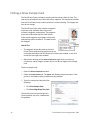
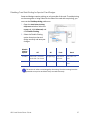
Printing a Card With Manual Duplex Printing
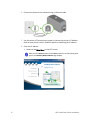
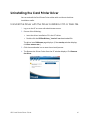
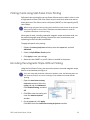
1. Put a card in the input hopper or single‐feed slot.
2. Click Print to send the card to the printer. The printer processes the first side of the card.
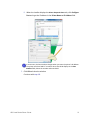
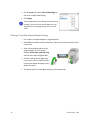
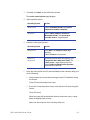
3. After the printed card exits to the output hopper, the LCD screen displays Insert same card side 2 up and the User and Card lights flash. 4. Pick the card up by the edges and turn it over. Insert it under all cards in the input hopper and push until it drops into place.
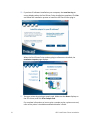
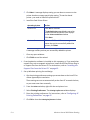
5. The printer picks the card again and prints the second side.
56
Card Design Tasks